> ## Documentation Index
> Fetch the complete documentation index at: https://kb.snagr.co.uk/llms.txt
> Use this file to discover all available pages before exploring further.
# Login with Two-Factor Authentication
After the two-factor authentication activation, user can now login with 2 different authentication factors.
For login to SnagR on website, the two authentication factors are:\
**1. User credential**\
**2. Verification code generated on Google Authenticator app**.
For login to SnagR on device, the two authentication factors are:\
**1. User credential**\
**2. Device passcode/fingerprint**
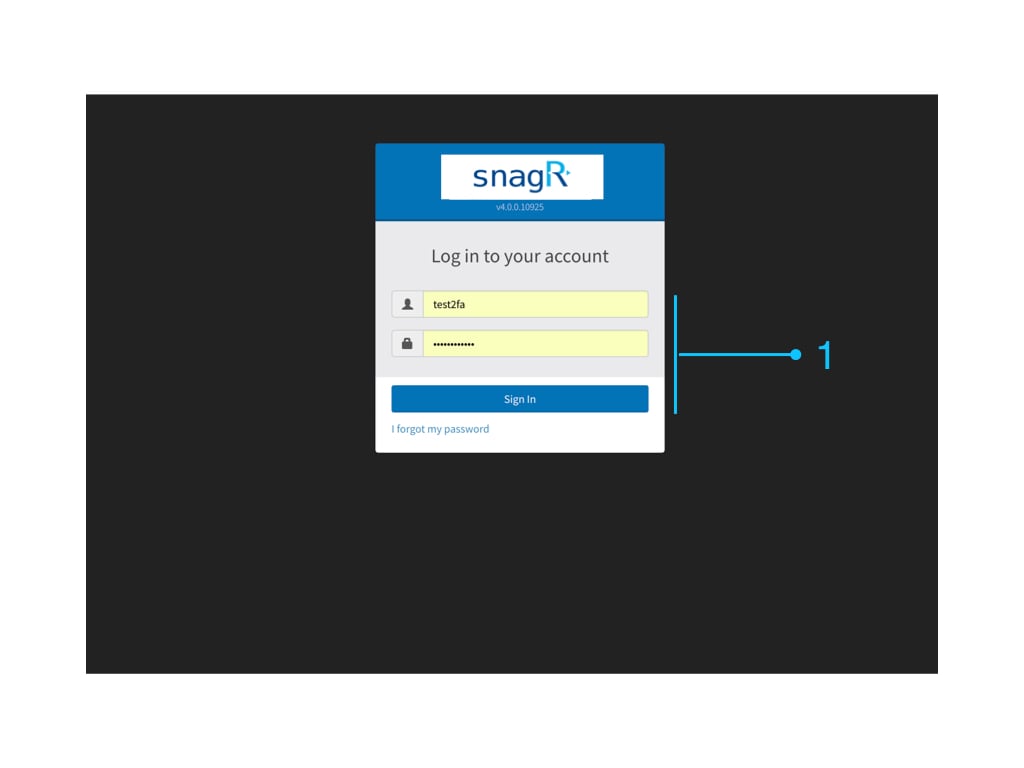
 **Website**
Enter **Username and password**
**Website**
Enter **Username and password**
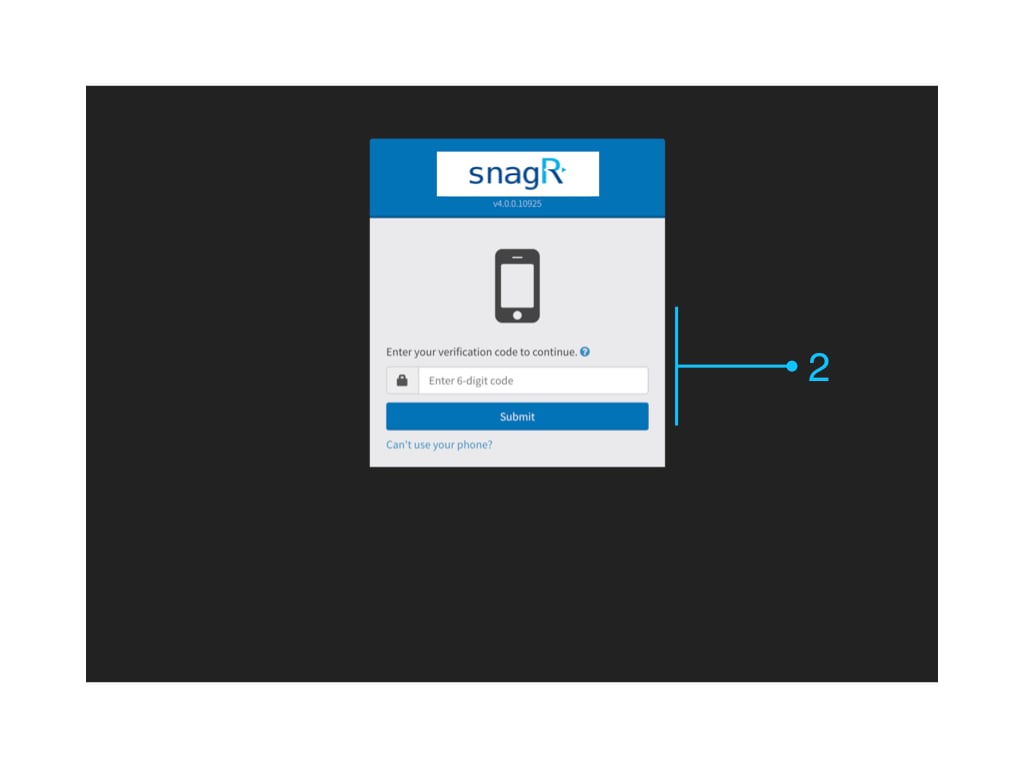
 Open Google Authenticator app or any TOTP (Time-based One-Time Password) supporting app to get the verification code.
**Enter 6-digit code**
Open Google Authenticator app or any TOTP (Time-based One-Time Password) supporting app to get the verification code.
**Enter 6-digit code**
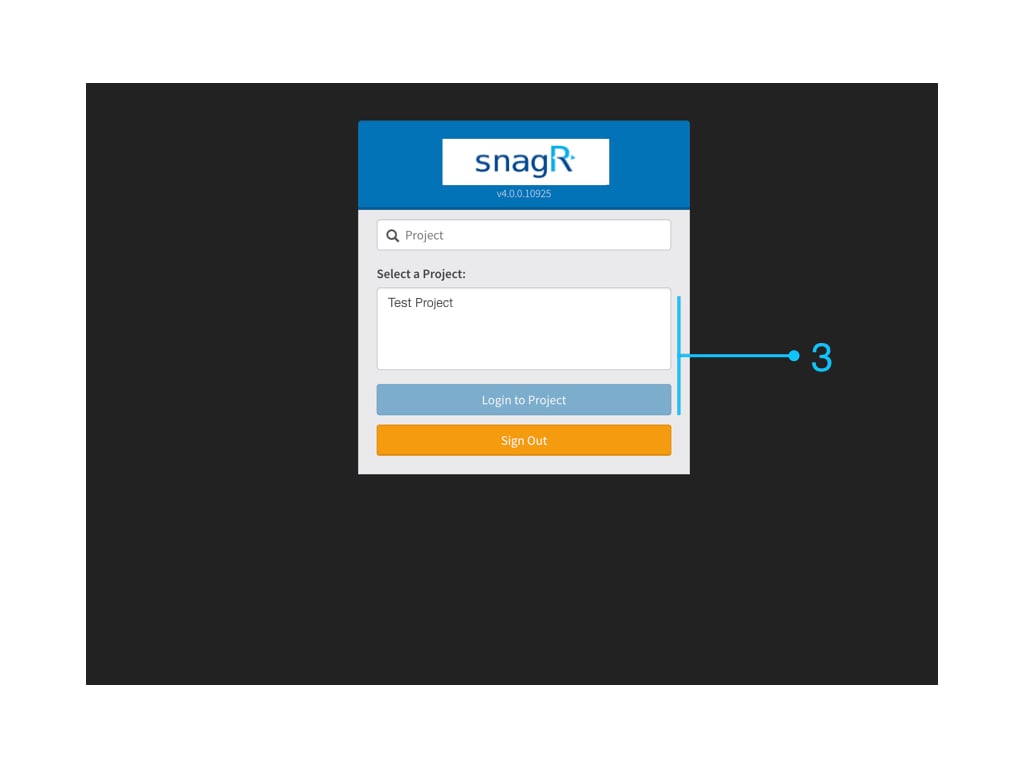
 You now successfully login to the project!
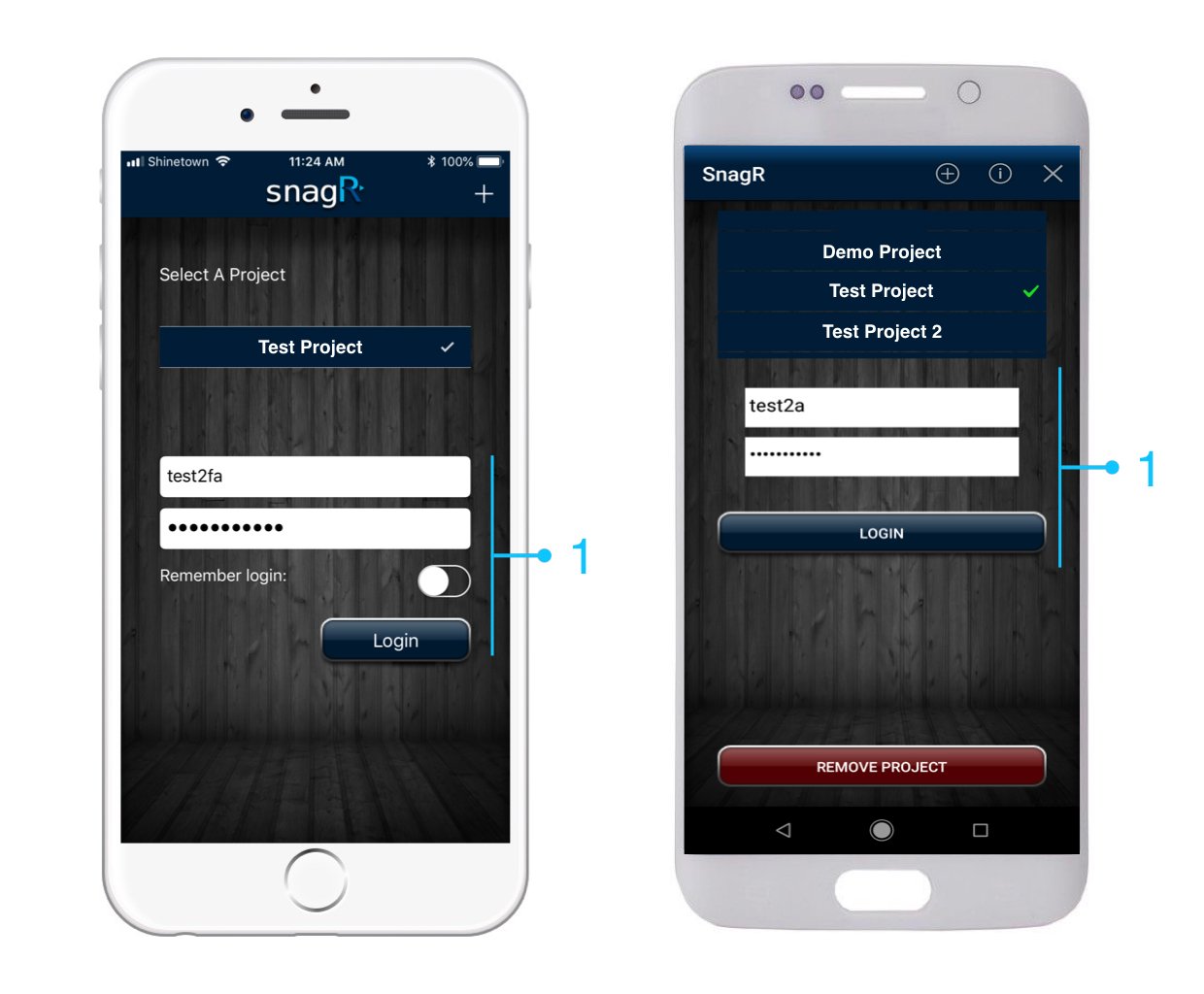
 **Device**
Enter **Username and password**
**Device**
Enter **Username and password**
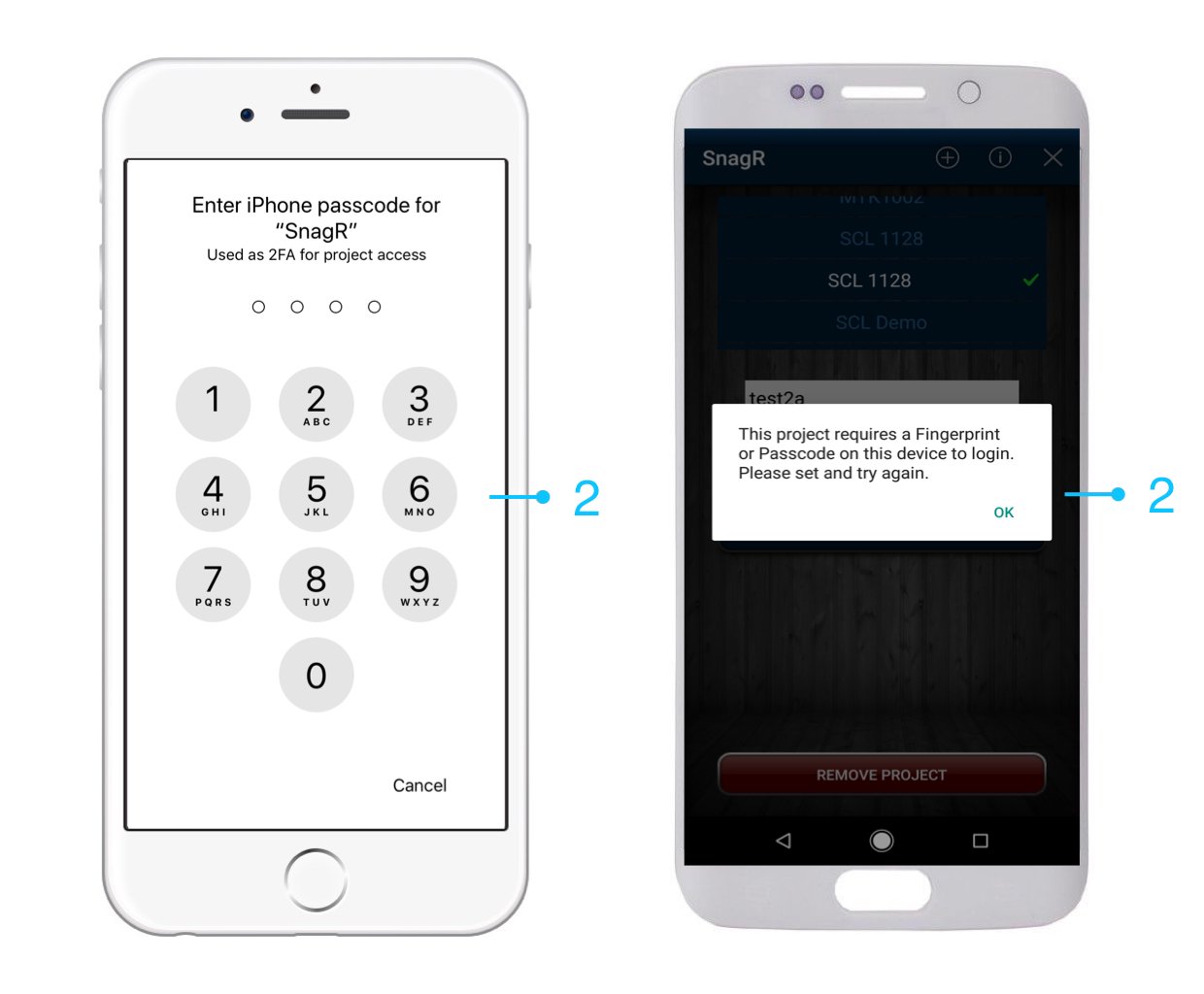
 Enter your **device passcode**
 For iOS device, you **must** enter device passcode/fingerprint to login to the project after entering your account password on the login page.
For Android device, the SnagR App will allow you to login to the project **only when a device passcode/fingerprint is set up**. Otherwise, SnagR app will not let you login to the project until a device passcode/fingerprint is set up.
For iOS device, you **must** enter device passcode/fingerprint to login to the project after entering your account password on the login page.
For Android device, the SnagR App will allow you to login to the project **only when a device passcode/fingerprint is set up**. Otherwise, SnagR app will not let you login to the project until a device passcode/fingerprint is set up.
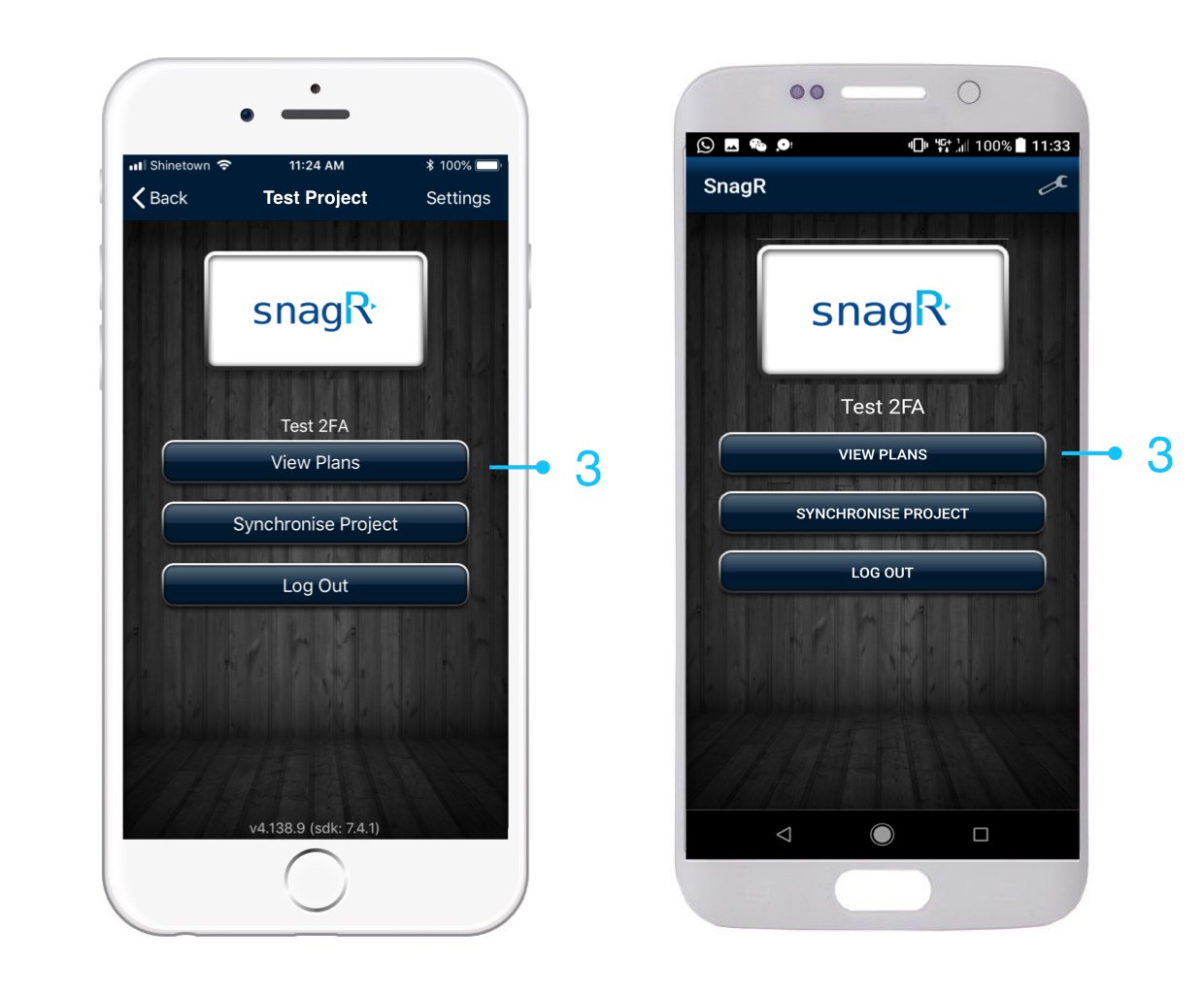
 You now successfully login to the project!
 ### Hints and Tips
### Do I need to generate the verification code on TOTP (Time-based One-Time Password) supporting app or Google Authenticator everytime I login?
You do not need to do that. The verification linkage will stay on the authenticator app after your Two-Factor Authentication activation. You just need to go back to the app and get the verification code everytime you login.
Click [here](/en/faq/general/2fa) to see how to activate Two-Factor Authentication.
### Do I need to remember the 6-digit verification code?
No, the 6-digit verification code **regenerate automatically every 30 seconds** on the authenticator app you are using.
### How can I reset the verification key/How can I get the QR Code?
Click [here](/en/set-up-project/accounts-and-permissions-project-level/reset2fa) to know more.
### Hints and Tips
### Do I need to generate the verification code on TOTP (Time-based One-Time Password) supporting app or Google Authenticator everytime I login?
You do not need to do that. The verification linkage will stay on the authenticator app after your Two-Factor Authentication activation. You just need to go back to the app and get the verification code everytime you login.
Click [here](/en/faq/general/2fa) to see how to activate Two-Factor Authentication.
### Do I need to remember the 6-digit verification code?
No, the 6-digit verification code **regenerate automatically every 30 seconds** on the authenticator app you are using.
### How can I reset the verification key/How can I get the QR Code?
Click [here](/en/set-up-project/accounts-and-permissions-project-level/reset2fa) to know more.