> ## Documentation Index
> Fetch the complete documentation index at: https://kb.snagr.co.uk/llms.txt
> Use this file to discover all available pages before exploring further.
# How to add contractors to project?
 **Website**
The contractor list is the contractors that you wish to raise issues against. If a contractor has not been added to the system you will not be able to assign issues to them.
**What is required?**
**Contractor name and initials**
The contractor name is displayed when you assign issues and generate issue reports. The initials is used as the contractor username for login, and is also displayed on the pins (so you get an overview of whose responsible for the issues on the drawings).
**Email addresses** (Optional)
Each contractor account can store up to 3 email addresses. If you would like contractors to receive report notifications from SnagR please set up the email addresses.
**How to add a contractor / group?**
When everything is ready, click Add Contractors.
**Website**
The contractor list is the contractors that you wish to raise issues against. If a contractor has not been added to the system you will not be able to assign issues to them.
**What is required?**
**Contractor name and initials**
The contractor name is displayed when you assign issues and generate issue reports. The initials is used as the contractor username for login, and is also displayed on the pins (so you get an overview of whose responsible for the issues on the drawings).
**Email addresses** (Optional)
Each contractor account can store up to 3 email addresses. If you would like contractors to receive report notifications from SnagR please set up the email addresses.
**How to add a contractor / group?**
When everything is ready, click Add Contractors.
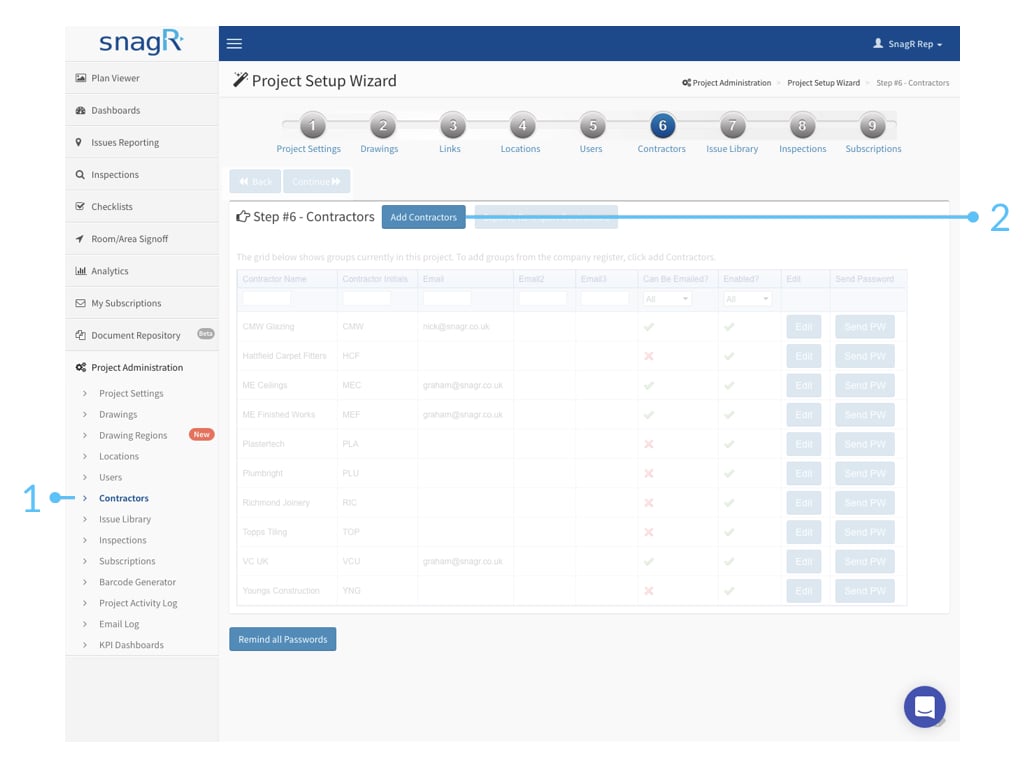 **Check if contractor has been created in the company already**
Before you proceed to Add New Contractors, it would be good to go through the existing list of contractors and see if the one you want to add exists in the company already.
Click [here](/en/set-up-project/accounts-and-permissions-company-level/add-contractors-at-the-company-level) to know how to add contractors at the company level.
**Check if contractor has been created in the company already**
Before you proceed to Add New Contractors, it would be good to go through the existing list of contractors and see if the one you want to add exists in the company already.
Click [here](/en/set-up-project/accounts-and-permissions-company-level/add-contractors-at-the-company-level) to know how to add contractors at the company level.
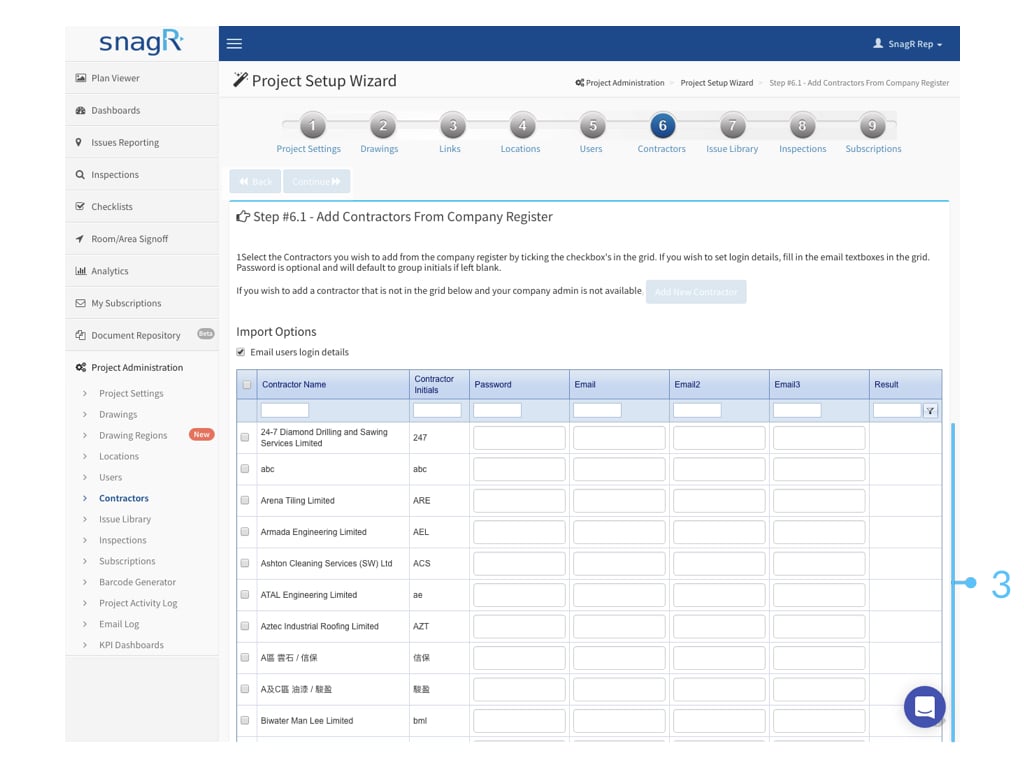
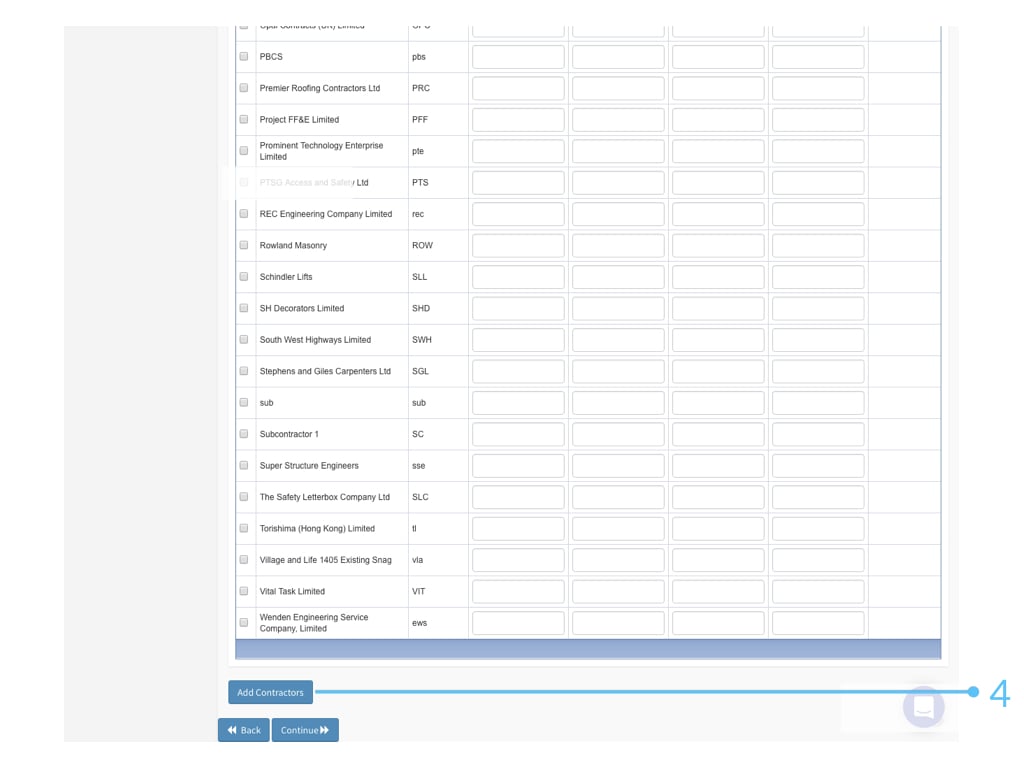 If the contractor already exists put a check to it and click Add Contractors.
 Use Ctrl + F (Windows) or Command + F (Mac) to perform a search.
**Adding a new contractor**
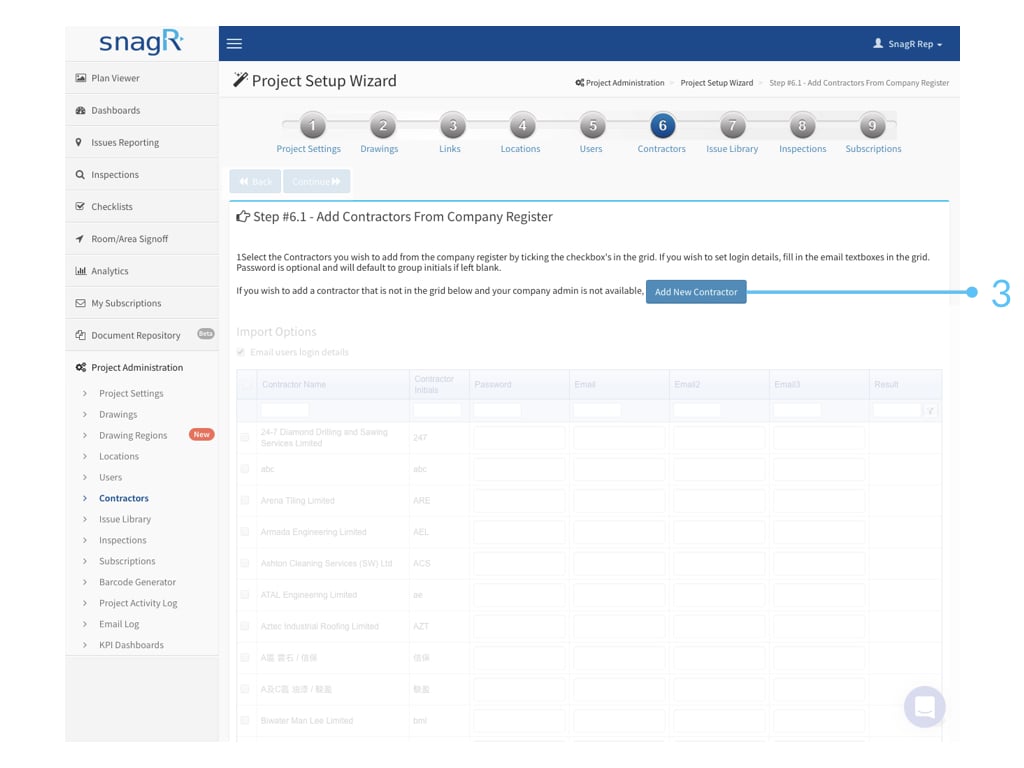
If the contractor is a completely new account to the company, click Add New Contractor.
Use Ctrl + F (Windows) or Command + F (Mac) to perform a search.
**Adding a new contractor**
If the contractor is a completely new account to the company, click Add New Contractor.
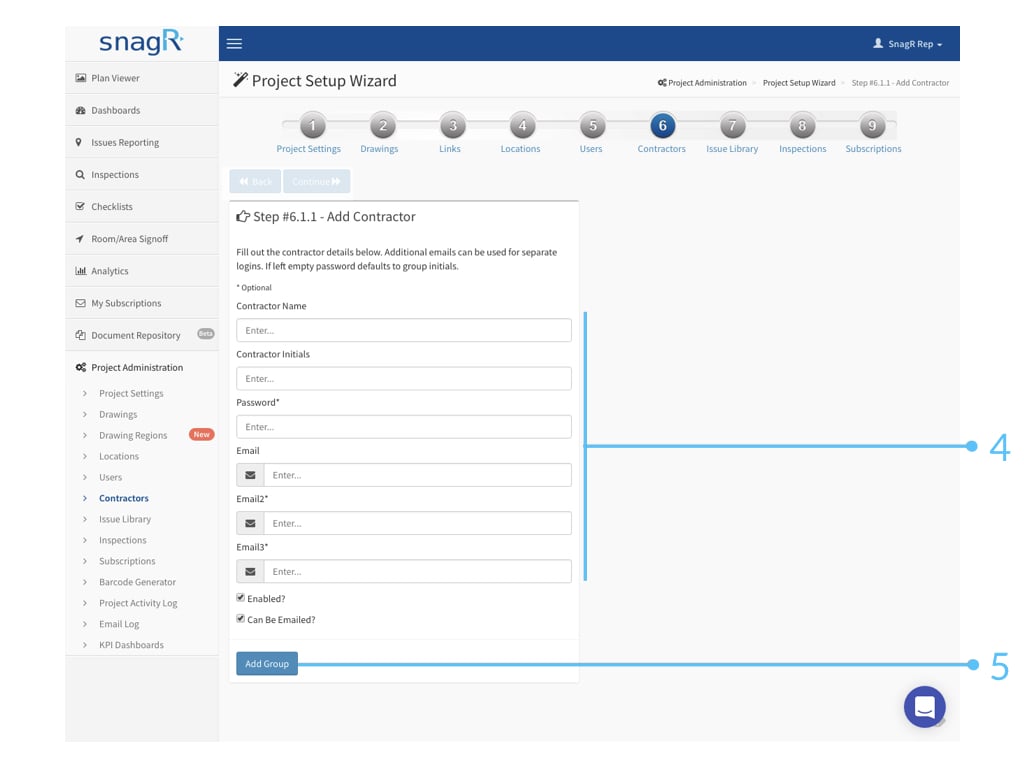
 What's **Enabled?** If you would like the contractor to access the system, check enabled. If you would not like the contractor to have access anymore, uncheck the box. They would not be able to login to the system then. Note a contractor can be disabled but cannot be deleted. This is to protect the project data such that any data relating to the contractor will not be gone regardless of the situation.
What's **Can Be Emailed**\*\*?\*\* If you would like the contractor to receive email notifications from SnagR, check the box.
**Wants to set up quicker? Export and Re-import Contractor with Excel**
The export and re-import feature is a tool to set up email addresses for the contractor accounts efficiently.
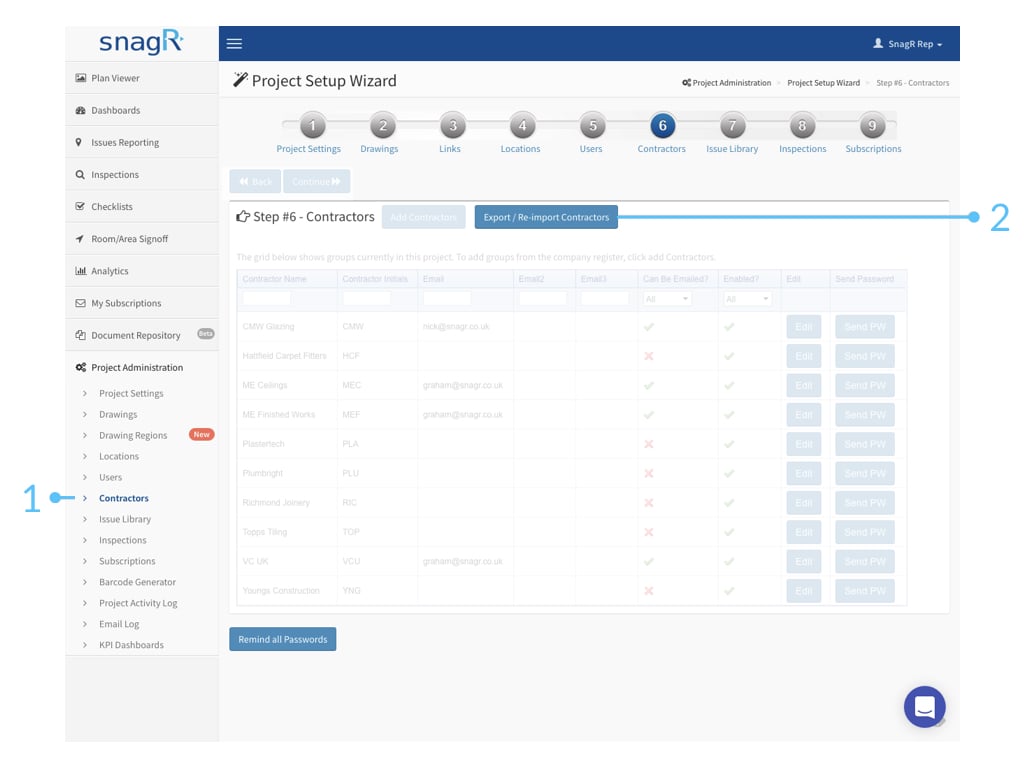
Before you export the list of contractors, the contractor accounts should already be added to the project. As mentioned above, you can add contractors from an existing list in the company or quickly create the accounts without putting in email contacts.
When the contractor list is complete, click Export / Re-import Contractors.
What's **Enabled?** If you would like the contractor to access the system, check enabled. If you would not like the contractor to have access anymore, uncheck the box. They would not be able to login to the system then. Note a contractor can be disabled but cannot be deleted. This is to protect the project data such that any data relating to the contractor will not be gone regardless of the situation.
What's **Can Be Emailed**\*\*?\*\* If you would like the contractor to receive email notifications from SnagR, check the box.
**Wants to set up quicker? Export and Re-import Contractor with Excel**
The export and re-import feature is a tool to set up email addresses for the contractor accounts efficiently.
Before you export the list of contractors, the contractor accounts should already be added to the project. As mentioned above, you can add contractors from an existing list in the company or quickly create the accounts without putting in email contacts.
When the contractor list is complete, click Export / Re-import Contractors.
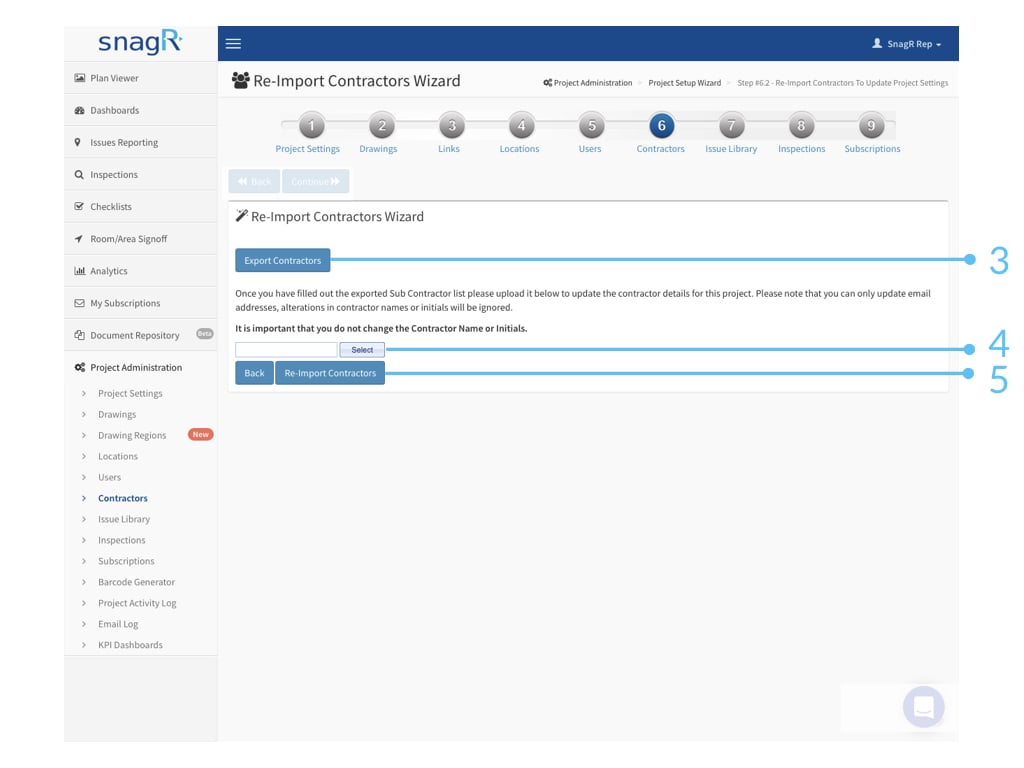
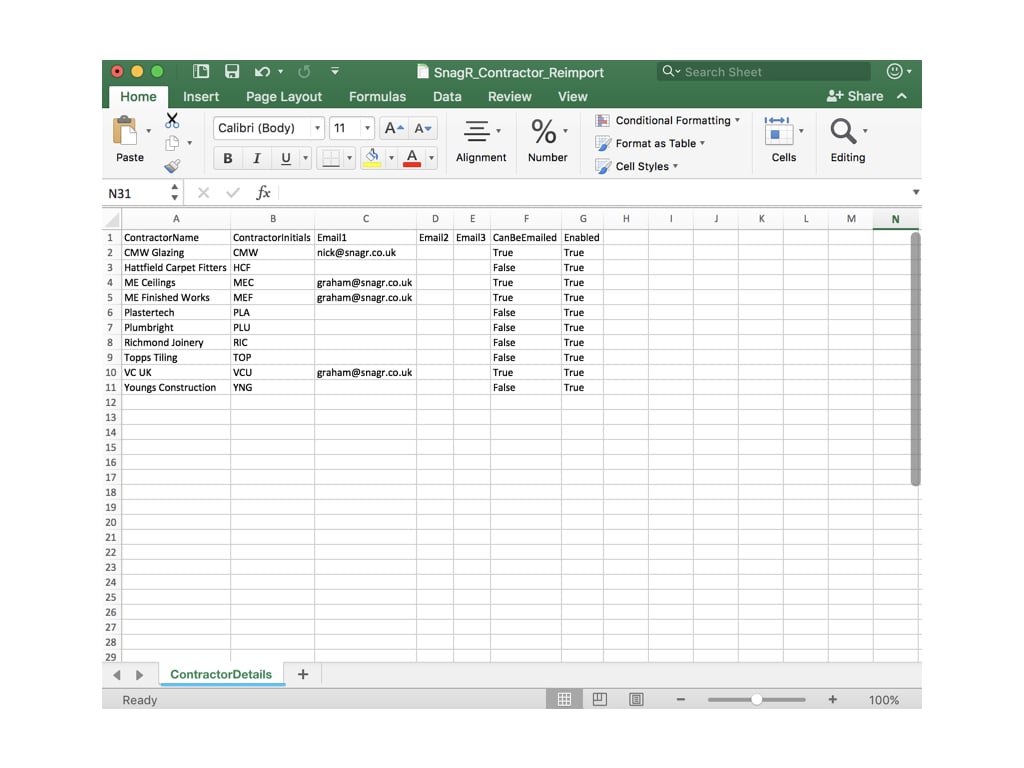 Be sure the spreadsheet is named ContractorDetails so the import matches to the database table. **The contractor names and initials must stay the same** so that the update of email addresses to the contractor account can be matched.
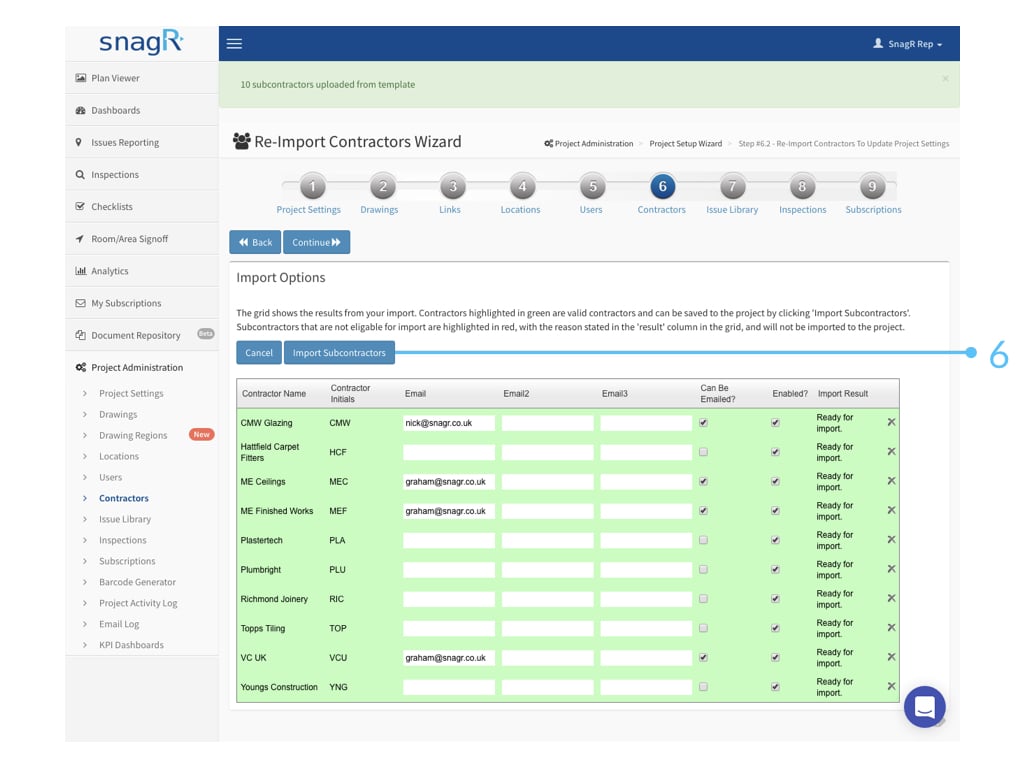 If the import prompts an error (items in red), please check your spreadsheet and be sure the end of email addresses do not contain spaces. You may also want to make sure you did not create an additional account or update contractor names and initials on the spreadsheet.
When all items are displayed green, you are good to proceed by clicking Import Subcontractors.
If the import prompts an error (items in red), please check your spreadsheet and be sure the end of email addresses do not contain spaces. You may also want to make sure you did not create an additional account or update contractor names and initials on the spreadsheet.
When all items are displayed green, you are good to proceed by clicking Import Subcontractors.