> ## Documentation Index
> Fetch the complete documentation index at: https://kb.snagr.co.uk/llms.txt
> Use this file to discover all available pages before exploring further.
# How to set permissions? (Forms)
Permission settings is an important topic because not only does it ensure data security but it also **defines a clear process** for your project team, which a **critical success factor** in rolling out any systems and SnagR is no exception. When everyone knows **who need to do what at when**, people adopt to new systems easier.
**User accounts**
For user accounts, go to Users > Edit Permissions.
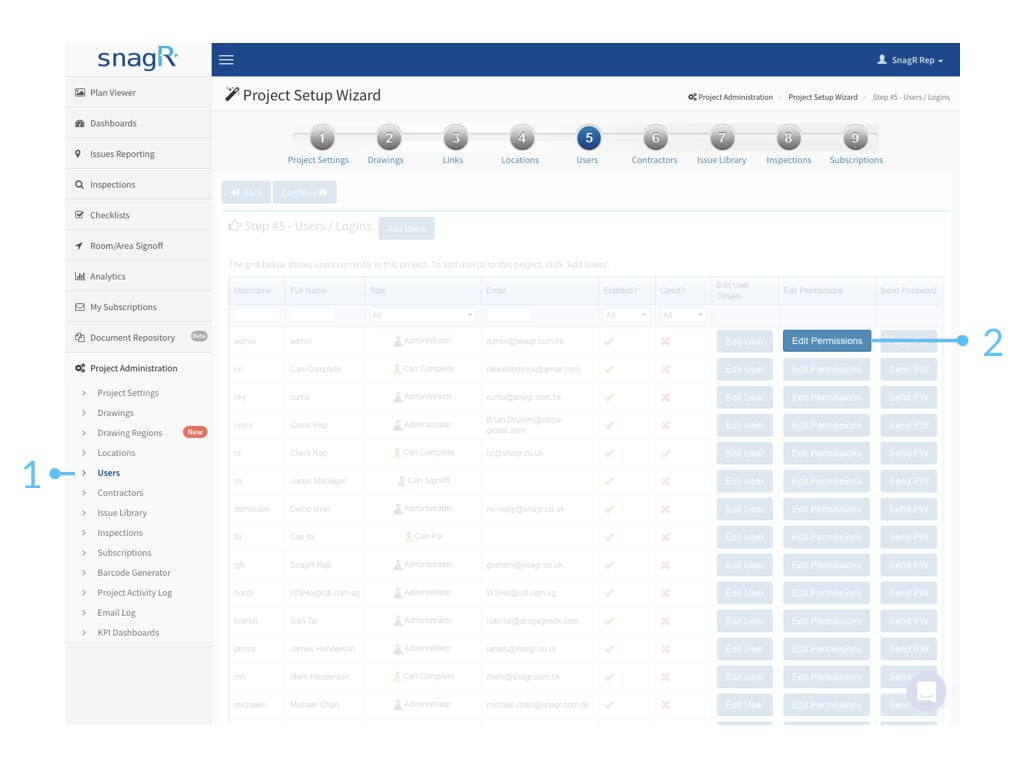 At **Edit User Inspections**, the permission sets are as follow:
**No Access**
**Read Only**
**Can Edit** (Note: to edit means the user cannot add inspections. They can only edit on existing inspections.)
**Can Add**
**Can Close** (Note: to close means it does not allow users to edit on the inspection anymore.)
**Can Reopen** (Note: to reopen means it allows others to edit on the inspection form again.)
**Can Delete** (Note: to be able to delete the inspection, the user also needs to be an administrator in [issue permission sets](/it/impostazione-progetti/utenti-e-permessi-amministrazione-progetto/how-to-set-up-form-permissions).)
At **Edit User Inspections**, the permission sets are as follow:
**No Access**
**Read Only**
**Can Edit** (Note: to edit means the user cannot add inspections. They can only edit on existing inspections.)
**Can Add**
**Can Close** (Note: to close means it does not allow users to edit on the inspection anymore.)
**Can Reopen** (Note: to reopen means it allows others to edit on the inspection form again.)
**Can Delete** (Note: to be able to delete the inspection, the user also needs to be an administrator in [issue permission sets](/it/impostazione-progetti/utenti-e-permessi-amministrazione-progetto/how-to-set-up-form-permissions).)
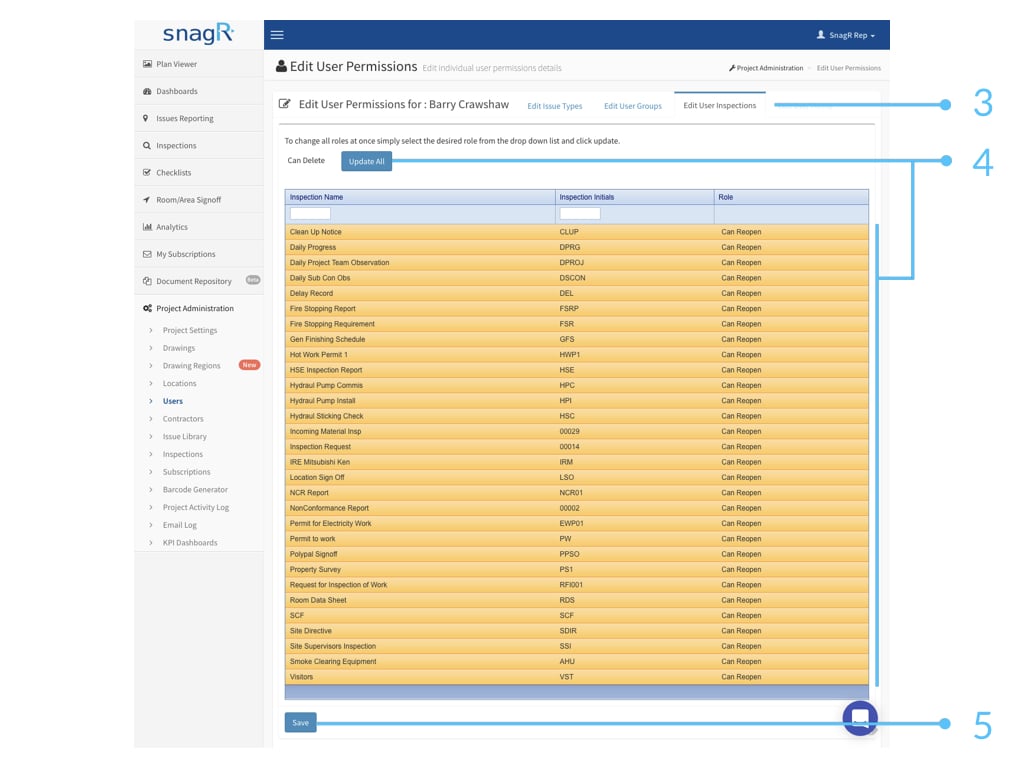 At **Edit User Forms**, the permission sets are as follow:
**No Access**
**Read Only**
**Can Edit** (Note: to edit means the user can edit the form, but when a can update user updates the form field, can edit user can no longer edit it.)
**Can Update**
**Can Close**
**Can Reopen** (Note: to reopen the form allows others to edit on the form again.)
**Can Delete** (Note: to be able to delete the inspection, the user also needs to be an administrator in [issue permission sets](/it/impostazione-progetti/utenti-e-permessi-amministrazione-progetto/how-to-set-up-form-permissions).)
At **Edit User Forms**, the permission sets are as follow:
**No Access**
**Read Only**
**Can Edit** (Note: to edit means the user can edit the form, but when a can update user updates the form field, can edit user can no longer edit it.)
**Can Update**
**Can Close**
**Can Reopen** (Note: to reopen the form allows others to edit on the form again.)
**Can Delete** (Note: to be able to delete the inspection, the user also needs to be an administrator in [issue permission sets](/it/impostazione-progetti/utenti-e-permessi-amministrazione-progetto/how-to-set-up-form-permissions).)
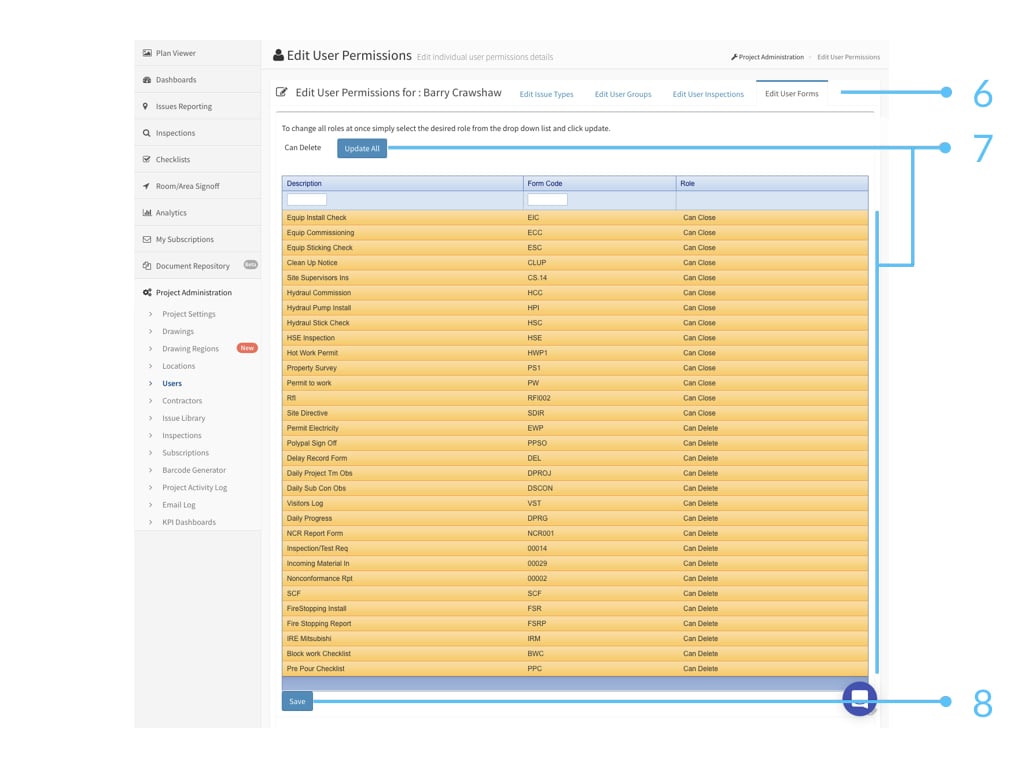 Please update permissions at both **Edit User Inspections** and **Edit User forms**. This is because inspection is a template that consists of one or multiple forms.
For batch update, use update all function at the top.
Here is a mapping of the default Inspection and form permissions that comes by when setting up issue permission (please note this will no longer be available after web version v4.1.0.11578).
| **Issue Permission** | **Inspection Permission** | **Form Permission** |
| -------------------- | ------------------------- | ------------------- |
| Read Only | Read Only | Read Only |
| Can Fix | Can Edit | Can Edit |
| Can Sign Off | Can Close | Can Close |
| Can Close | Can Reopen | Can Reopen |
| Administrator | Can Delete | Can Delete |
**Contractor accounts**
For contractor account, go to Contractors > Edit > Edit Permissions.
Please update permissions at both **Edit User Inspections** and **Edit User forms**. This is because inspection is a template that consists of one or multiple forms.
For batch update, use update all function at the top.
Here is a mapping of the default Inspection and form permissions that comes by when setting up issue permission (please note this will no longer be available after web version v4.1.0.11578).
| **Issue Permission** | **Inspection Permission** | **Form Permission** |
| -------------------- | ------------------------- | ------------------- |
| Read Only | Read Only | Read Only |
| Can Fix | Can Edit | Can Edit |
| Can Sign Off | Can Close | Can Close |
| Can Close | Can Reopen | Can Reopen |
| Administrator | Can Delete | Can Delete |
**Contractor accounts**
For contractor account, go to Contractors > Edit > Edit Permissions.
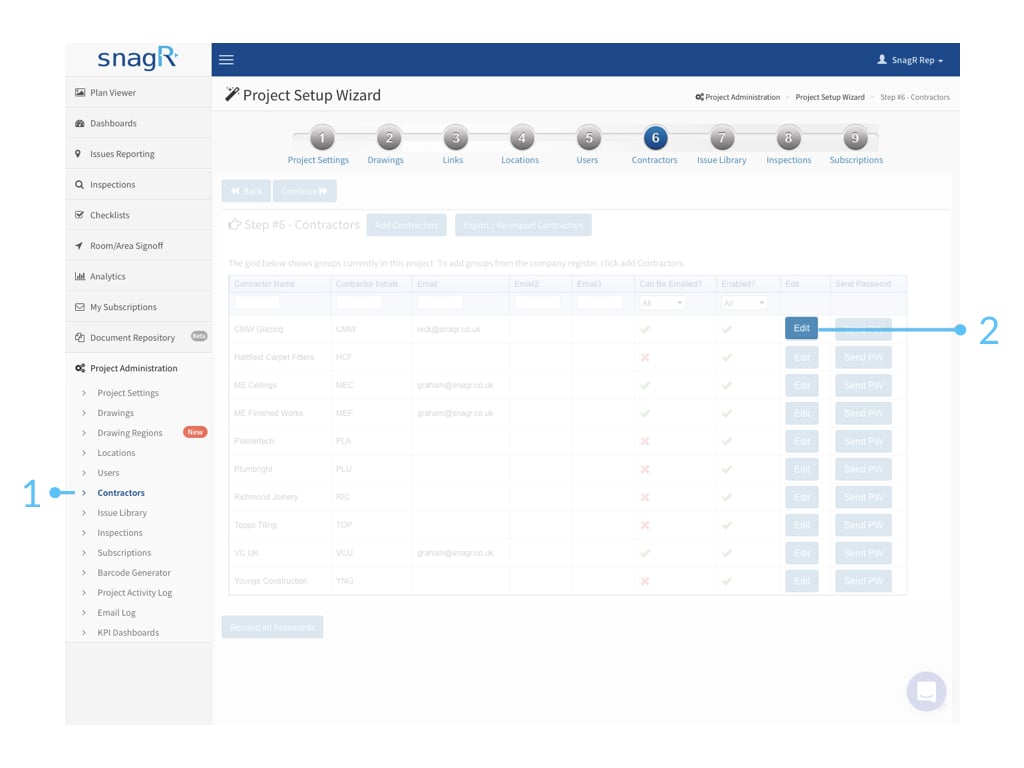
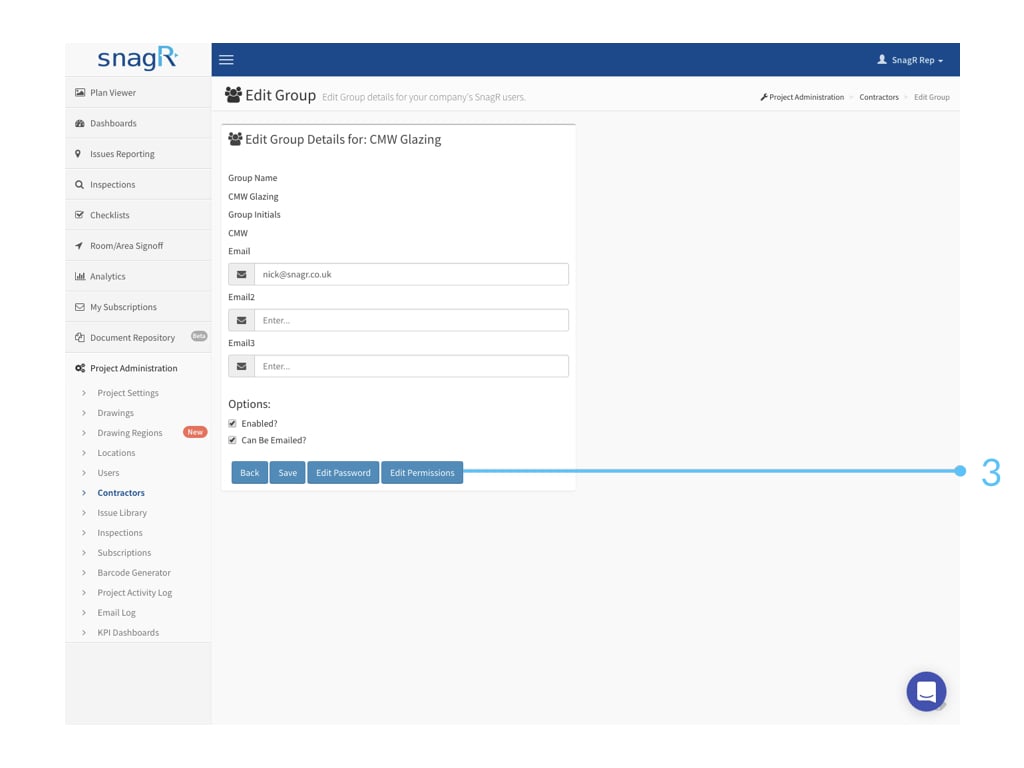
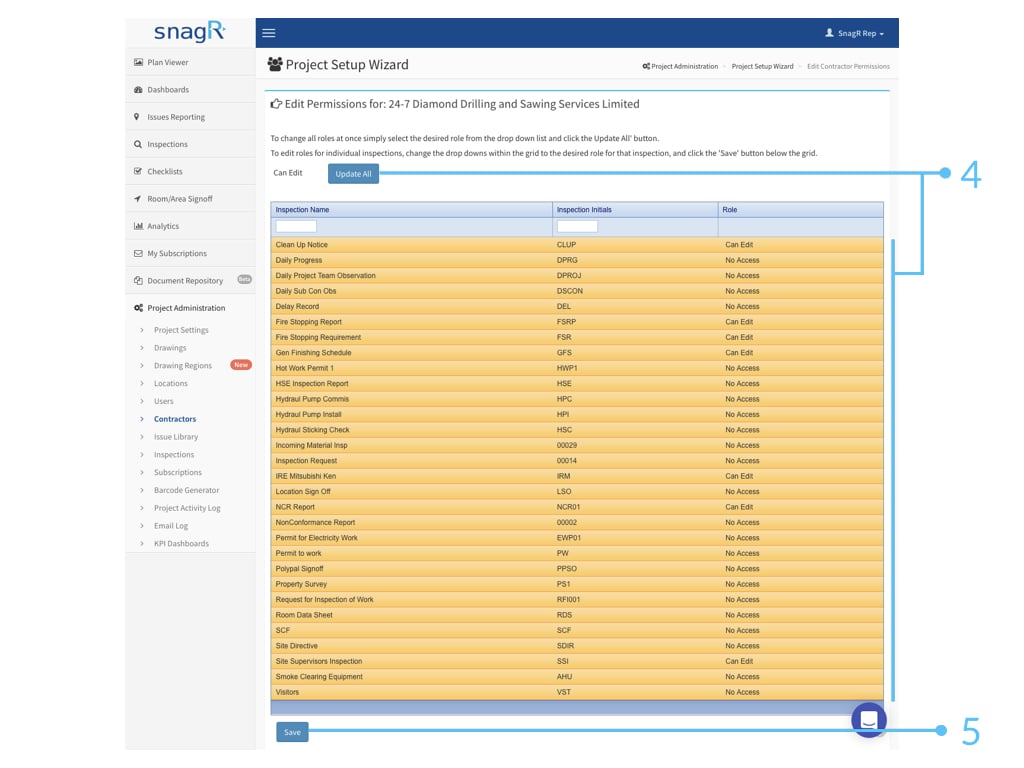 At **Edit Inspections**, the permission sets are as follow:
**No Access**
**Read Only**
**Can Edit** (Note: to edit means the user cannot add inspections. They can only edit on existing inspections.)
**Can Add**
**Can Close** (Note: to close means it does not allow users to edit on the inspection anymore.)
**Can Reopen** (Note: to reopen means it allows others to edit on the inspection form again.)
**~~Can Delete~~** (Note: subcontractor cannot delete inspection forms as they cannot be project administrators by design.)
At **Edit Inspections**, the permission sets are as follow:
**No Access**
**Read Only**
**Can Edit** (Note: to edit means the user cannot add inspections. They can only edit on existing inspections.)
**Can Add**
**Can Close** (Note: to close means it does not allow users to edit on the inspection anymore.)
**Can Reopen** (Note: to reopen means it allows others to edit on the inspection form again.)
**~~Can Delete~~** (Note: subcontractor cannot delete inspection forms as they cannot be project administrators by design.)
 Note: Subcontractor accounts can only see the inspections they create and they have been notified. They cannot see any other inspections.
To batch update, use update all feature at the top.
Note: Subcontractor accounts can only see the inspections they create and they have been notified. They cannot see any other inspections.
To batch update, use update all feature at the top.