> ## Documentation Index
> Fetch the complete documentation index at: https://kb.snagr.co.uk/llms.txt
> Use this file to discover all available pages before exploring further.
# How to edit drawings?
 **Website**
You can always change and edit drawings.
**Website**
You can always change and edit drawings.

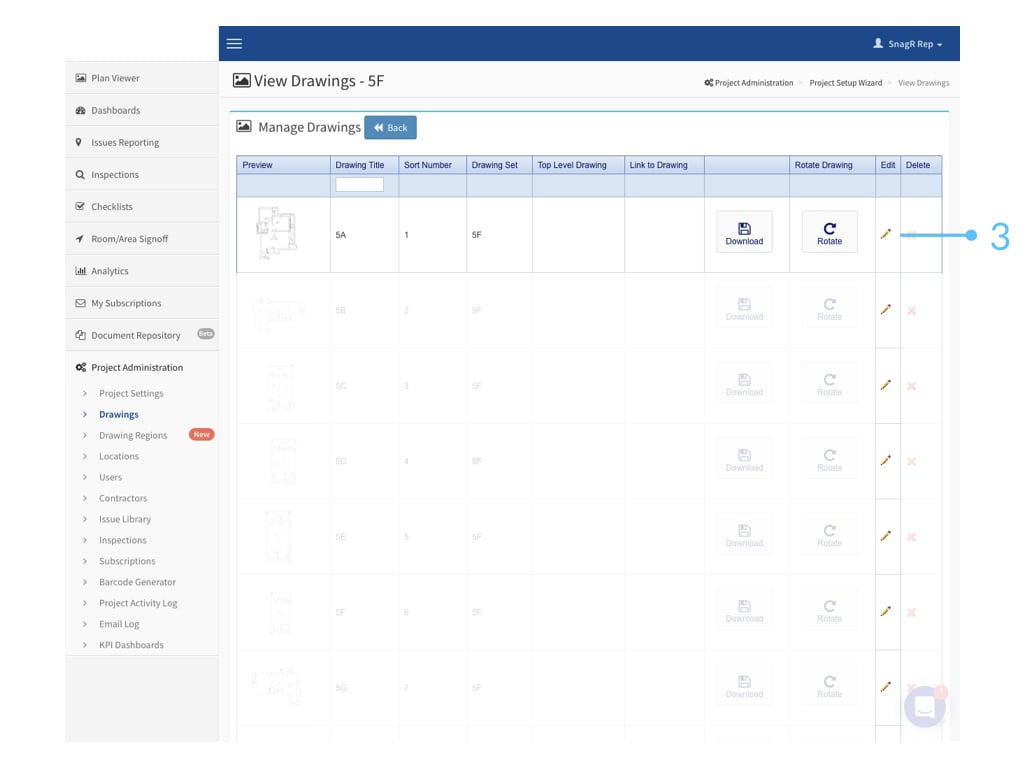
 There are a couple things you can edit for a drawing:
To change the **drawing**, click Choose File and upload another drawing to replace existing one.
To change the **title** of the drawing displayed on the device, web and reports, edit the Drawing Title.
To change the **order** that the drawing appears in any drawing drop down menu on the web and the device, change the sort order (all other sorts will update automatically according to this change).
To change the **drawing set** that stores the drawing edit Drawing Location
To make this drawing the **default** **top level** drawing check the Top Level Drawing checkbox.
To change the **master drawing** that a drawing refers to (i.e. a room plan that is repetitive) edit on Link to Drawing.
To **rotate** the drawing, click on the Rotate button. It will rotate the drawing 90 degrees clockwise. If you want to rotate the drawing 180 degrees, click the button twice. For 90 degrees counter clockwise, click the button three times.
There are a couple things you can edit for a drawing:
To change the **drawing**, click Choose File and upload another drawing to replace existing one.
To change the **title** of the drawing displayed on the device, web and reports, edit the Drawing Title.
To change the **order** that the drawing appears in any drawing drop down menu on the web and the device, change the sort order (all other sorts will update automatically according to this change).
To change the **drawing set** that stores the drawing edit Drawing Location
To make this drawing the **default** **top level** drawing check the Top Level Drawing checkbox.
To change the **master drawing** that a drawing refers to (i.e. a room plan that is repetitive) edit on Link to Drawing.
To **rotate** the drawing, click on the Rotate button. It will rotate the drawing 90 degrees clockwise. If you want to rotate the drawing 180 degrees, click the button twice. For 90 degrees counter clockwise, click the button three times.
 If you are wishing to change the drawing shown, it is a good idea to **download** the original drawing and save it first so it can be reversed if problems occur. Do this by clicking “Download” and saving it locally.
 If there are already issues created on the drawing, be aware that when you make any changes, the positioning and scale of the drawing needs to be **exactly the same** as the original. Otherwise the previously added issues will appear to move on the plan and will no longer appear in the correct position. Please feel free to consult a SnagR representative before altering drawings if deemed necessary.