> ## Documentation Index
> Fetch the complete documentation index at: https://kb.snagr.co.uk/llms.txt
> Use this file to discover all available pages before exploring further.
# What is Drawing Region and how to set it up?
 **Website**
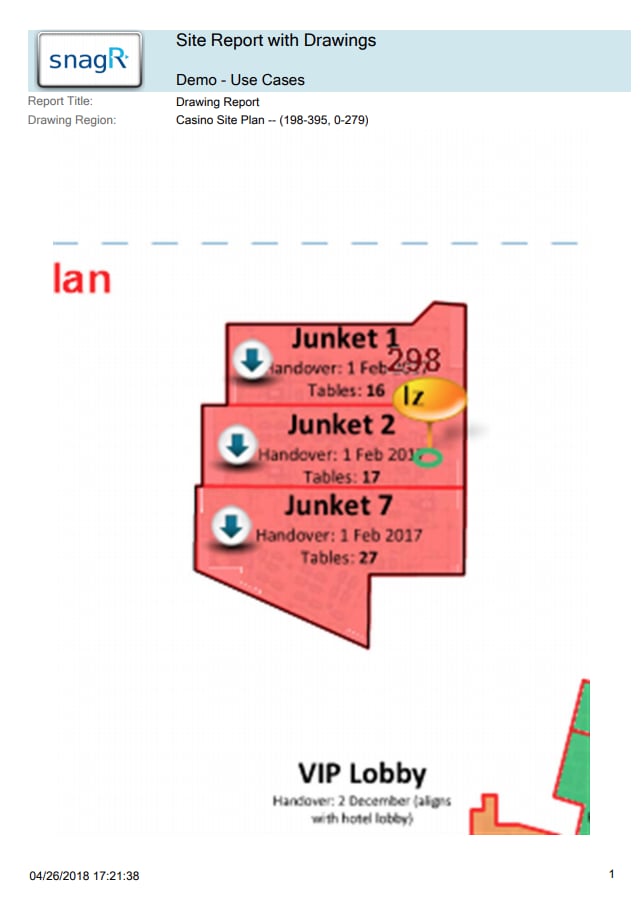
Sometimes at a project you would like to use large plans to navigate (for example a whole floor level), but if you use that drawing as a whole for the reports it will be scaled to A4. This means that the pins also are smaller.
Now we have Drawing Regions. With the Drawing Regions you can split up the drawing for the reports. If you want to be able to filter on a part of the drawing you still have to split the drawings.
This is only to **make the drawing better visible at the reports**.
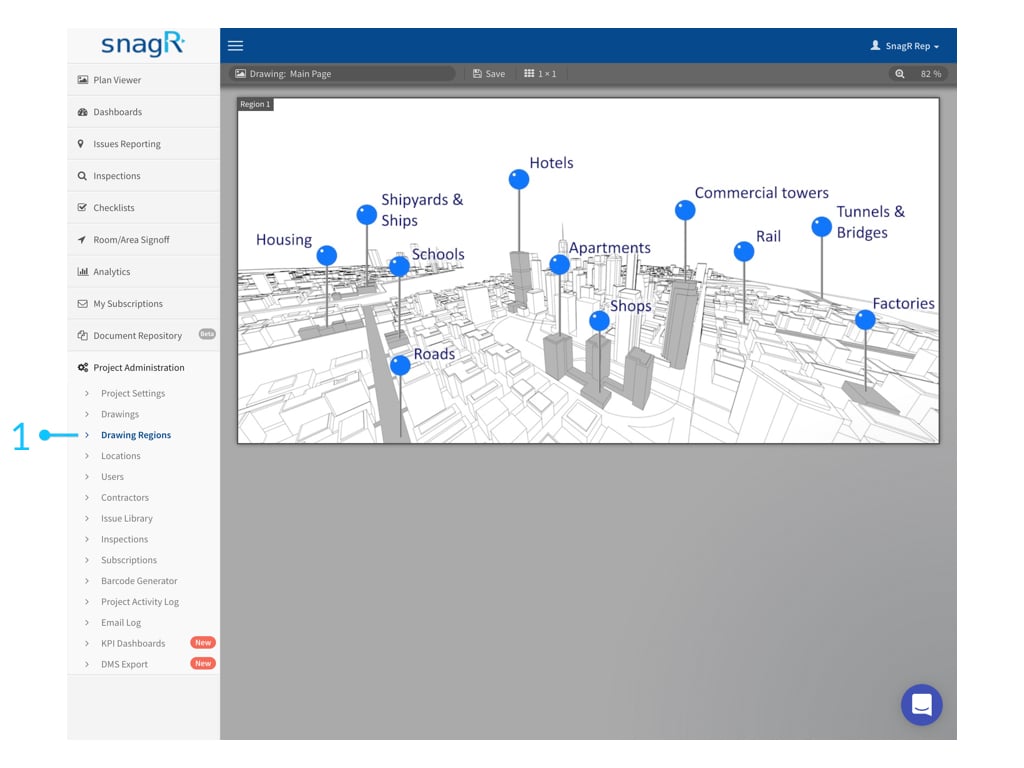
If you uploaded all of the drawings you want in the system, go into Drawing Regions under Project Administration.
**Website**
Sometimes at a project you would like to use large plans to navigate (for example a whole floor level), but if you use that drawing as a whole for the reports it will be scaled to A4. This means that the pins also are smaller.
Now we have Drawing Regions. With the Drawing Regions you can split up the drawing for the reports. If you want to be able to filter on a part of the drawing you still have to split the drawings.
This is only to **make the drawing better visible at the reports**.
If you uploaded all of the drawings you want in the system, go into Drawing Regions under Project Administration.
 ### **Add Regions**
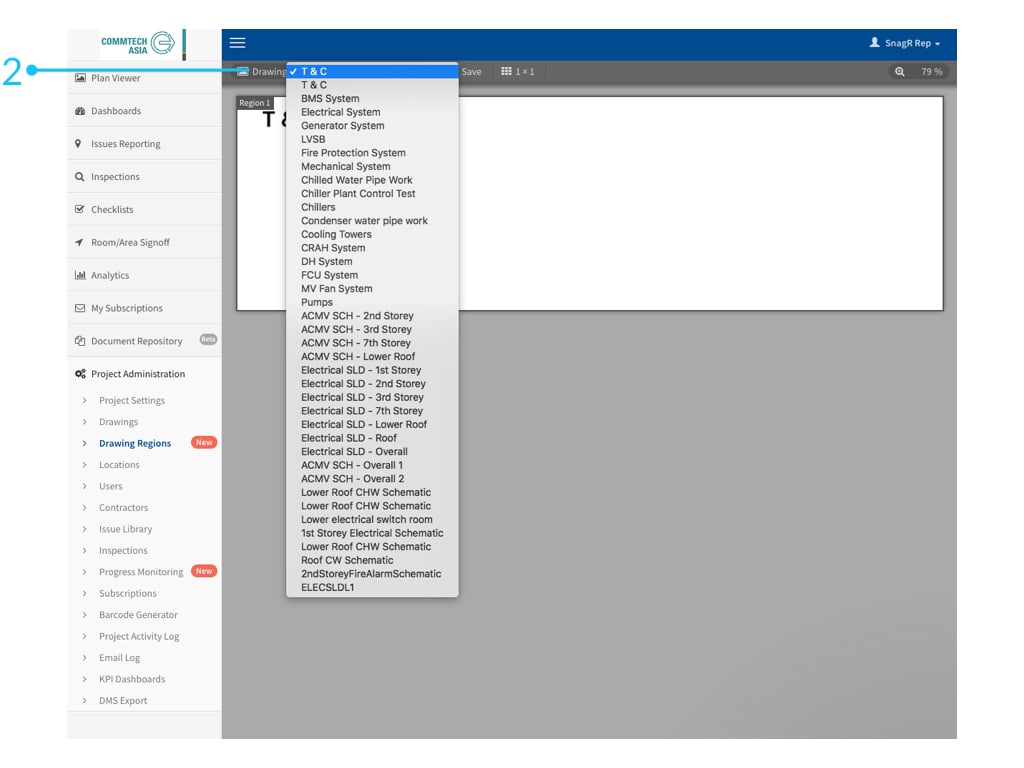
Select the drawing for which you want to make Drawing Regions at the drop down menu on the top left hand corner of the screen.
### **Add Regions**
Select the drawing for which you want to make Drawing Regions at the drop down menu on the top left hand corner of the screen.
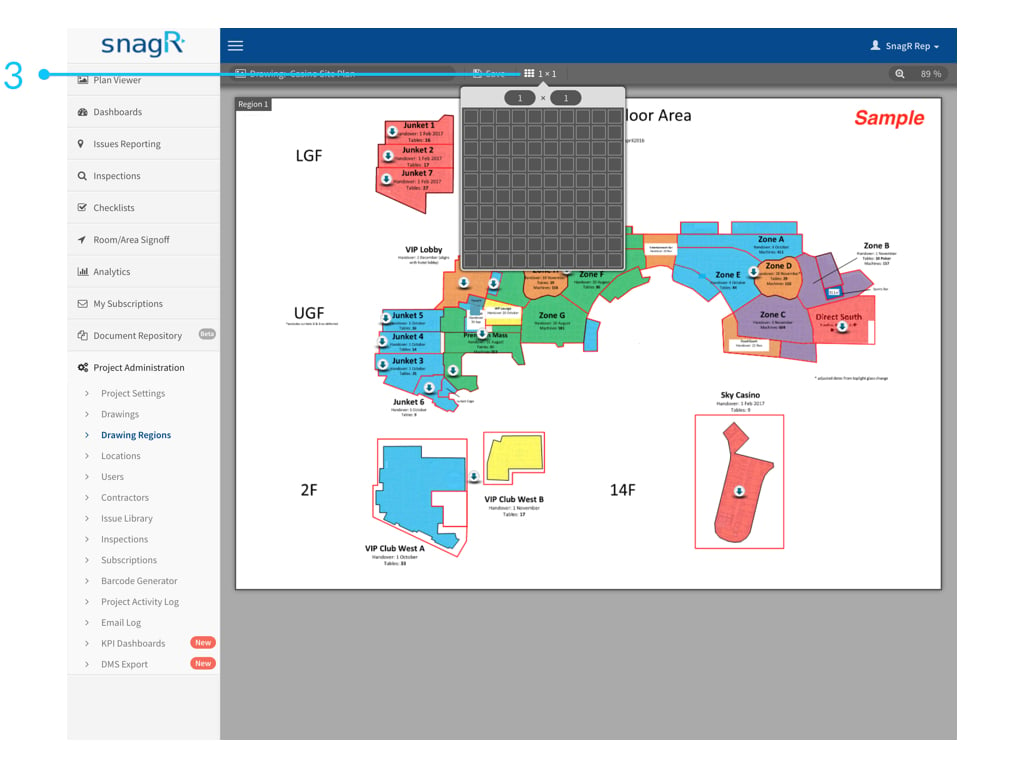
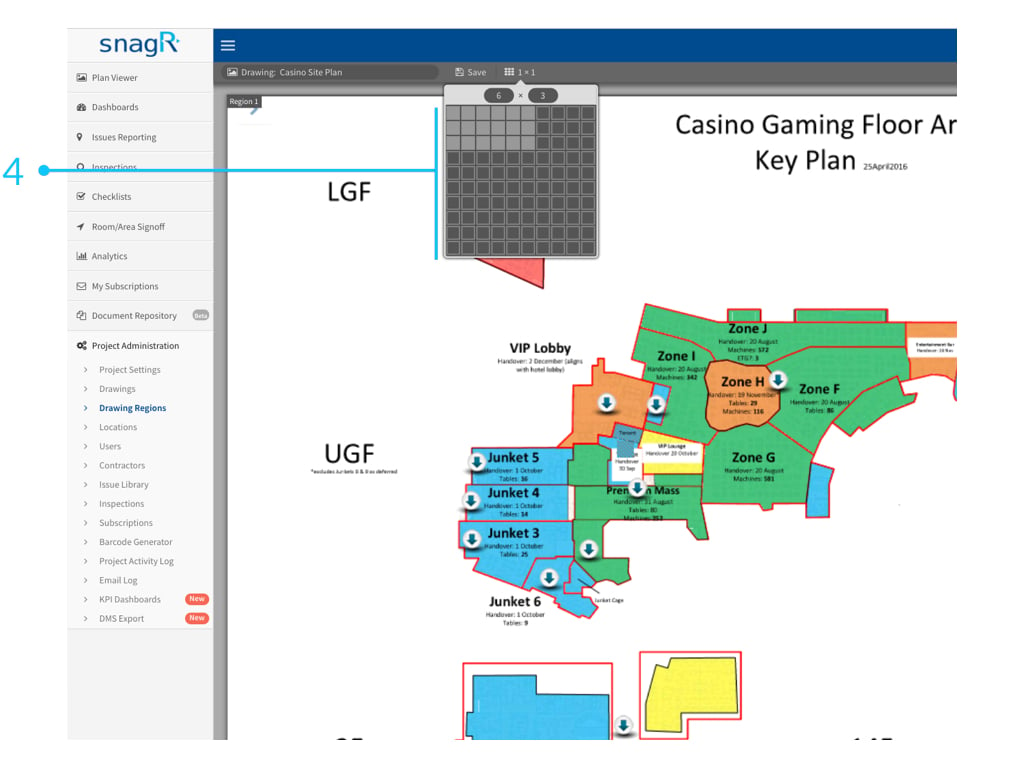
 Select on the top of the screen how many regions you would like to have.
Just click once on the icon and then click again on the box that represents the number of regions. In the example on the left you will get 6 x 3 regions.
Select on the top of the screen how many regions you would like to have.
Just click once on the icon and then click again on the box that represents the number of regions. In the example on the left you will get 6 x 3 regions.
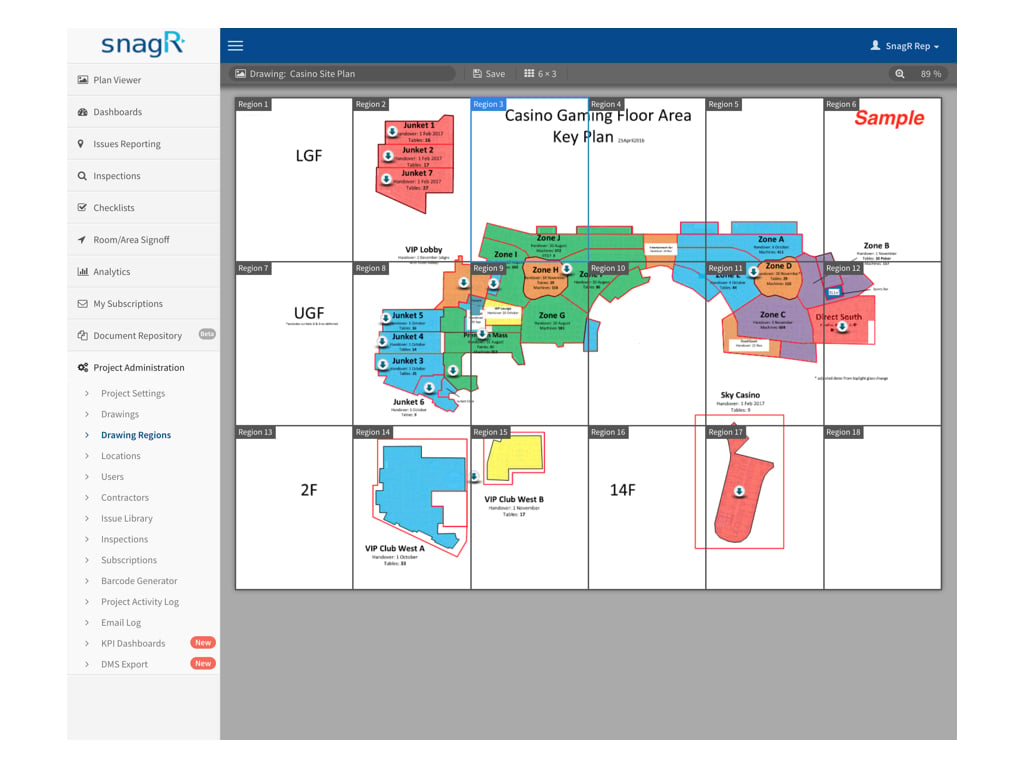
 If you've chosen the correct number of regions they will show on the plan.
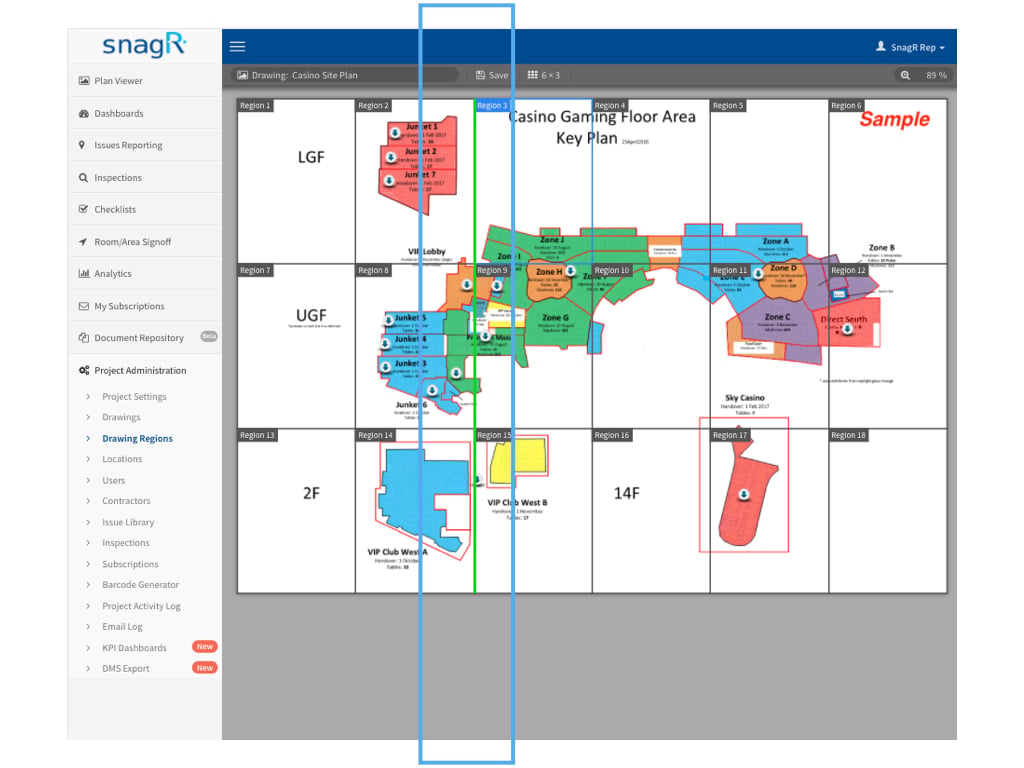
 You can drag the lines of the regions where you want the drawing split.
 ### **Merge / Split Regions**
If you click and hold your left mouse button down you can select more then one region.
At the top of the page Merge appears.
If you click on Merge, it will merge the selected Regions.
### **Merge / Split Regions**
If you click and hold your left mouse button down you can select more then one region.
At the top of the page Merge appears.
If you click on Merge, it will merge the selected Regions.
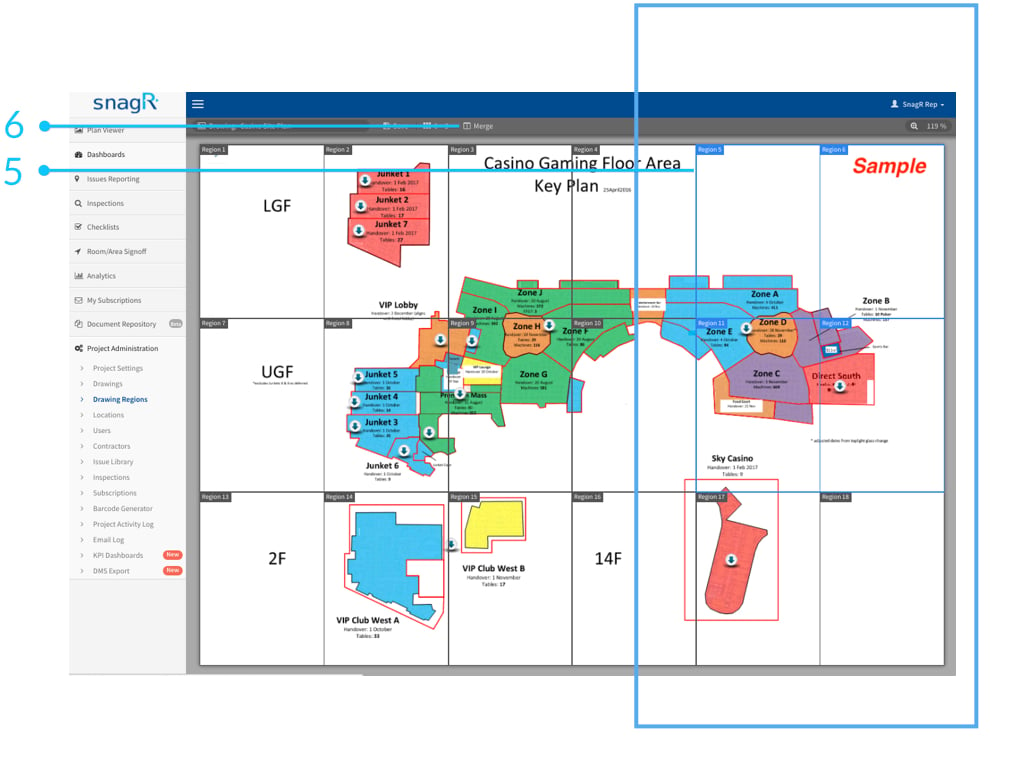 If you want to split the merged regions again, click on the region and then Split at the top of the screen .
To save the regions to the drawing, click Save at the top of the page.
If you want to split the merged regions again, click on the region and then Split at the top of the screen .
To save the regions to the drawing, click Save at the top of the page.
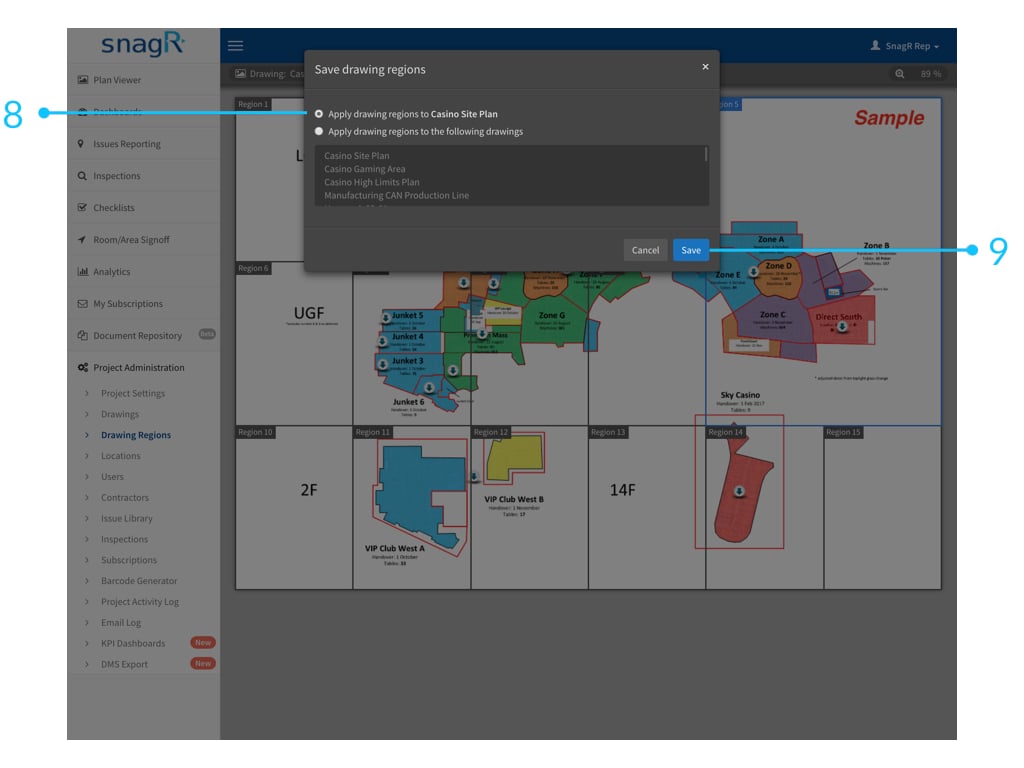
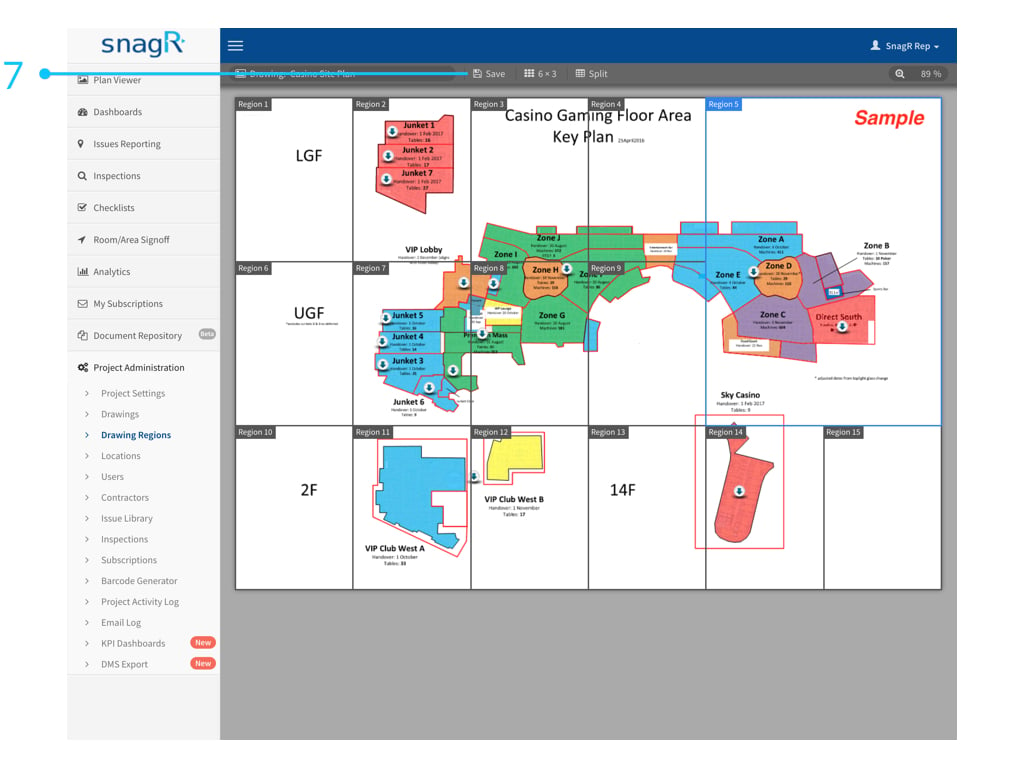 Choose the first option "Apply drawing regions to - drawing name- and click Save.
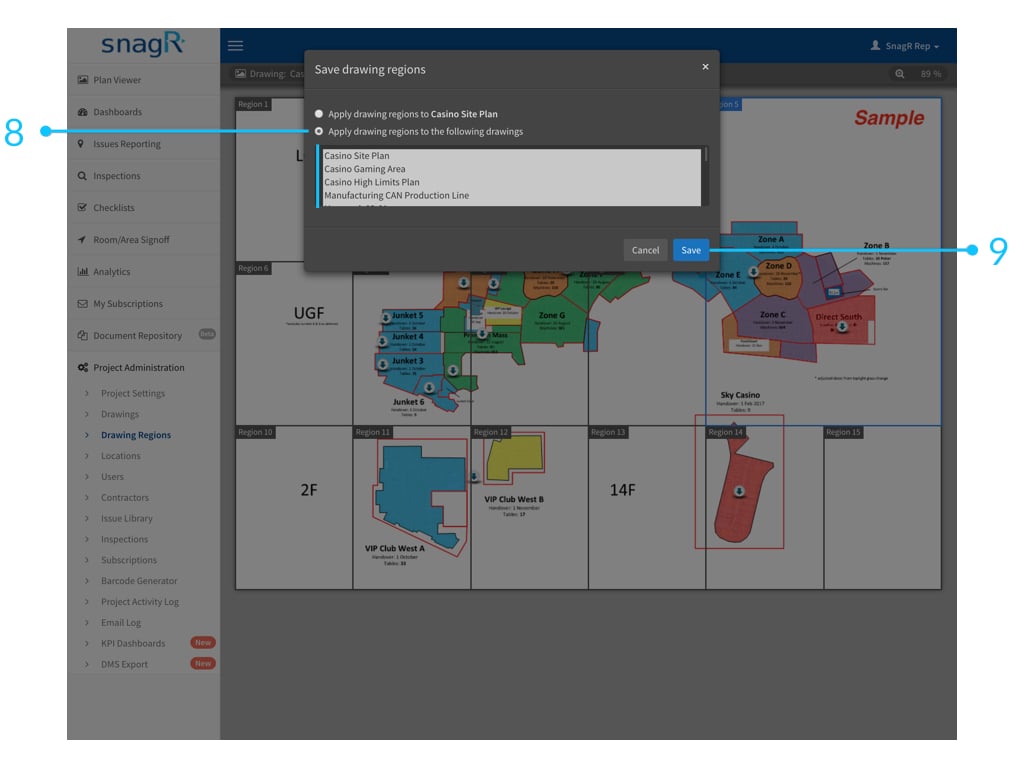
 If there are other drawings that are similar to the one you just saved, you can click on Save again on the top of the screen , but then choose the second option "Apply drawing regions to the following drawings". Select the drawings to which you want to apply these regions also. To select more than one drawing keep the CTRL/Command button pressed.
Then click save to save the regions to those drawings also.
If there are other drawings that are similar to the one you just saved, you can click on Save again on the top of the screen , but then choose the second option "Apply drawing regions to the following drawings". Select the drawings to which you want to apply these regions also. To select more than one drawing keep the CTRL/Command button pressed.
Then click save to save the regions to those drawings also.
 ### **Remove Regions**
If you're not happy with the regions after you made a report, you can always change them. Just follow the steps again to create new regions.
If you don't want any regions after all, just select one block 1 x 1
### **Remove Regions**
If you're not happy with the regions after you made a report, you can always change them. Just follow the steps again to create new regions.
If you don't want any regions after all, just select one block 1 x 1
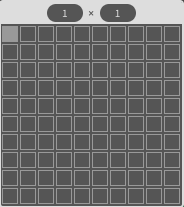 . Then the whole drawing is one region.
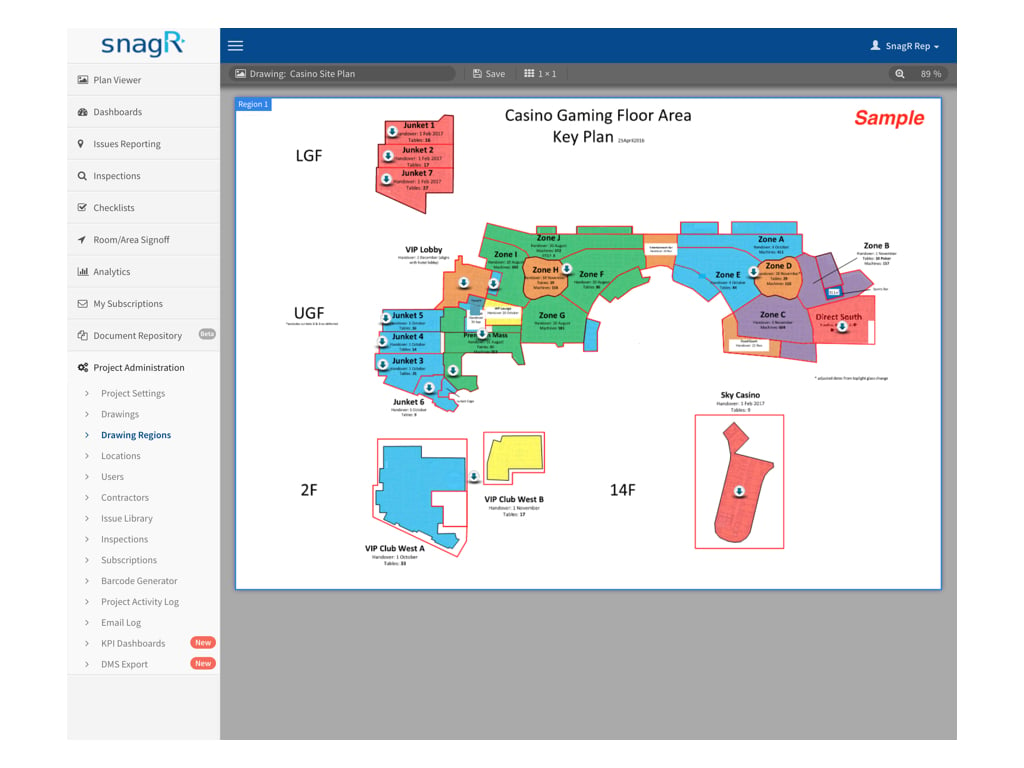 The Issue Report's Drawing region as 1 x 1 will be like:
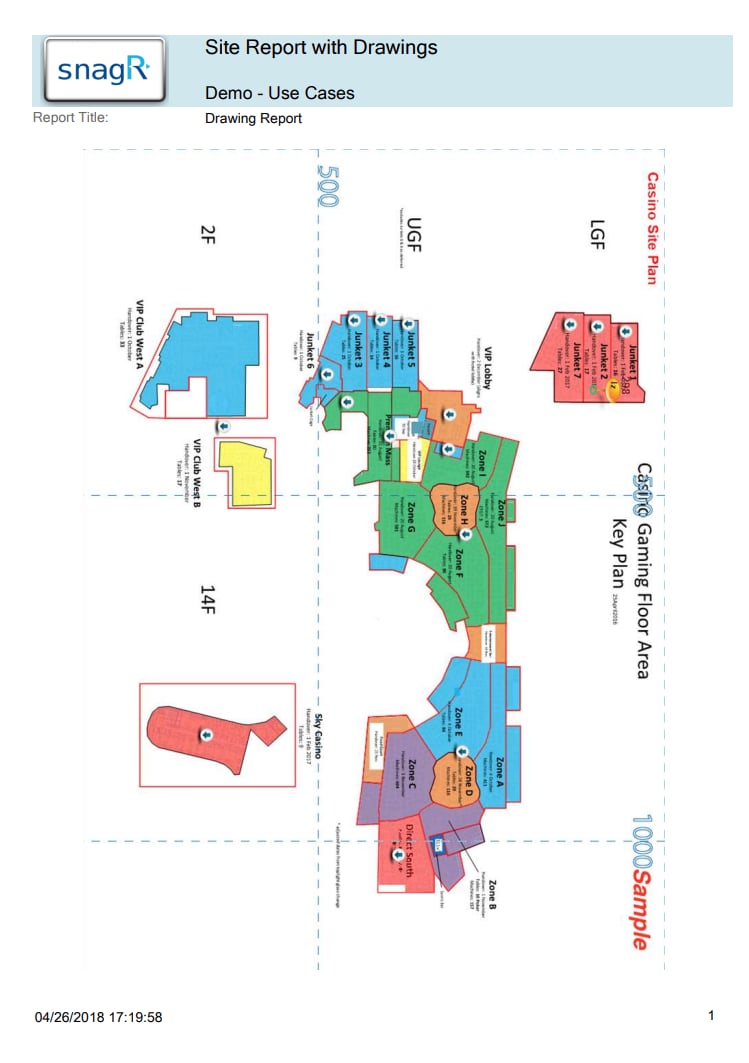 The Issue Report's Drawing region as 3 x 6 will be like: