> ## Documentation Index
> Fetch the complete documentation index at: https://kb.snagr.co.uk/llms.txt
> Use this file to discover all available pages before exploring further.

# How to create a custom list?

Custom list is a constrained drop down list.

While it makes it easier for people to complete a form, it also allows your company to collect structured data from a form.

<img src="https://mintcdn.com/snagr/Fc-Qgss-VatVIL0b/images/uploads/123693-if_ic_tv_48px_352186.png?fit=max&auto=format&n=Fc-Qgss-VatVIL0b&q=85&s=06b23e0223986004fba7bbb6aa8febb3" alt="if ic tv 48px 352186" width="20" data-path="images/uploads/123693-if_ic_tv_48px_352186.png" /> **Website**

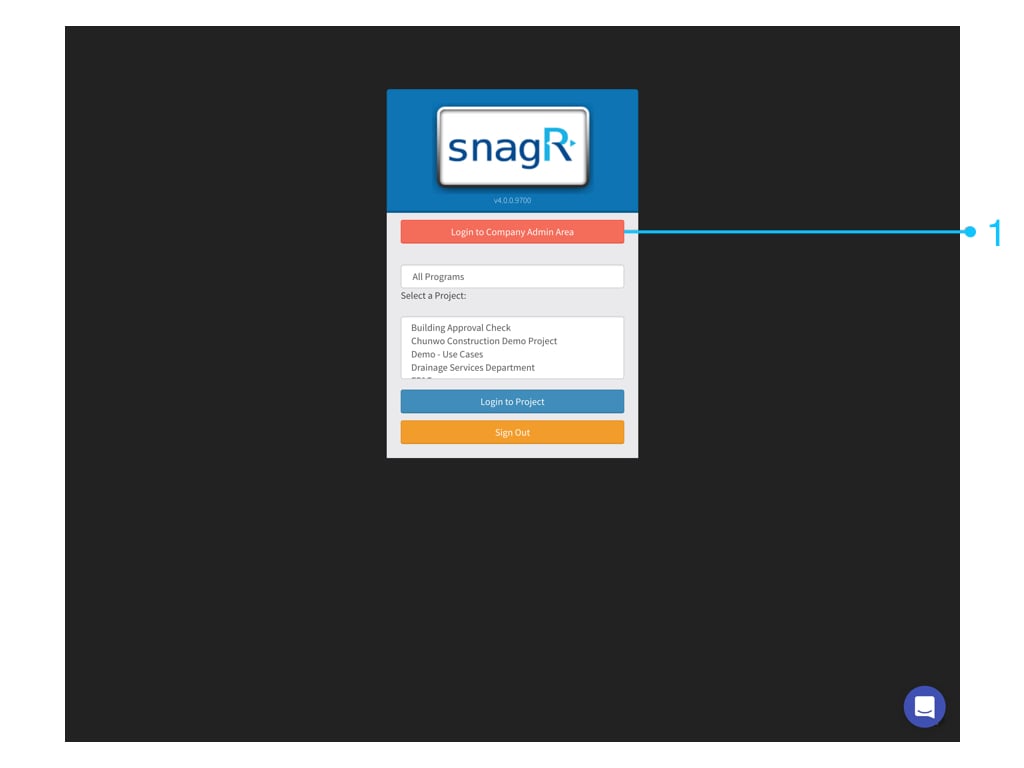
First, login to **Company Admin Area**. Only company admin can see this button.
<img src="https://mintcdn.com/snagr/cq3DLfKmhQlF8uo8/images/direct/1521177204174-Admin_Website.001.jpeg?fit=max&auto=format&n=cq3DLfKmhQlF8uo8&q=85&s=6d2985ec052a2fa74ada43df067b076d" alt="Admin Website.001" width="1024" height="768" data-path="images/direct/1521177204174-Admin_Website.001.jpeg" />

Go to **Company Inspections** ＞ **Lists**

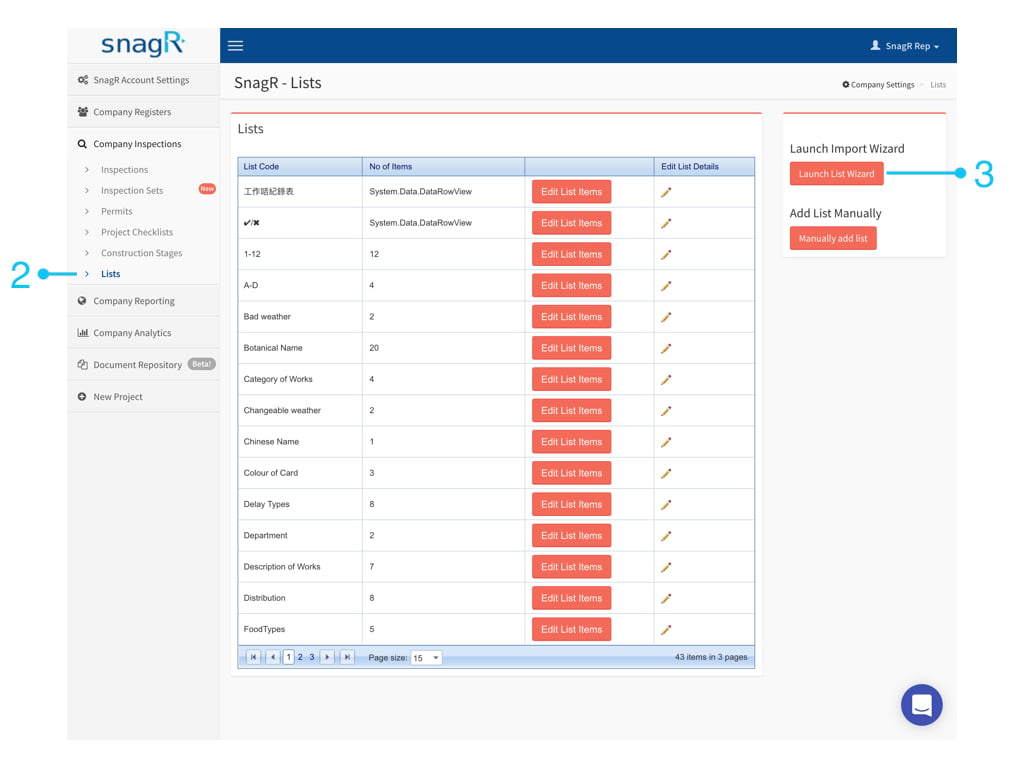
You can choose **Launch Import Wizard** or **Add List Manually**.

Note: If you have more than 10 items to add, please jump to Launch Import Wizard directly.

### 1. Option A - Add List Manually

### <img src="https://mintcdn.com/snagr/cq3DLfKmhQlF8uo8/images/direct/1521177288125-Admin_Website.002.jpeg?fit=max&auto=format&n=cq3DLfKmhQlF8uo8&q=85&s=4bdbe945feaf3ef22e8cef0b5f55f5e0" alt="Admin Website.002" width="1024" height="768" data-path="images/direct/1521177288125-Admin_Website.002.jpeg" />
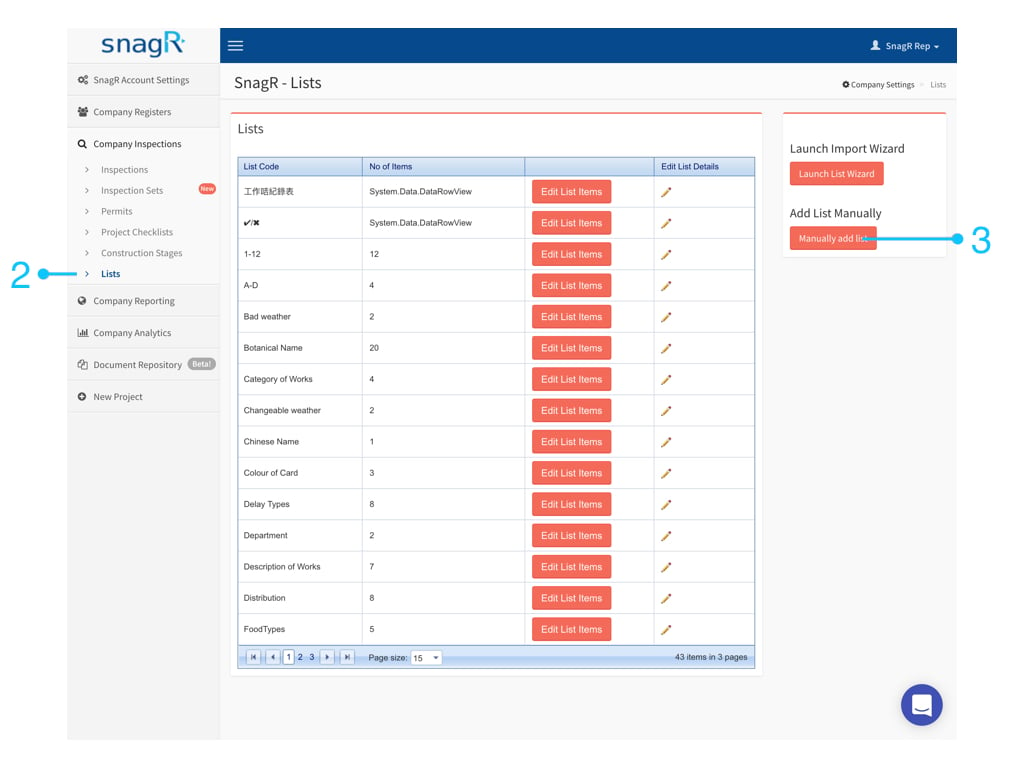
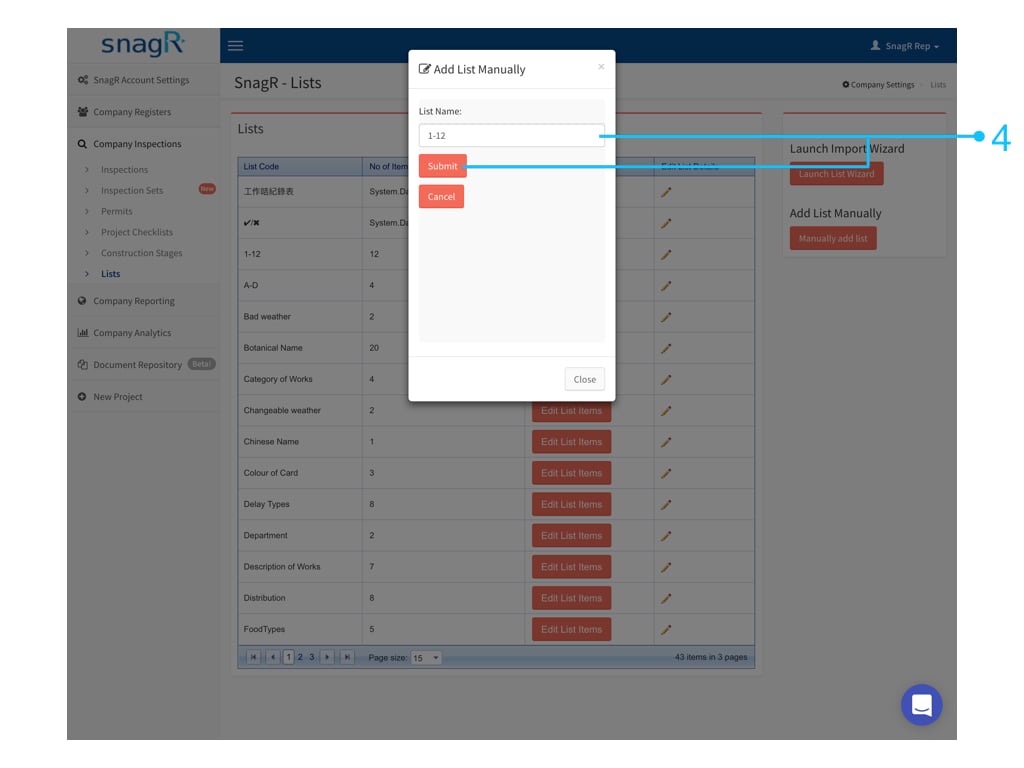
Input **List Name** > **Submit**

<img src="https://mintcdn.com/snagr/cq3DLfKmhQlF8uo8/images/direct/1521177316055-Admin_Website.003.jpeg?fit=max&auto=format&n=cq3DLfKmhQlF8uo8&q=85&s=d0adea1999ebdd3c4df4020211ddd34e" alt="Admin Website.003" width="1024" height="768" data-path="images/direct/1521177316055-Admin_Website.003.jpeg" />

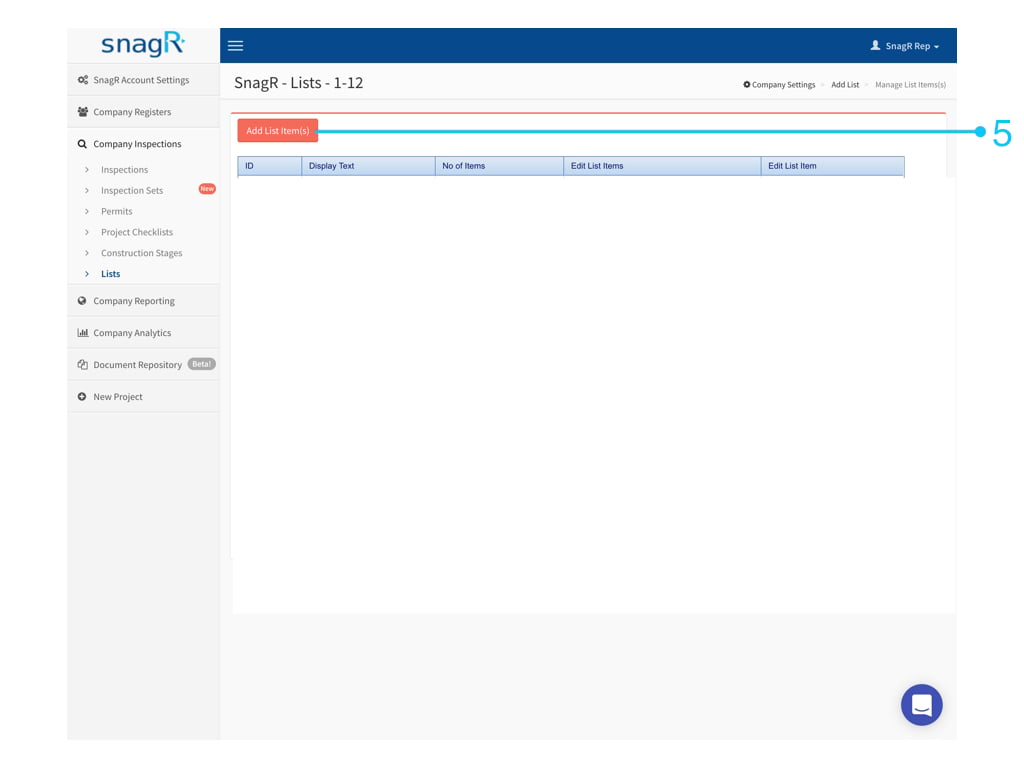
Click **Add List Item(s)**

<img src="https://mintcdn.com/snagr/cq3DLfKmhQlF8uo8/images/direct/1521177638571-Admin_Website.004.jpeg?fit=max&auto=format&n=cq3DLfKmhQlF8uo8&q=85&s=0c6381f6a9f28d2999c938eadbbf41e5" alt="Admin Website.004" width="1024" height="768" data-path="images/direct/1521177638571-Admin_Website.004.jpeg" />

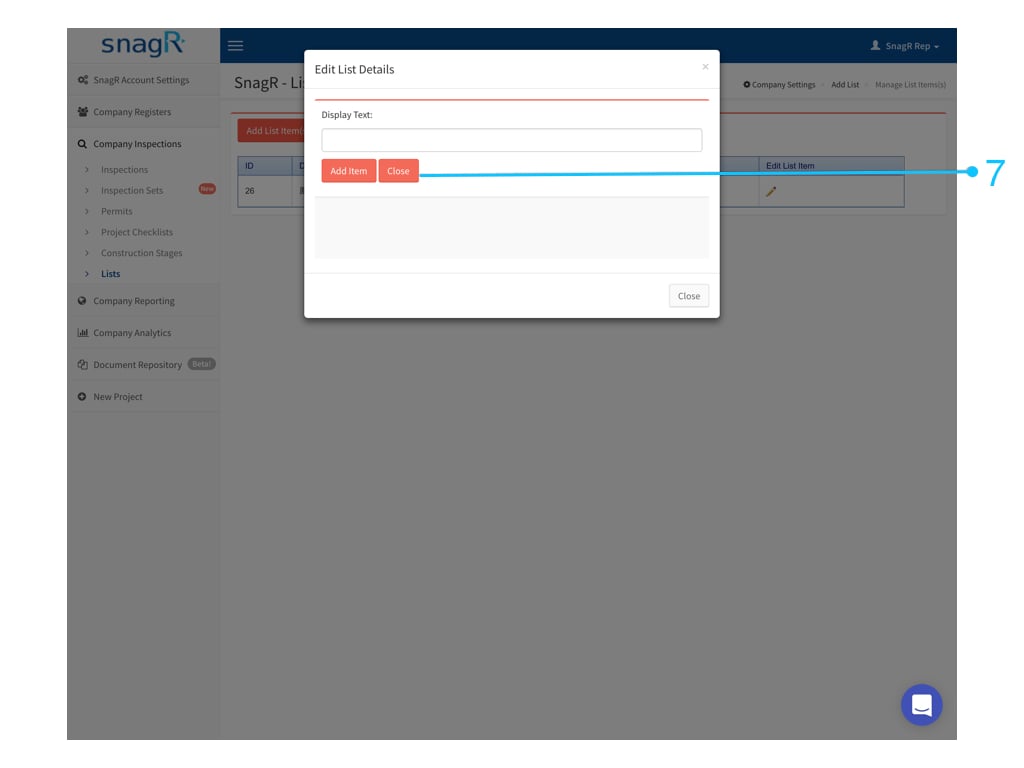
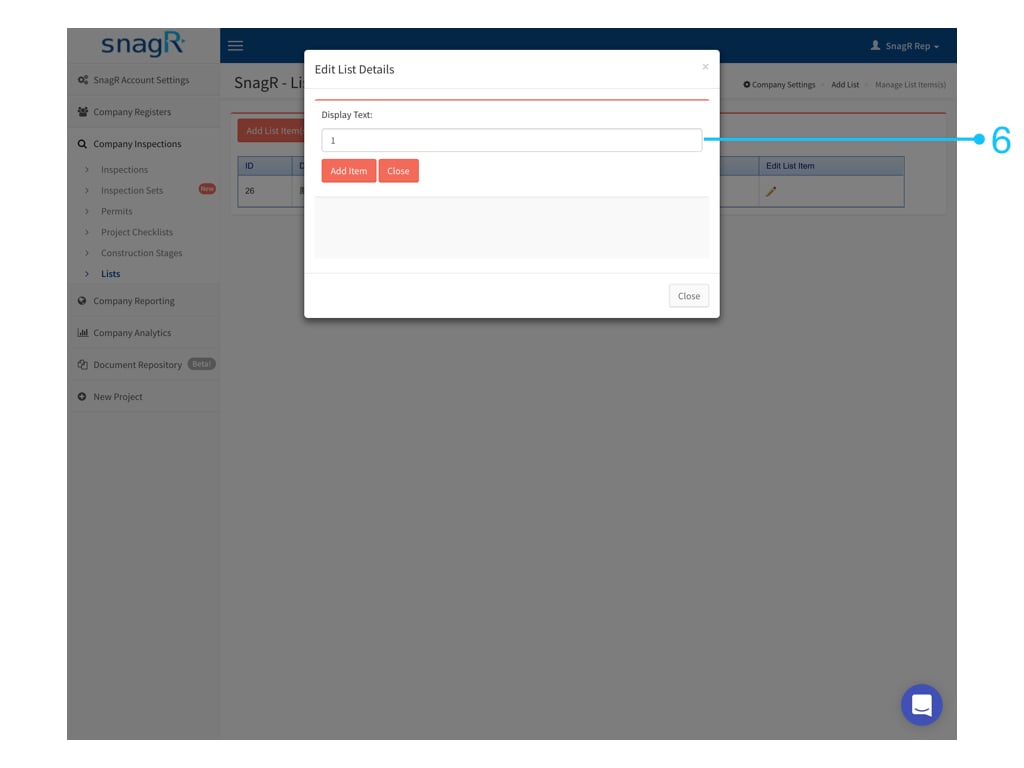
Input the option one by one, click **Add Item** then input next option.
<img src="https://mintcdn.com/snagr/cq3DLfKmhQlF8uo8/images/direct/1521177728233-Admin_Website.005.jpeg?fit=max&auto=format&n=cq3DLfKmhQlF8uo8&q=85&s=6d71d32e4f5ee034c5ba8d812fe8d07a" alt="Admin Website.005" width="1024" height="768" data-path="images/direct/1521177728233-Admin_Website.005.jpeg" />

Click **Close** if completed.

<img src="https://mintcdn.com/snagr/cq3DLfKmhQlF8uo8/images/direct/1521177793473-Admin_Website.006.jpeg?fit=max&auto=format&n=cq3DLfKmhQlF8uo8&q=85&s=2f042b4cb1041d3ef22987cd8dd5fa1f" alt="Admin Website.006" width="1024" height="768" data-path="images/direct/1521177793473-Admin_Website.006.jpeg" />

Please scroll down further to see > **Set form fields to show custom list**.

### 1. Option B - Launch Import Wizard
<img src="https://mintcdn.com/snagr/cq3DLfKmhQlF8uo8/images/direct/1521177920679-Admin_Website.007.jpeg?fit=max&auto=format&n=cq3DLfKmhQlF8uo8&q=85&s=912131f8ab489c50b023855ef2e731ba" alt="Admin Website.007" width="1024" height="768" data-path="images/direct/1521177920679-Admin_Website.007.jpeg" />

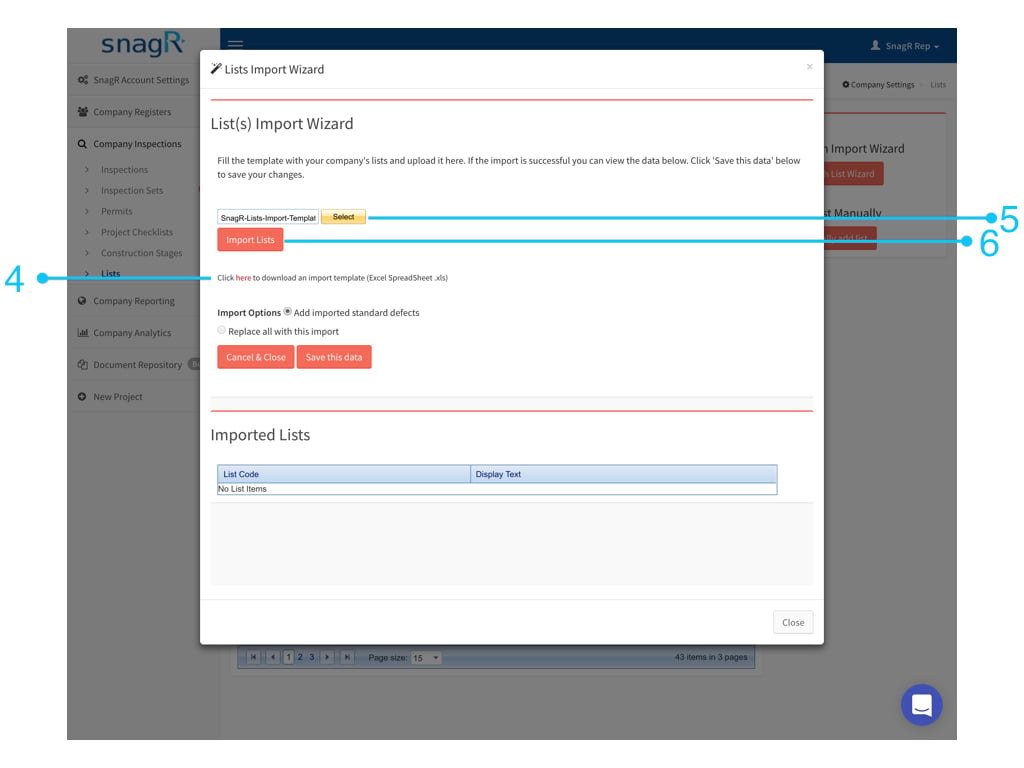
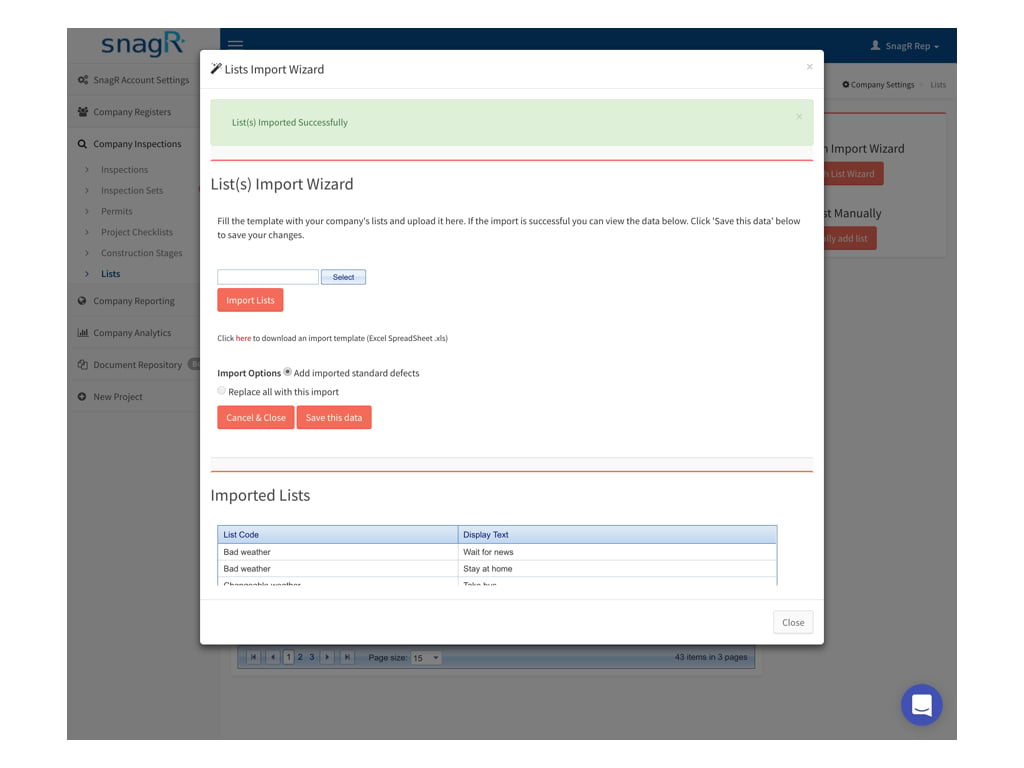
**Download template** ＞ Create custom list in Excel > **Upload template** > **Import Lists**
<img src="https://mintcdn.com/snagr/cq3DLfKmhQlF8uo8/images/direct/1521177977819-Admin_Website.008.jpeg?fit=max&auto=format&n=cq3DLfKmhQlF8uo8&q=85&s=9dcff2a036897a87ebe94e17b1868c51" alt="Admin Website.008" width="1024" height="768" data-path="images/direct/1521177977819-Admin_Website.008.jpeg" />

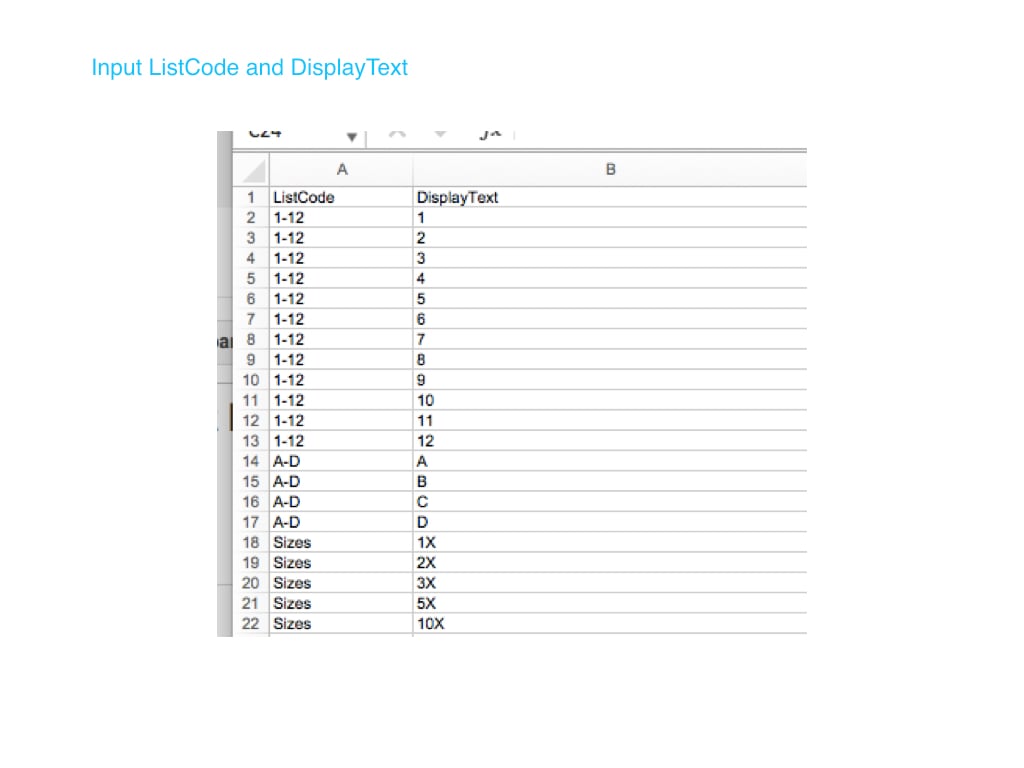
Your Excel file should look like this:

Column A is the name of the custom list. Column B is the display text / options in the custom list.
<img src="https://mintcdn.com/snagr/cq3DLfKmhQlF8uo8/images/direct/1521178106666-Admin_Website.009.jpeg?fit=max&auto=format&n=cq3DLfKmhQlF8uo8&q=85&s=56174bc2e28287ed5b34f035f4836d48" alt="Admin Website.009" width="1024" height="768" data-path="images/direct/1521178106666-Admin_Website.009.jpeg" />

<img src="https://mintcdn.com/snagr/cq3DLfKmhQlF8uo8/images/direct/1521178138786-Admin_Website.010.jpeg?fit=max&auto=format&n=cq3DLfKmhQlF8uo8&q=85&s=5f3e595f8633dde89ff7607bf9a5b251" alt="Admin Website.010" width="1024" height="768" data-path="images/direct/1521178138786-Admin_Website.010.jpeg" />

### 2. Set the form field to show custom list

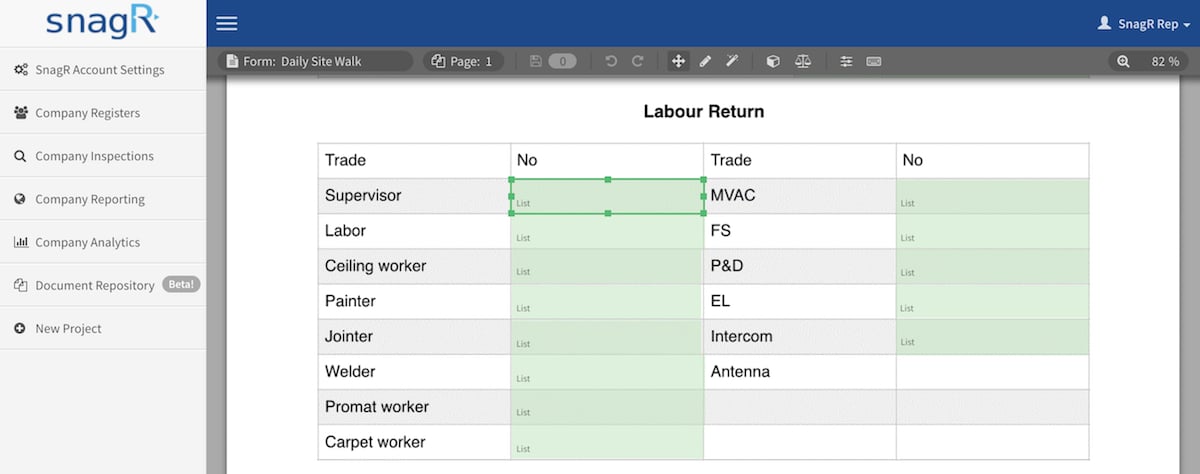
**Return** to the form wizard > **Select** a form field
<img src="https://mintcdn.com/snagr/V8StriBwFl_CwQFJ/images/direct/1524713479334-demo40.snagr.com.hk_Admin_form-wizard-1-.png?fit=max&auto=format&n=V8StriBwFl_CwQFJ&q=85&s=f15cf035777a89a258e537edf3b39e7a" alt="demo40.snagr.com.hk Admin form wizard (1)" width="1200" height="474" data-path="images/direct/1524713479334-demo40.snagr.com.hk_Admin_form-wizard-1-.png" />

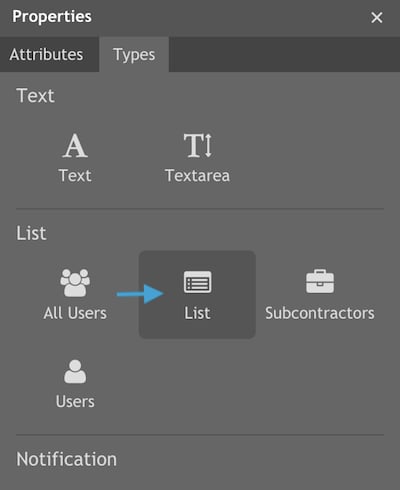
Click ***Command + 4*** or ***Ctrl + 4*** to bring up **Properties**.

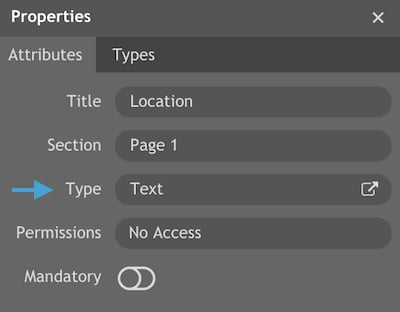
Go to **Type,** change Text to List.
<img src="https://mintcdn.com/snagr/V8StriBwFl_CwQFJ/images/direct/1524714045215-Screen-Shot-2018-04-26-at-11.39.23-AM.png?fit=max&auto=format&n=V8StriBwFl_CwQFJ&q=85&s=d5ce8dc693cb3ce4038e2cf888eccc4e" alt="Screen Shot 2018 04 26 at 11.39.23 AM" width="400" height="312" data-path="images/direct/1524714045215-Screen-Shot-2018-04-26-at-11.39.23-AM.png" />

<img src="https://mintcdn.com/snagr/V8StriBwFl_CwQFJ/images/direct/1524713840306-Screen-Shot-2018-04-26-at-11.32.27-AM.png?fit=max&auto=format&n=V8StriBwFl_CwQFJ&q=85&s=5c93d7516ba3d7e50a634ac743835e27" alt="Screen Shot 2018 04 26 at 11.32.27 AM" width="400" height="490" data-path="images/direct/1524713840306-Screen-Shot-2018-04-26-at-11.32.27-AM.png" />

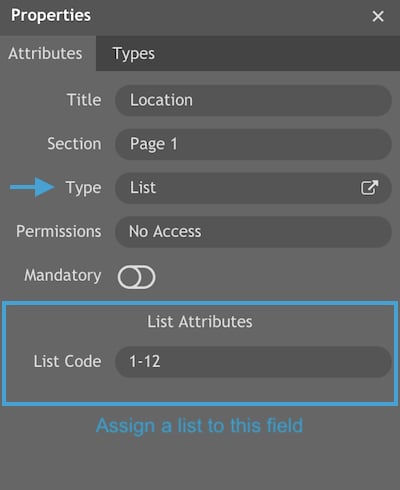
Afterwards, don't forget to **assign a list** to the field. In this case, we choose 1-12 as this was the one we just created.
<img src="https://mintcdn.com/snagr/V8StriBwFl_CwQFJ/images/direct/1524713946034-Screen-Shot-2018-04-26-at-11.33.34-AM.png?fit=max&auto=format&n=V8StriBwFl_CwQFJ&q=85&s=689a07d8af9a2e24675cdc6b99eb1920" alt="Screen Shot 2018 04 26 at 11.33.34 AM" width="400" height="490" data-path="images/direct/1524713946034-Screen-Shot-2018-04-26-at-11.33.34-AM.png" />

Last, don't forget to click ***Command + S*** or ***Ctrl + S*** to **s\*\*\*\*ave** the changes you made in form wizard.

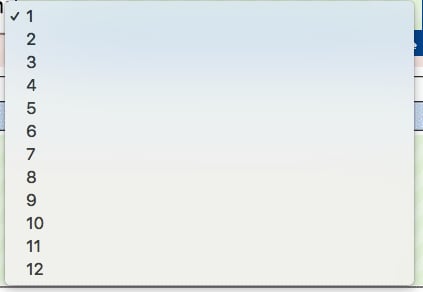
When new forms are created, you should now see the list:
<img src="https://mintcdn.com/snagr/cq3DLfKmhQlF8uo8/images/direct/1521171629566-Screen-Shot-2018-03-16-at-11.34.36-AM.png?fit=max&auto=format&n=cq3DLfKmhQlF8uo8&q=85&s=cd7630fa6e06ae9c8ec308093a9326ee" alt="Screen Shot 2018 03 16 at 11.34.36 AM" width="423" height="292" data-path="images/direct/1521171629566-Screen-Shot-2018-03-16-at-11.34.36-AM.png" />