> ## Documentation Index
> Fetch the complete documentation index at: https://kb.snagr.co.uk/llms.txt
> Use this file to discover all available pages before exploring further.
# How do I create an inspection form template and build in business logic?
It is not uncommon that various business processes, e.g. daily site walk, quality / safety checklist, request for inspections, etc. remain in paper based system.
It is possible to digitalise them in SnagR and there are many ways to go about it. The best solution often comes from a **clear understanding of the business process** where the form is involved. It translates to the **business requirements** that guide you to configure the template set up.
This article explains what you can configure for forms in SnagR.
### Overview
It is important to first understand:
1. Inspection Template
2. Form Template
*What's the difference?*\
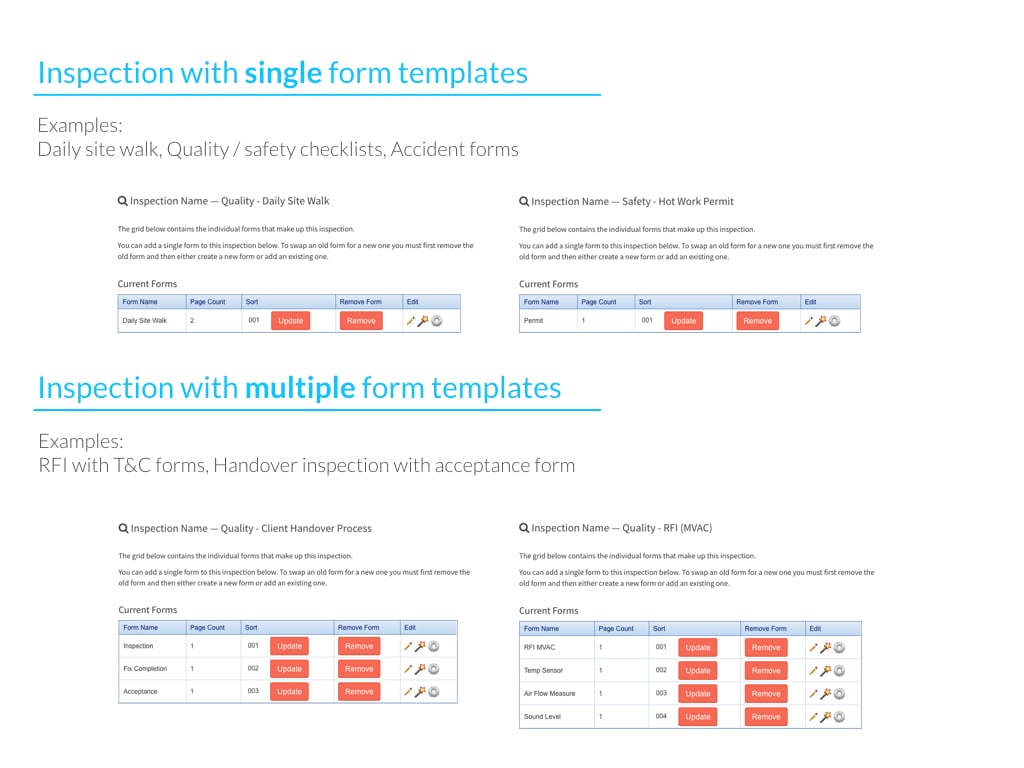
An **Inspection Template** is an umbrella, that consists of **a** **Form Template** or **a combination of** **Form Templates**.
Below are **common applications** of Inspection Forms in SnagR:
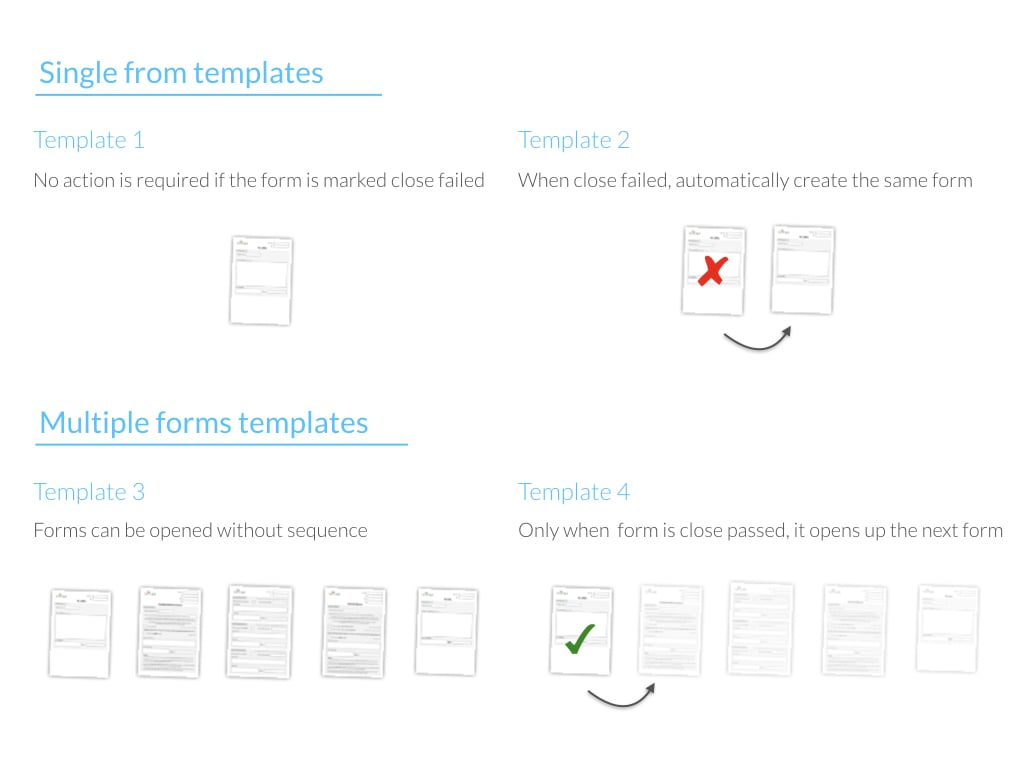
 It is possible to set a configuration for the form to spawn a new form when it is close failed. *(For detailed operation, see step 7 below)*
If the Inspection Template has multiple form template, it is possible to configure so that a form only opens up when the previous one is close passed. *(For detailed operation, see step 4 in below)*
It is possible to set a configuration for the form to spawn a new form when it is close failed. *(For detailed operation, see step 7 below)*
If the Inspection Template has multiple form template, it is possible to configure so that a form only opens up when the previous one is close passed. *(For detailed operation, see step 4 in below)*
 **Website**
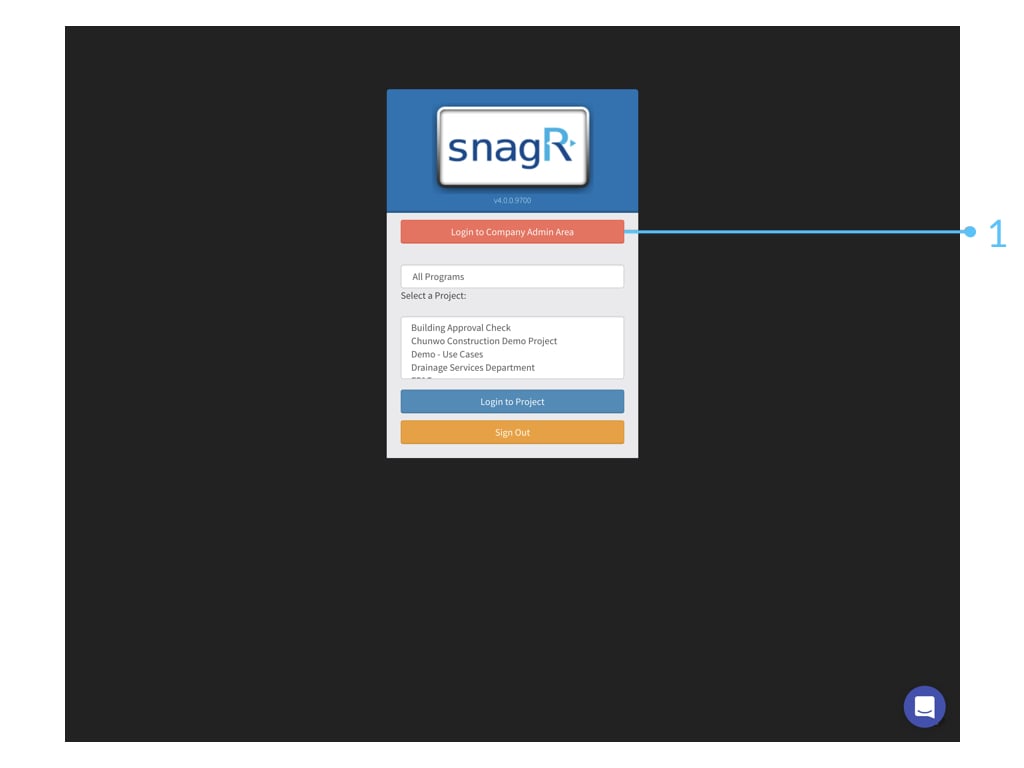
Login to **Company Admin Area.**
**Website**
Login to **Company Admin Area.**
 ### 1. Inspection Template
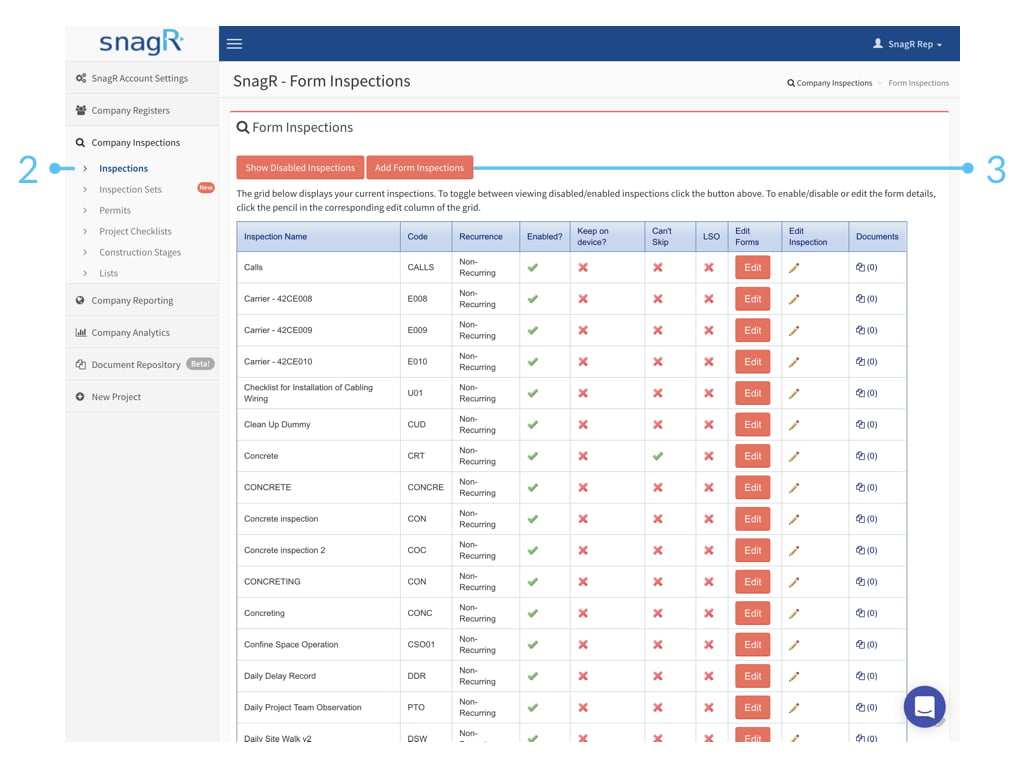
Go to **Company Inspections > Inspections**.
Select **Add Form Inspections**.
### 1. Inspection Template
Go to **Company Inspections > Inspections**.
Select **Add Form Inspections**.
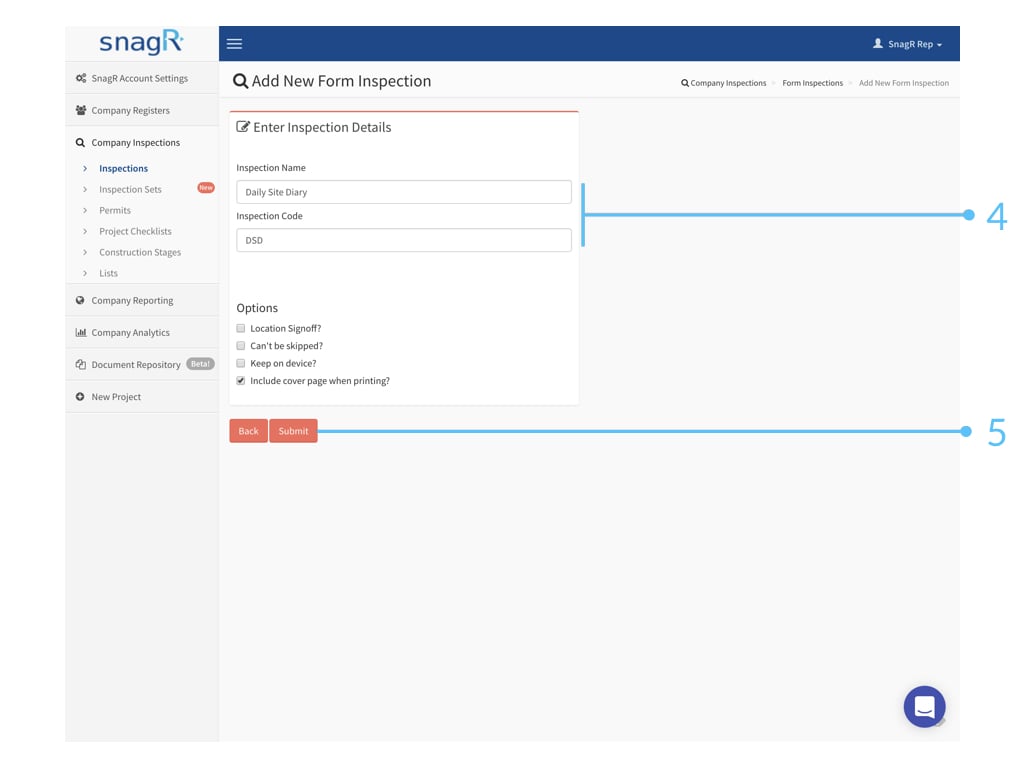 **Note** at step 4: If you would like to **build a sequence** of when the form can be completed, i.e., only open form b when form a is closed, please enable "Can't be skipped?".
### 2. Form Template
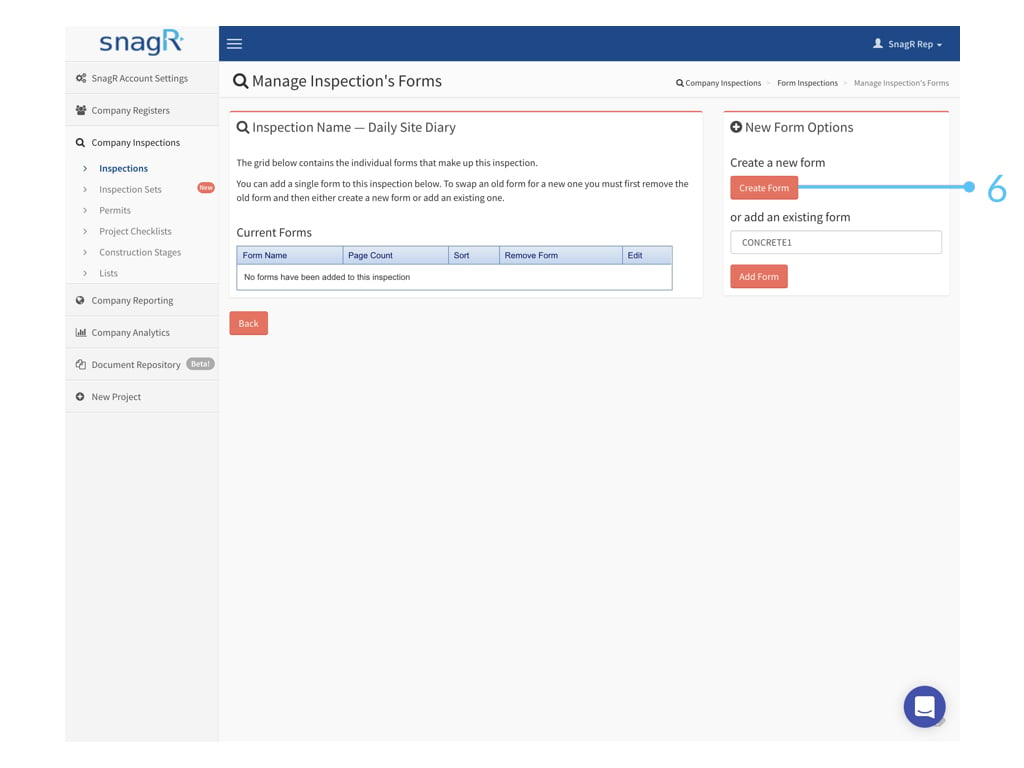
Inside an Inspection Template, you can create a form template, or add existing form template.
In this example we will set up from scratch and proceed by **Create Form**.
**Note** at step 4: If you would like to **build a sequence** of when the form can be completed, i.e., only open form b when form a is closed, please enable "Can't be skipped?".
### 2. Form Template
Inside an Inspection Template, you can create a form template, or add existing form template.
In this example we will set up from scratch and proceed by **Create Form**.
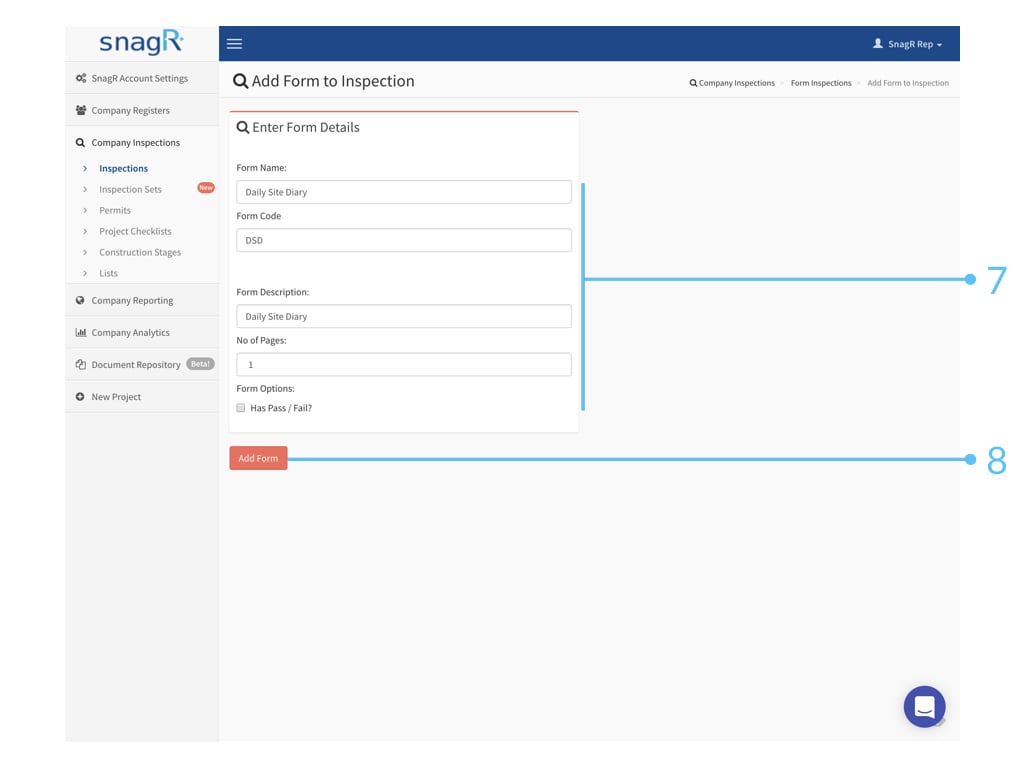 **Note** at step 7: If you would like the system to spawn a new form automatically once a form is close failed, for example, if first inspection fails and **re-inspection is required**, please enable "Has Pass / Fail?".
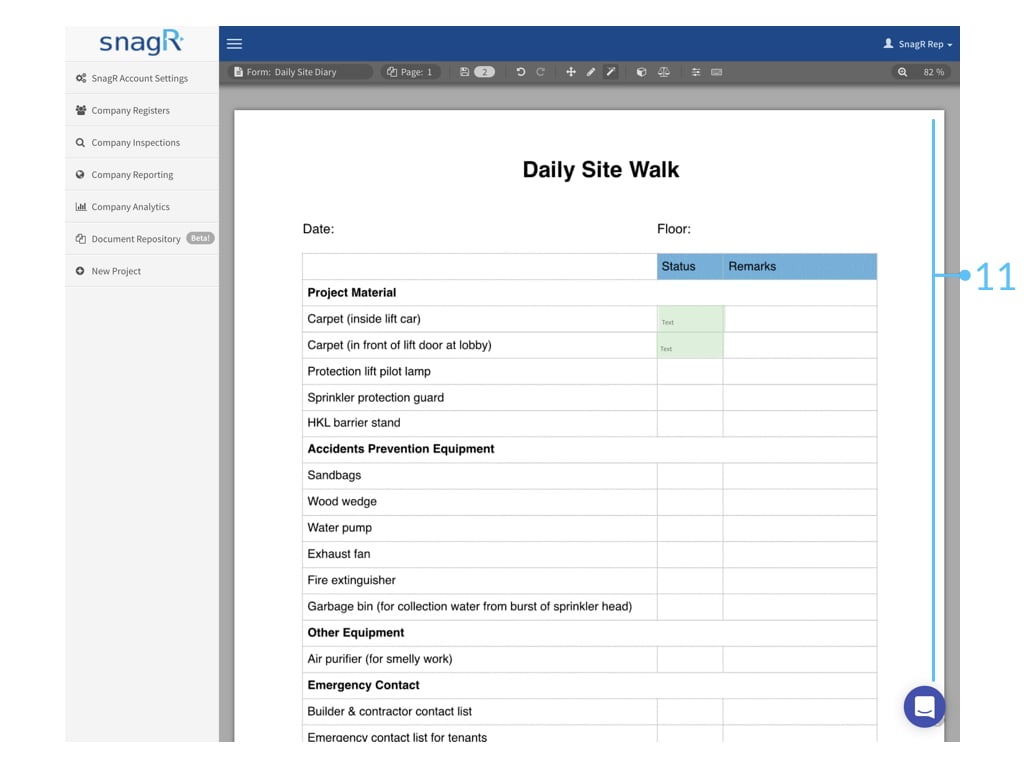
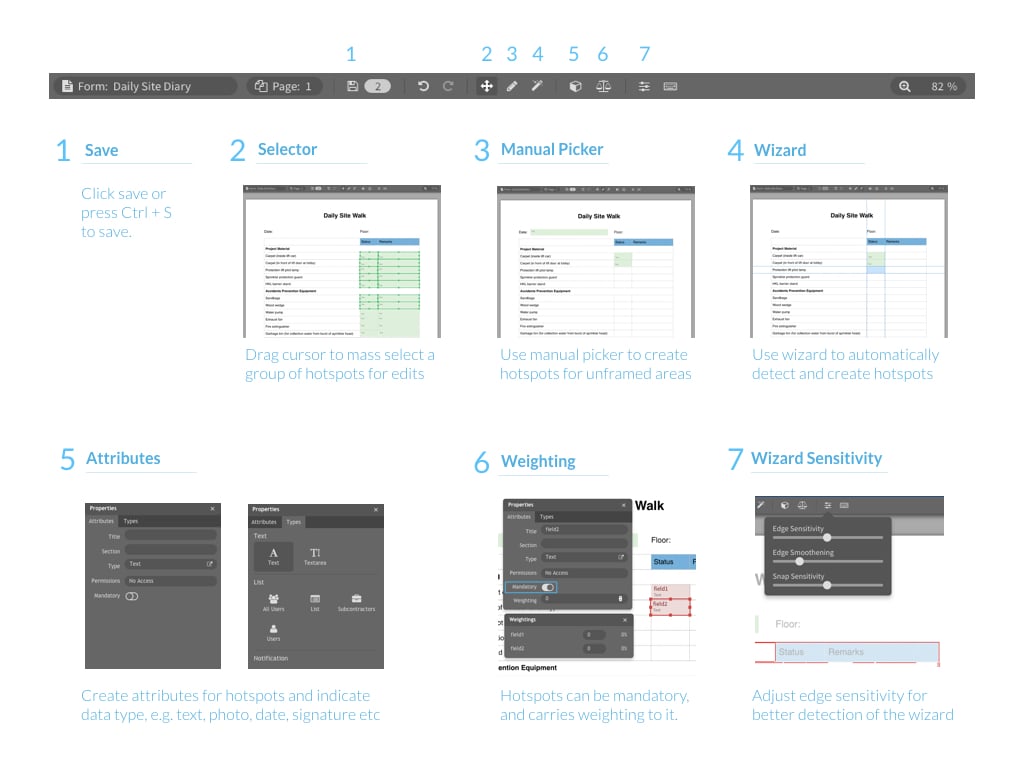
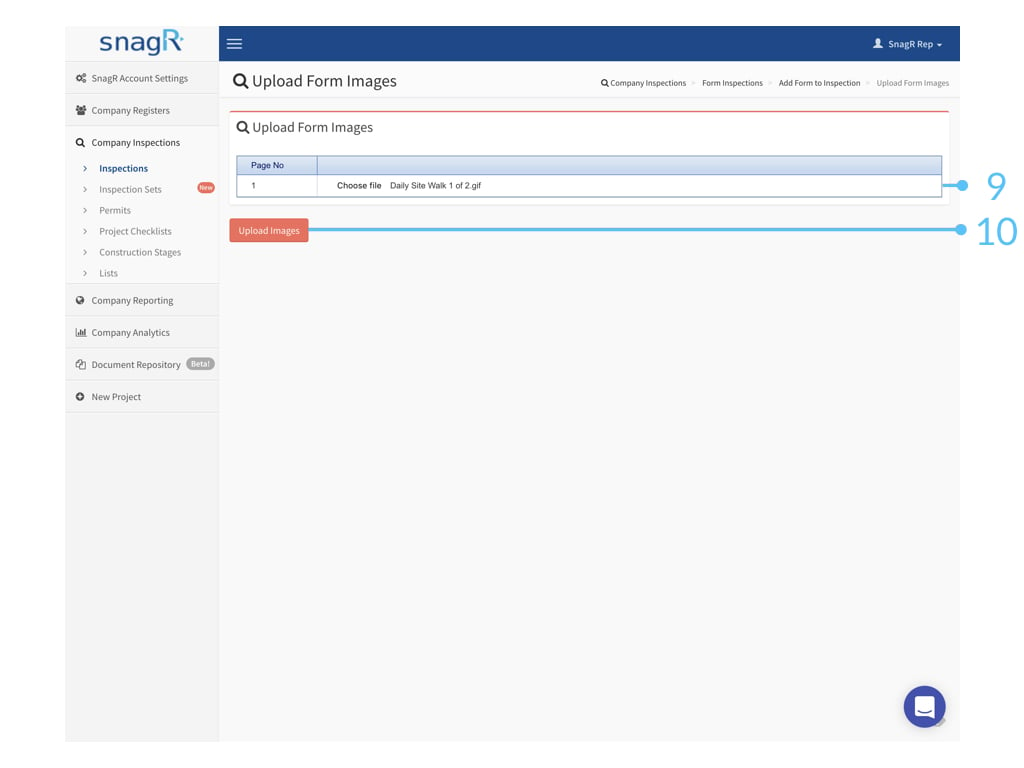 To set up the form template, below is a compact guide. For more details, please visit [this page](/en/set-up-project/forms-company-level/how-do-i-digitalise-a-form).
 Once you save the form template, it will be added to the Inspection Template automatically.
By default, there are 3 workflow stages to a form:
1. Open
2. Close (Passed)
3. Close (Failed)
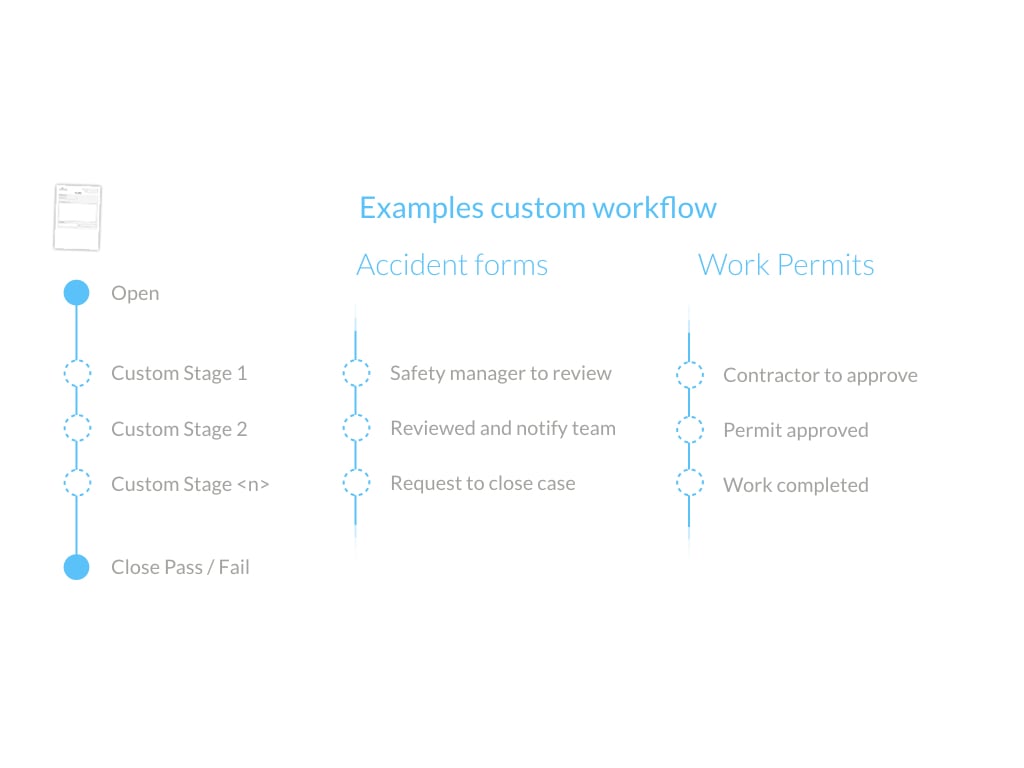
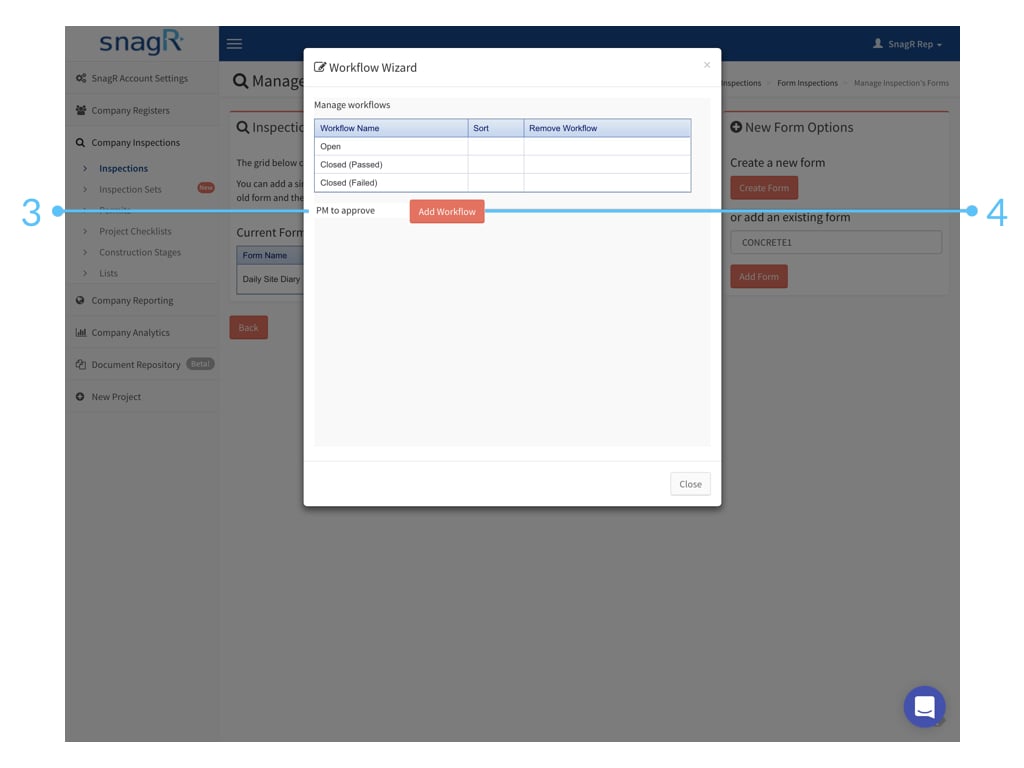
If you would like to **add** **custom workflow** stages, for example:
Once you save the form template, it will be added to the Inspection Template automatically.
By default, there are 3 workflow stages to a form:
1. Open
2. Close (Passed)
3. Close (Failed)
If you would like to **add** **custom workflow** stages, for example:
 Here is how:
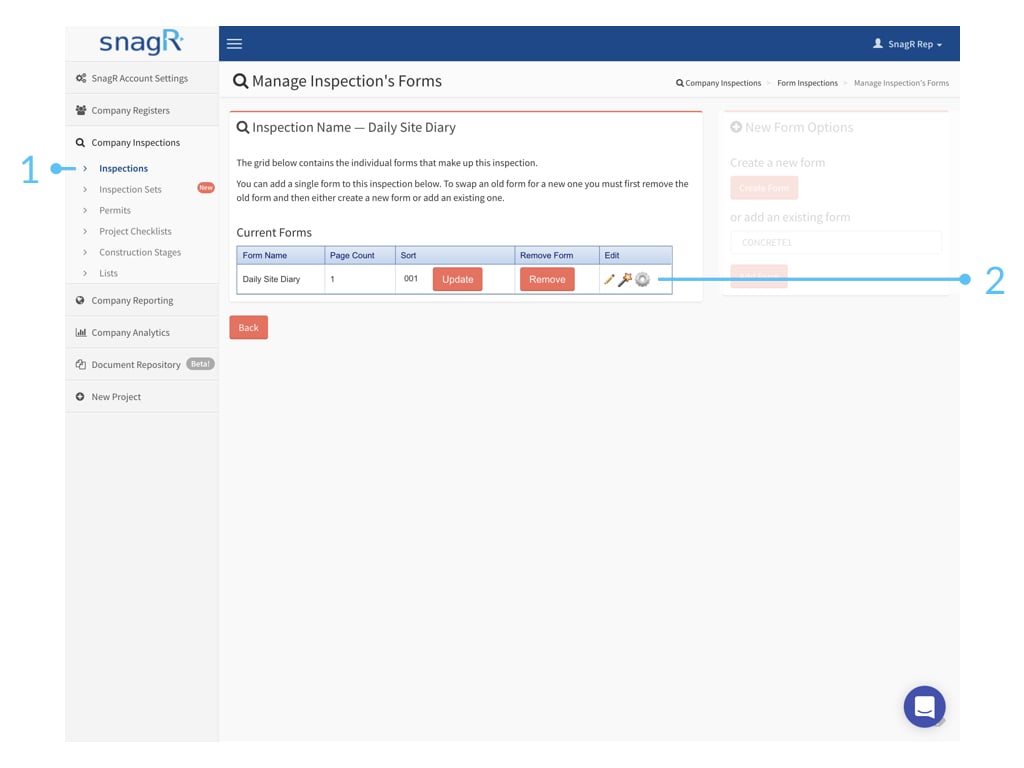
Select the **gear icon** to edit the form workflow.
Here is how:
Select the **gear icon** to edit the form workflow.
 **Type** in the name of the custom workflow > Click **Add Workflow**
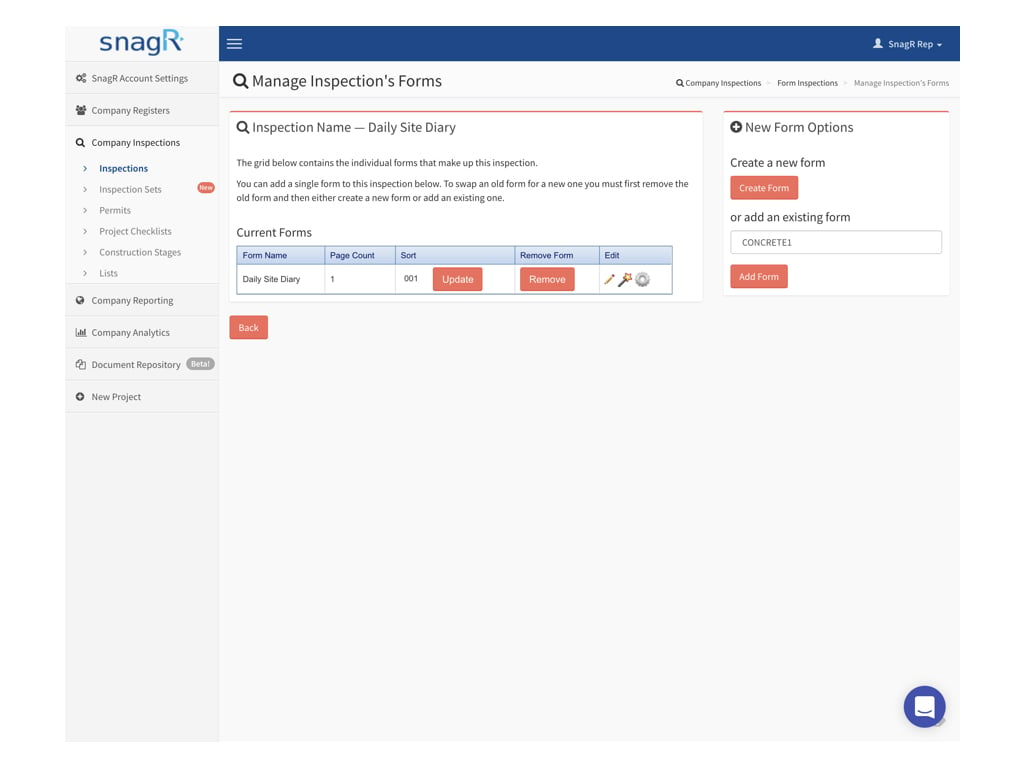
 For now, we have created an Inspection Template with one form template.
For yours, you may proceed by creating more form templates or by adding an existing form template as needed.
For now, we have created an Inspection Template with one form template.
For yours, you may proceed by creating more form templates or by adding an existing form template as needed.
 Once you are happy with the Inspection Template, don't forget to also [enable this on the project level](/en/faq/troubelshooting-for-admins/how-to-enable-form-templates-for-a-project).
By default, all Inspection Templates created on company level are disabled on project level.
Once you are happy with the Inspection Template, don't forget to also [enable this on the project level](/en/faq/troubelshooting-for-admins/how-to-enable-form-templates-for-a-project).
By default, all Inspection Templates created on company level are disabled on project level.