> ## Documentation Index
> Fetch the complete documentation index at: https://kb.snagr.co.uk/llms.txt
> Use this file to discover all available pages before exploring further.
# How to set up the QR Code image field?
 **Website**
Put your hands together to welcome our new function - QR Code image.\
it is a short cut to fill multiple fields by scan a QR code/Bar code via APP.
There have 2 scenarios or more you may use it.
* Create your own QR Code to pre-filled multiple fields.
* Scan the QR Code/Bar Code on the document provided by the parties.
To set up, please access the form wizard from Company admin > Inspection > Form > Form wizard.
Set a field properties to a QR Code image, enter the code for mapping.
Below have 2 types of code you may use.
1️⃣
```json theme={null}
{
"qrcodeType": "QRCodeToImage",
"parseType": "array",
"arraySeparator":",",
"arrayMapping": [
{
"CheckCode":"{Checkcode}"
},{
"CheckCode":"{Checkcode)"
},{
"CheckCode":"{Checkcode}"
},{
"CheckCode":"{Checkcode}"
},{
"CheckCode":"{Checkcode}"
},{
"CheckCode":"{Checkcode}"
}
]
}
```
To match which above code, the content of the QR Code has to separate the item by a comma.
Such as,
1,2,03/04/2015,18:00,7,8
Would be nice to use it to create your own QR Code.
*How to create?\
Search "QR Code Generator" via the web search engine!*
2️⃣
```json theme={null}
{
"qrcodeType": "QRCodeToImage",
"parseType": "queryString",
"arrayKeyMapping": [
{
"key":"{key1}",
"value":"{Checkcode}"
}, {
"key":"{key2}",
"value":"{Checkcode}"
}, {
"key":"{key3}",
"value":"{Checkcode}"
}, {
"key":"{key4}",
"value":"{Checkcode}"
}, {
"key":"{key5}",
"value":"{Checkcode}"
}, {
"key":"{key6}",
"value":"{Checkcode}"
}
]
}
```
To match which above code, the content of the QR Code has to describe content with the \{key}, start with "?" and separate the item by "&".
Such as,
```text theme={null}
?Name=SnagR&Ref=ref no.123456789&Date=12/07/2020&Time=18:00&Type=Demo&Location=On Site
```
You may scan the QR Code/Bar Code on the document first and see which one would meet your needs.
*Where to scan?*\
*Search "QR Code Scanner" via the web search engine or scan via the camera on your device!*
⭐️ To know what is the \{Checkcode} of that field, please screenshot it, remark which field you are willing to know, and send it to the support team :)\
[How can I contact SnagR?](/en/faq/general/how-can-i-contact-snagr)
Let's practice!
Please create a new inspection with the below form "QR code" template.\
Please create the form code as "**QR**".\
[Check this link to know how to create a new inspection template.](/it/impostazione-progetti/modelli-di-documento-amministrazione-societa/how-to-design-inspections-in-snagr)
**Website**
Put your hands together to welcome our new function - QR Code image.\
it is a short cut to fill multiple fields by scan a QR code/Bar code via APP.
There have 2 scenarios or more you may use it.
* Create your own QR Code to pre-filled multiple fields.
* Scan the QR Code/Bar Code on the document provided by the parties.
To set up, please access the form wizard from Company admin > Inspection > Form > Form wizard.
Set a field properties to a QR Code image, enter the code for mapping.
Below have 2 types of code you may use.
1️⃣
```json theme={null}
{
"qrcodeType": "QRCodeToImage",
"parseType": "array",
"arraySeparator":",",
"arrayMapping": [
{
"CheckCode":"{Checkcode}"
},{
"CheckCode":"{Checkcode)"
},{
"CheckCode":"{Checkcode}"
},{
"CheckCode":"{Checkcode}"
},{
"CheckCode":"{Checkcode}"
},{
"CheckCode":"{Checkcode}"
}
]
}
```
To match which above code, the content of the QR Code has to separate the item by a comma.
Such as,
1,2,03/04/2015,18:00,7,8
Would be nice to use it to create your own QR Code.
*How to create?\
Search "QR Code Generator" via the web search engine!*
2️⃣
```json theme={null}
{
"qrcodeType": "QRCodeToImage",
"parseType": "queryString",
"arrayKeyMapping": [
{
"key":"{key1}",
"value":"{Checkcode}"
}, {
"key":"{key2}",
"value":"{Checkcode}"
}, {
"key":"{key3}",
"value":"{Checkcode}"
}, {
"key":"{key4}",
"value":"{Checkcode}"
}, {
"key":"{key5}",
"value":"{Checkcode}"
}, {
"key":"{key6}",
"value":"{Checkcode}"
}
]
}
```
To match which above code, the content of the QR Code has to describe content with the \{key}, start with "?" and separate the item by "&".
Such as,
```text theme={null}
?Name=SnagR&Ref=ref no.123456789&Date=12/07/2020&Time=18:00&Type=Demo&Location=On Site
```
You may scan the QR Code/Bar Code on the document first and see which one would meet your needs.
*Where to scan?*\
*Search "QR Code Scanner" via the web search engine or scan via the camera on your device!*
⭐️ To know what is the \{Checkcode} of that field, please screenshot it, remark which field you are willing to know, and send it to the support team :)\
[How can I contact SnagR?](/en/faq/general/how-can-i-contact-snagr)
Let's practice!
Please create a new inspection with the below form "QR code" template.\
Please create the form code as "**QR**".\
[Check this link to know how to create a new inspection template.](/it/impostazione-progetti/modelli-di-documento-amministrazione-societa/how-to-design-inspections-in-snagr)
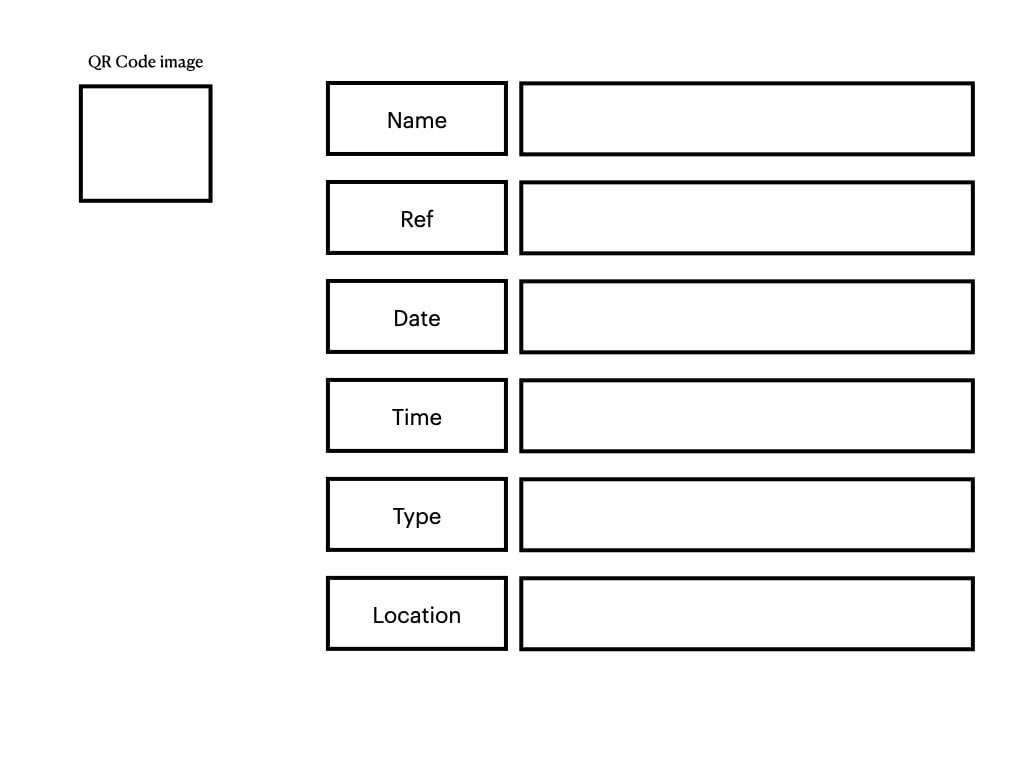 🎬 Start
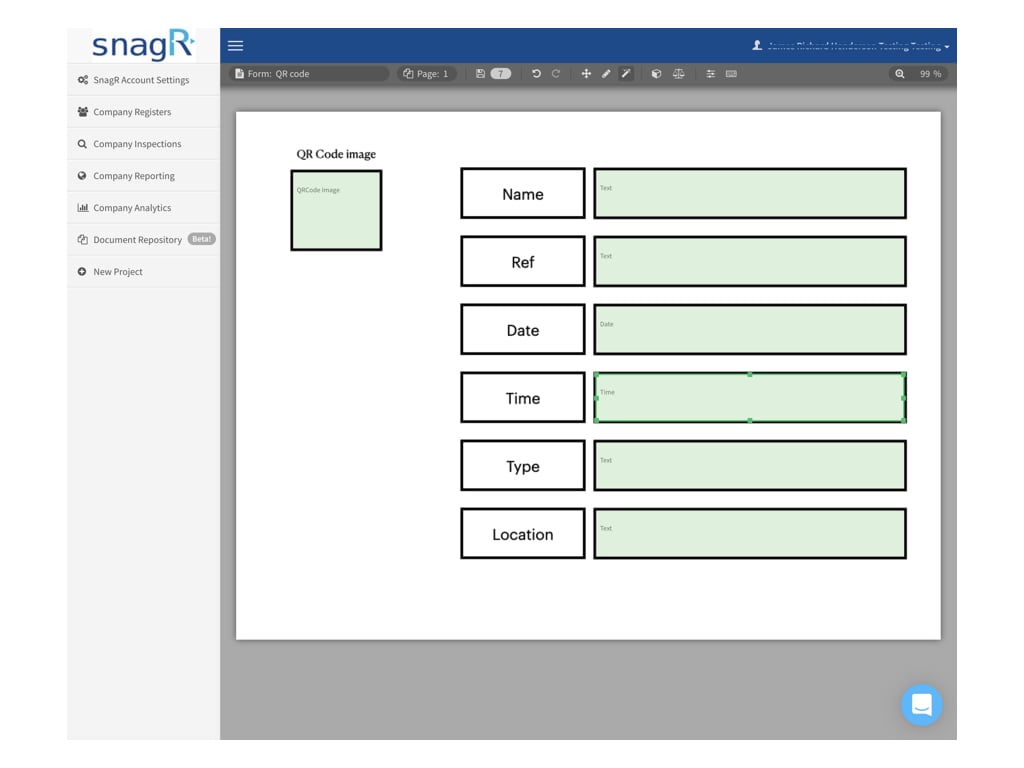
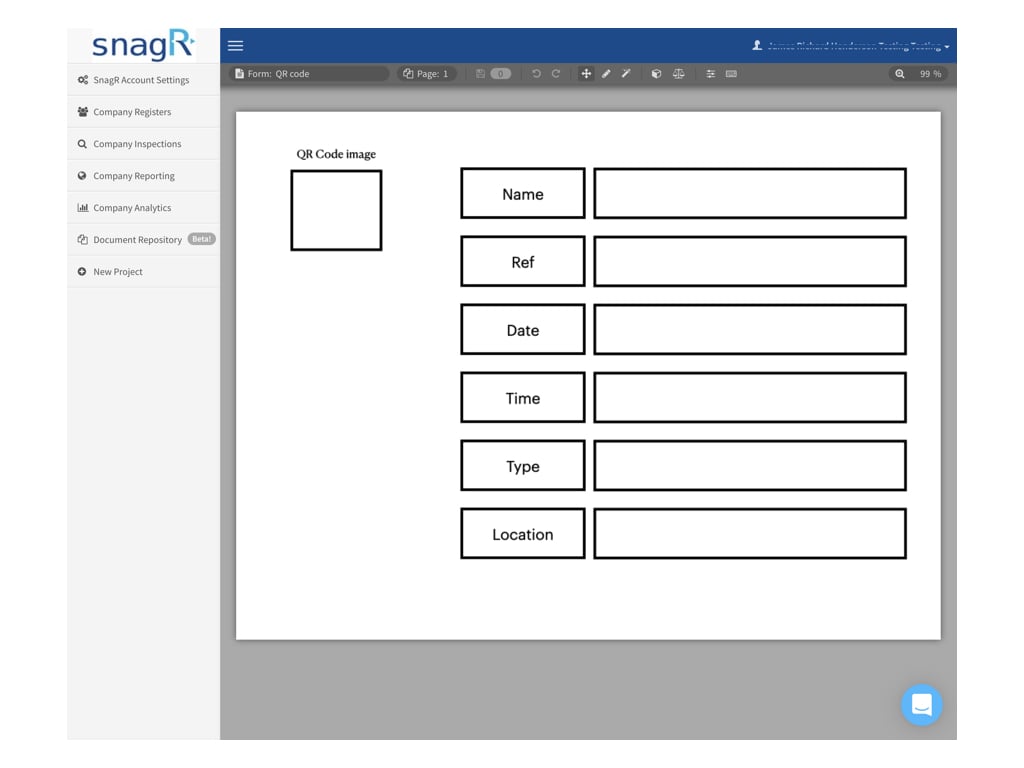 Create fields from the left to right, from the top to bottom.
Set the form field properties to the corresponding type.
Create fields from the left to right, from the top to bottom.
Set the form field properties to the corresponding type.
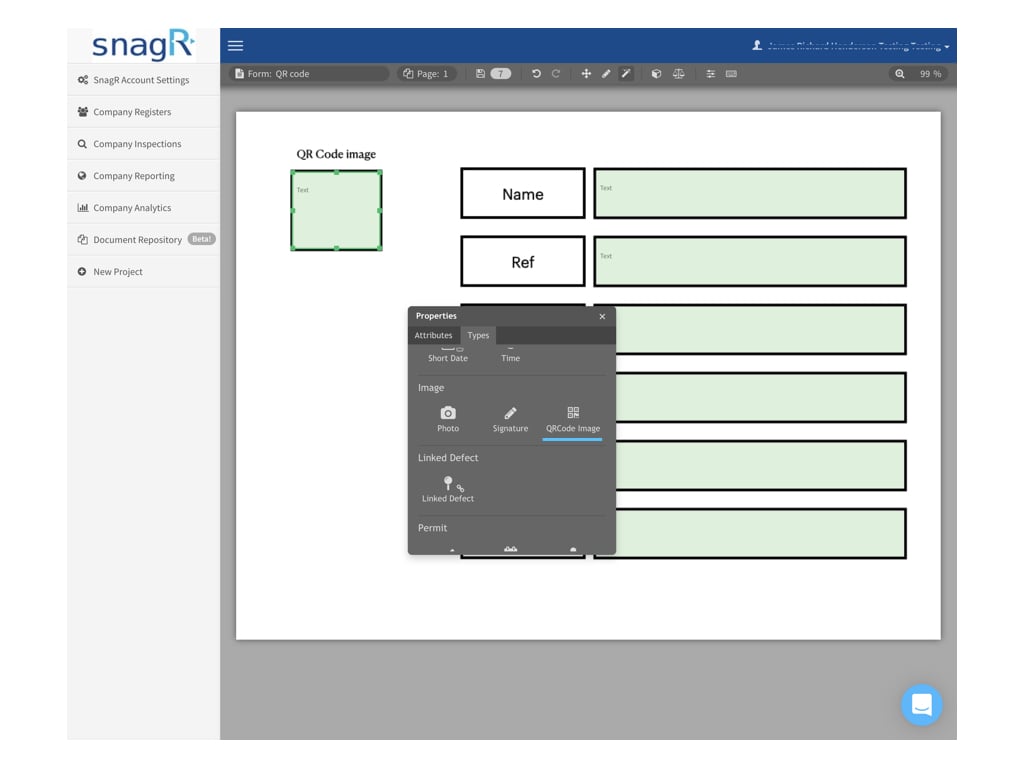
 Select the **QRCode image.** (the QRCode will be stamped on the form.)
 Back to the Attributes and enter the code to mapping.
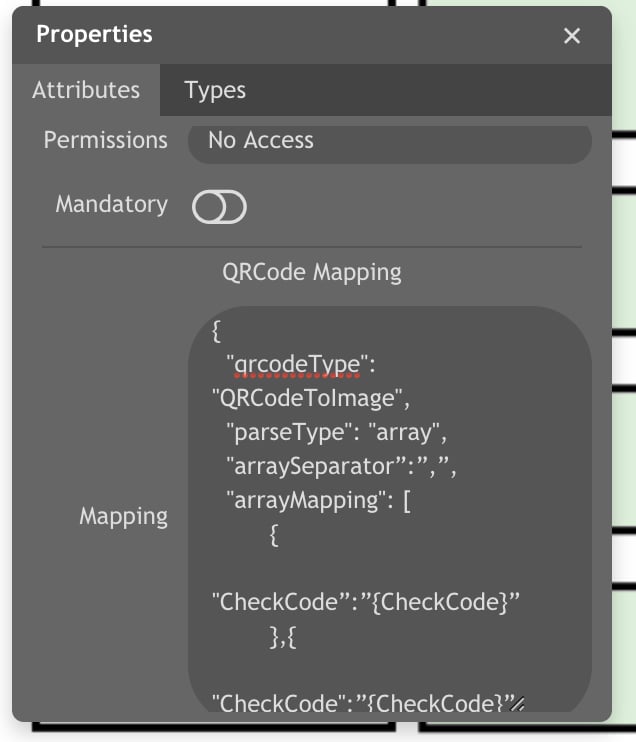 ```json theme={null}
{
"qrcodeType": "QRCodeToImage",
"parseType": "array",
"arraySeparator":",",
"arrayMapping": [
{
"CheckCode":"QR0002"
},{
"CheckCode":"QR0003"
},{
"CheckCode":"QR0004",
"DateInputFormat":"DD/MM/YYYY"
},{
"CheckCode":"QR0005",
"DateInputFormat":"hh:mm"
},{
"CheckCode":"QR0006"
},{
"CheckCode":"QR0007"
}
]
}
```
Done. Please save and enable the insection template on the project.
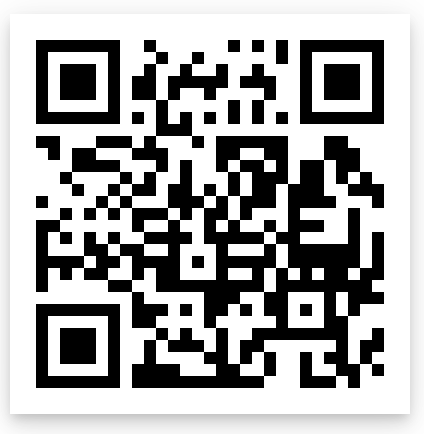
Login to the APP, sync, add a new inspection and scan below QR Code to test on it.
```json theme={null}
{
"qrcodeType": "QRCodeToImage",
"parseType": "array",
"arraySeparator":",",
"arrayMapping": [
{
"CheckCode":"QR0002"
},{
"CheckCode":"QR0003"
},{
"CheckCode":"QR0004",
"DateInputFormat":"DD/MM/YYYY"
},{
"CheckCode":"QR0005",
"DateInputFormat":"hh:mm"
},{
"CheckCode":"QR0006"
},{
"CheckCode":"QR0007"
}
]
}
```
Done. Please save and enable the insection template on the project.
Login to the APP, sync, add a new inspection and scan below QR Code to test on it.
 Let see how it works. 👀
