> ## Documentation Index
> Fetch the complete documentation index at: https://kb.snagr.co.uk/llms.txt
> Use this file to discover all available pages before exploring further.
# Can the contractor be automatically selected when a specific issue type is selected?
SnagR allows linking up issue category/type and contractor group.\
Each issue type can be linked up to specific contractor group(s) in the project.\
Project admin can fully utilise this function to save up the time for users to choose contractor from a long list and avoid mistake made during issue recording process.
 **Website**
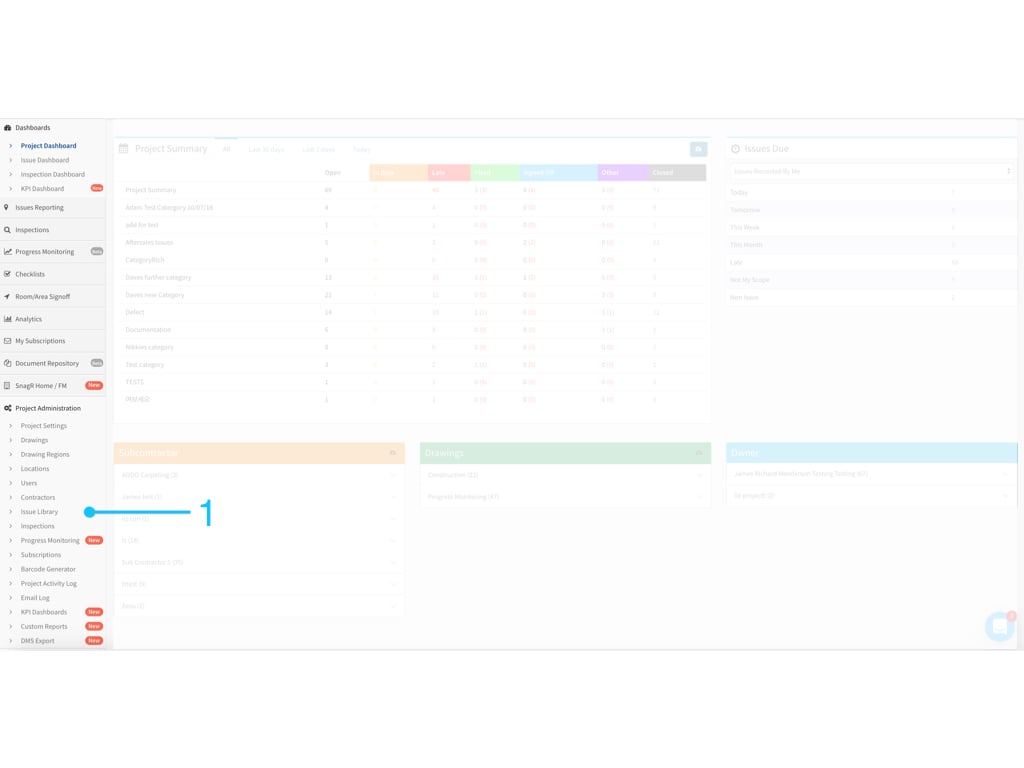
Go to Project Administration > Issue Library
**Website**
Go to Project Administration > Issue Library
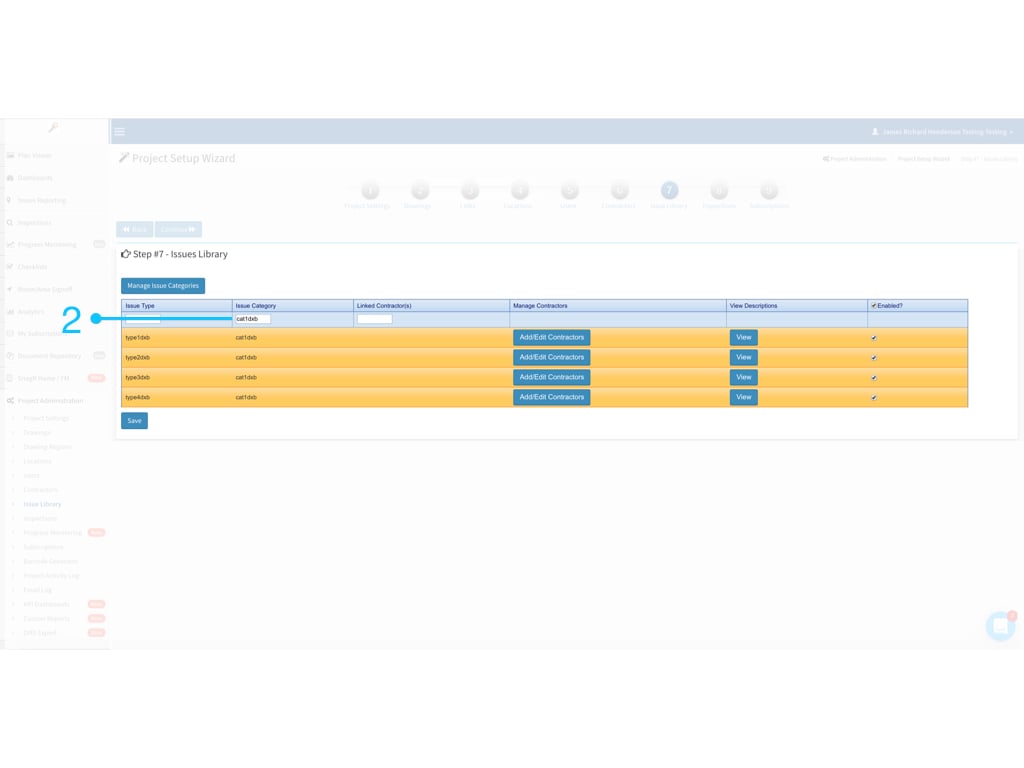
 Search for the issue category/type that you want to assign contractor group to
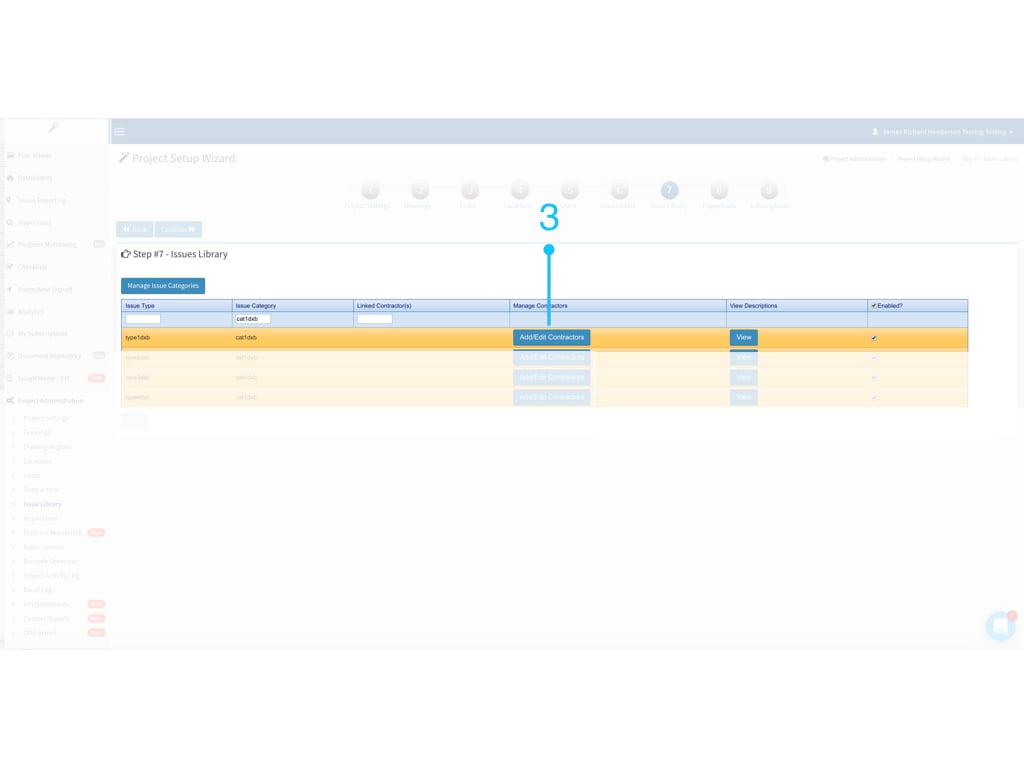
 Click " Add/Edit Contractors"
 Choose the contractor that you would like to assign to the selected issue category/issue type and click "Save"
Note: You can select more than one contractor from the project contractor list here. For example, if you choose 2 contractors from the project contractor list, the items available for selection will be limited to those two contractors instead of a full project contractor list during issue recording process.
Choose the contractor that you would like to assign to the selected issue category/issue type and click "Save"
Note: You can select more than one contractor from the project contractor list here. For example, if you choose 2 contractors from the project contractor list, the items available for selection will be limited to those two contractors instead of a full project contractor list during issue recording process.
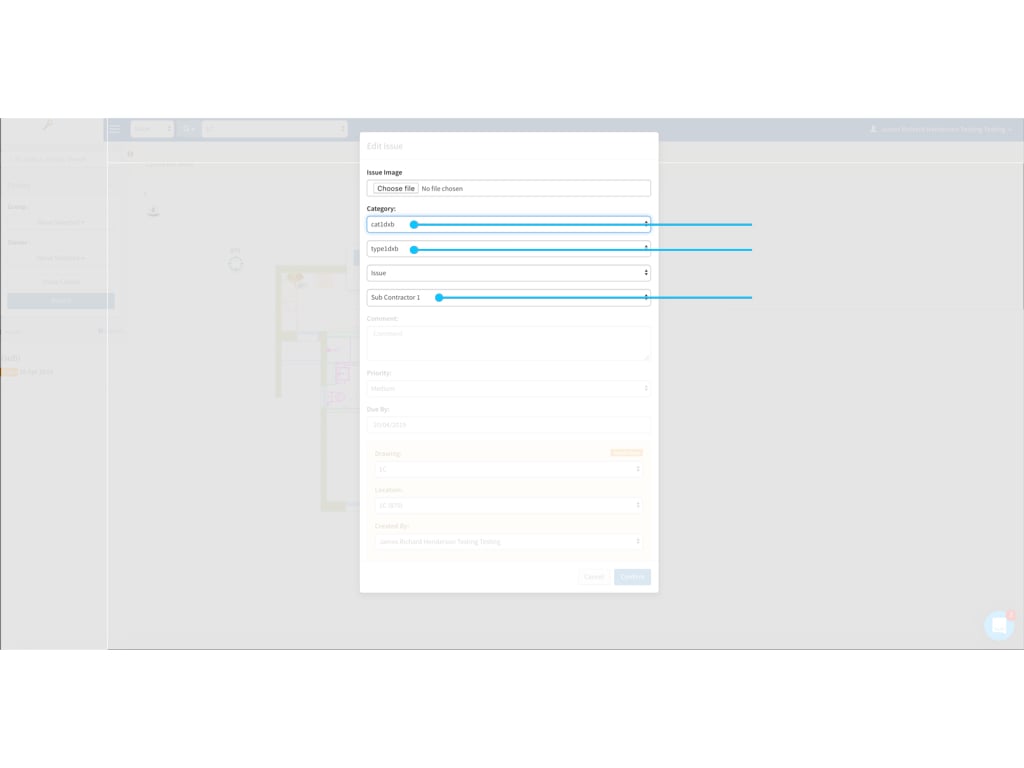
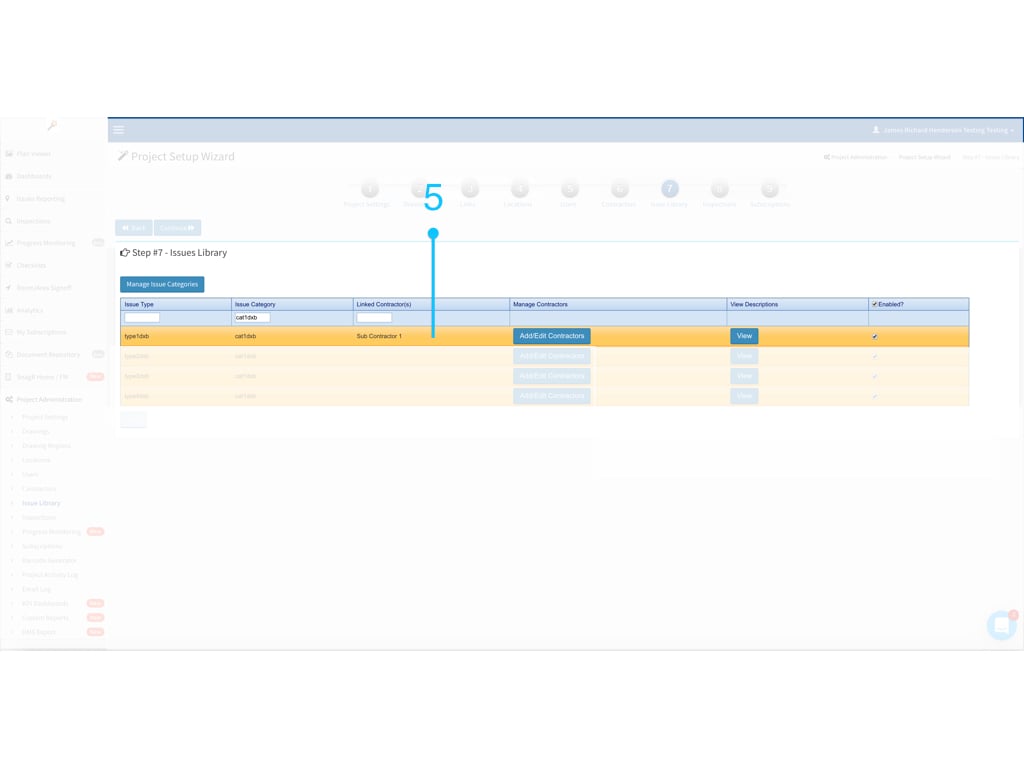
 Contractor is assigned to the issue type "type1dxb" under issue category "cat1dxb".
 Here is how it works, it automatically assign to corresponding contractor group during issue recording: