
1. User credential
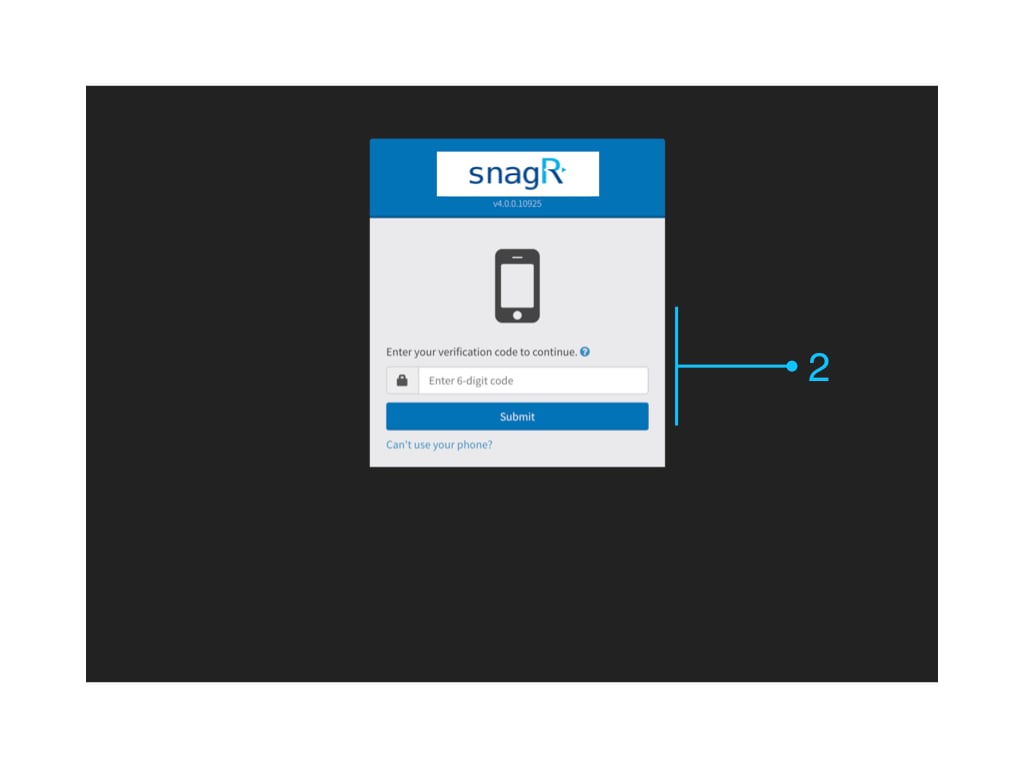
2. Verification code generated on Google Authenticator app. For login to SnagR on device, the two authentication factors are:
1. User credential
2. Device passcode/fingerprint
 Website
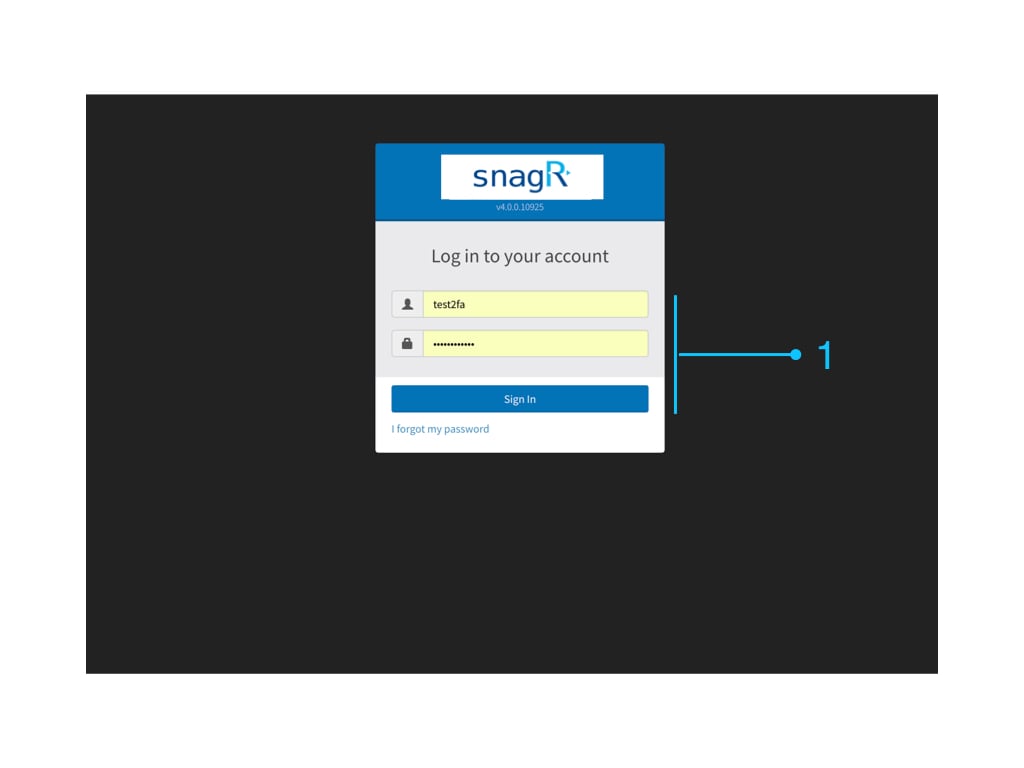
Enter Username and password
Website
Enter Username and password
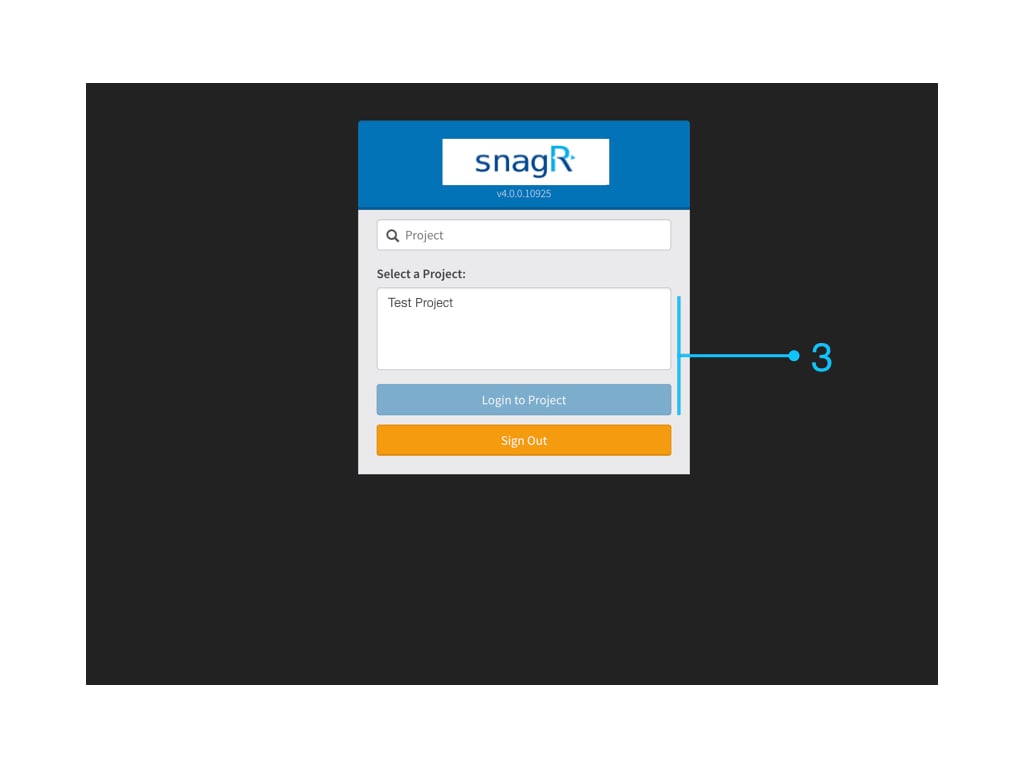
 Device
Enter Username and password
Device
Enter Username and password
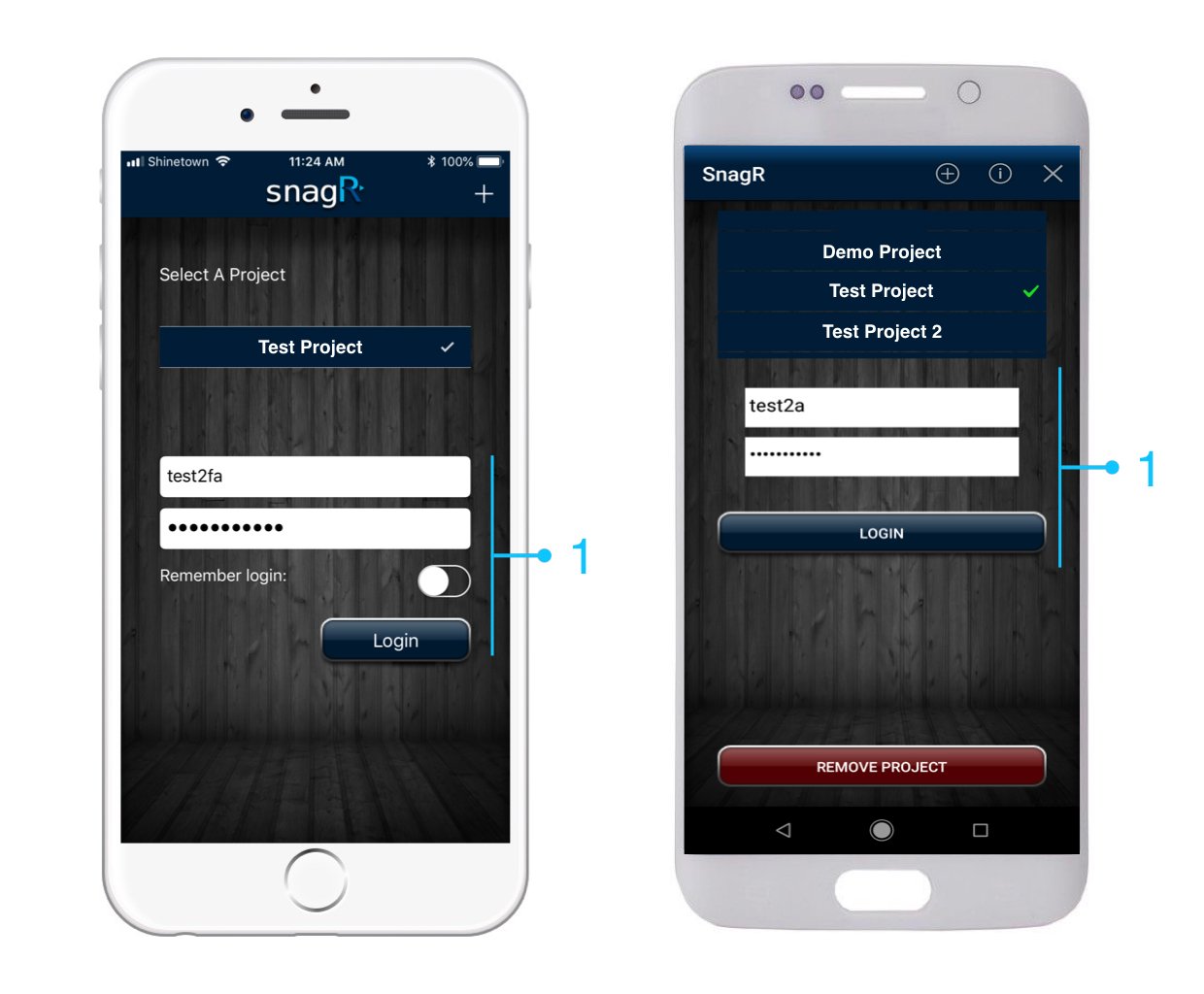
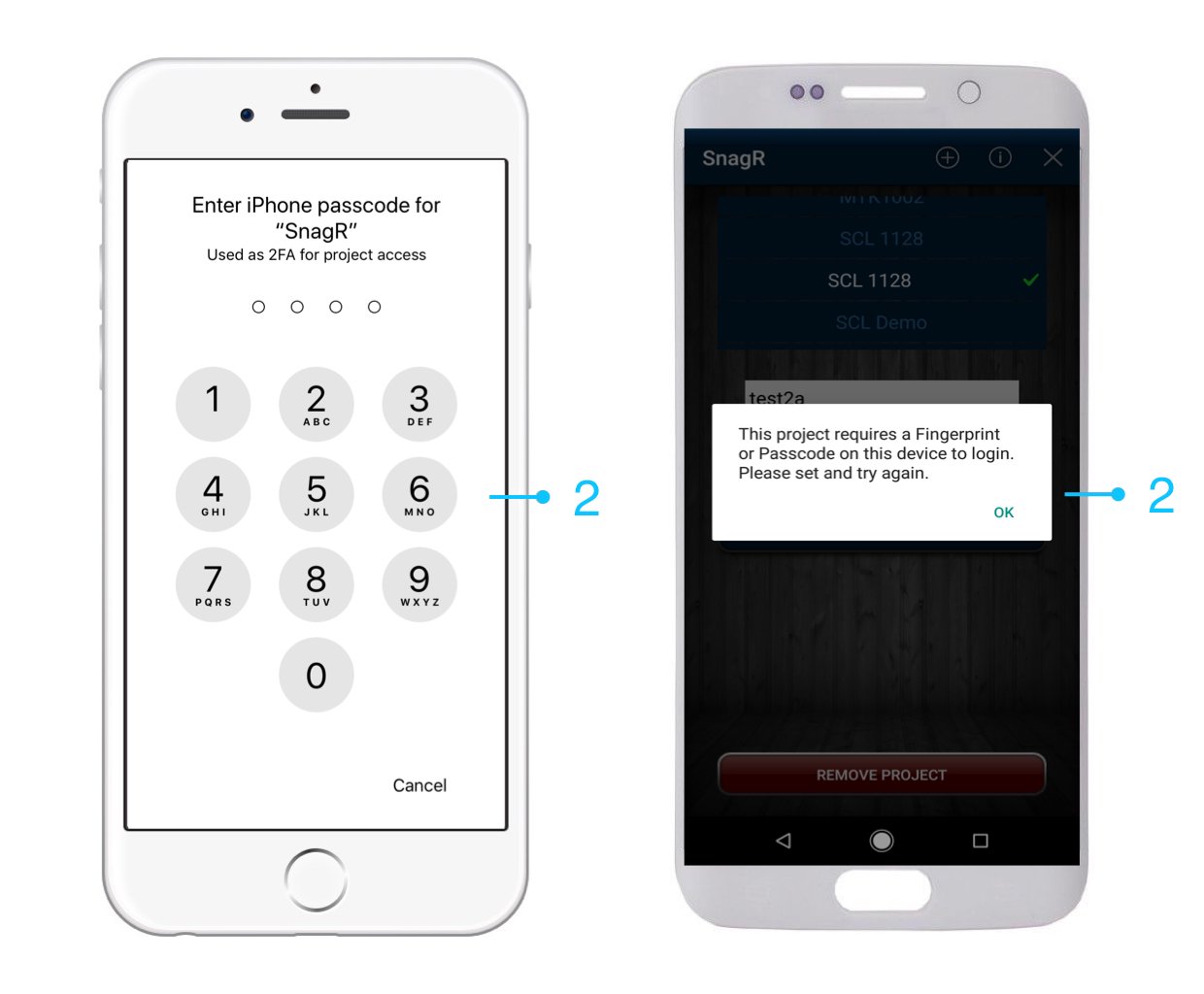
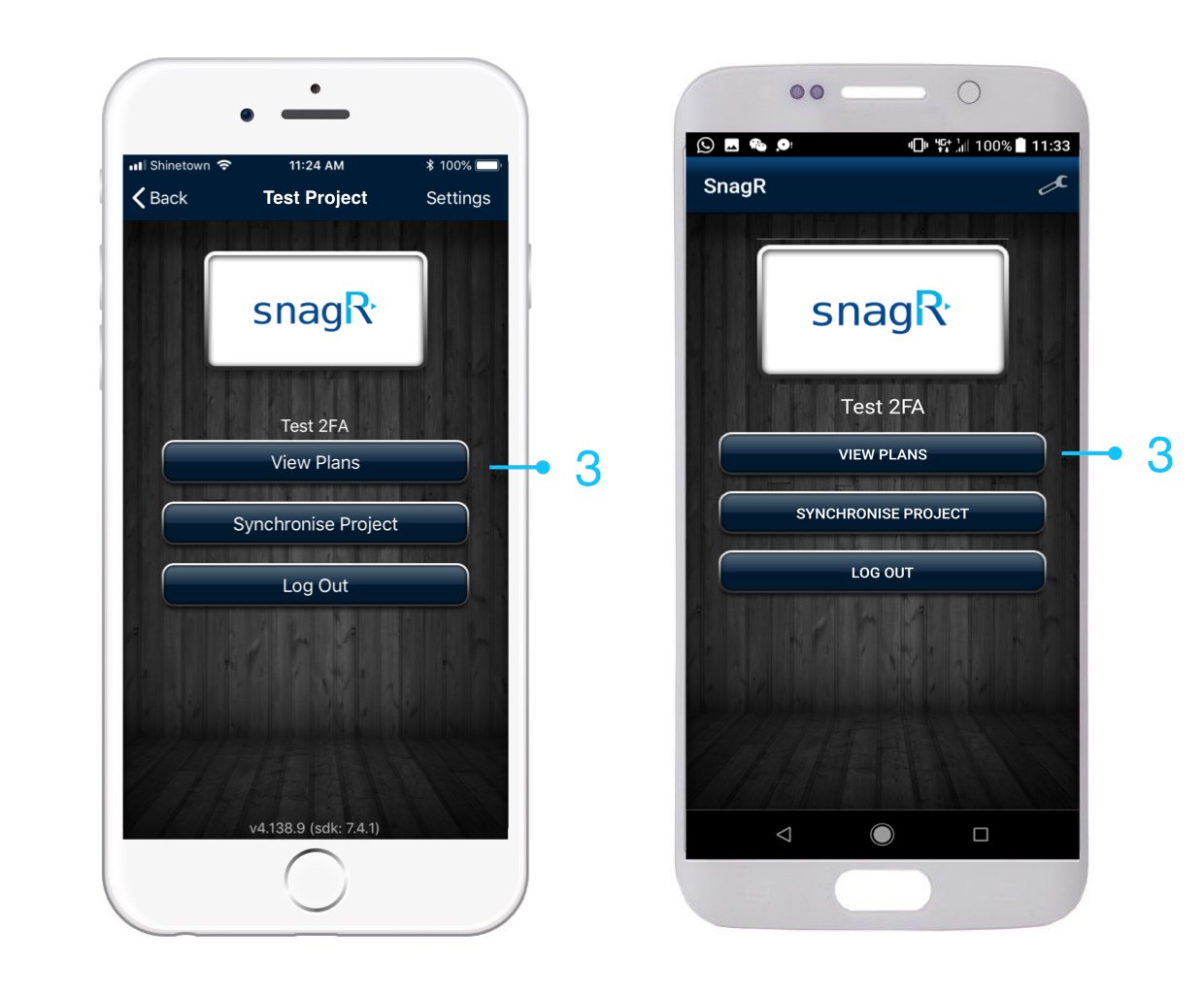
 For iOS device, you must enter device passcode/fingerprint to login to the project after entering your account password on the login page.
For Android device, the SnagR App will allow you to login to the project only when a device passcode/fingerprint is set up. Otherwise, SnagR app will not let you login to the project until a device passcode/fingerprint is set up.
For iOS device, you must enter device passcode/fingerprint to login to the project after entering your account password on the login page.
For Android device, the SnagR App will allow you to login to the project only when a device passcode/fingerprint is set up. Otherwise, SnagR app will not let you login to the project until a device passcode/fingerprint is set up.