

 Website
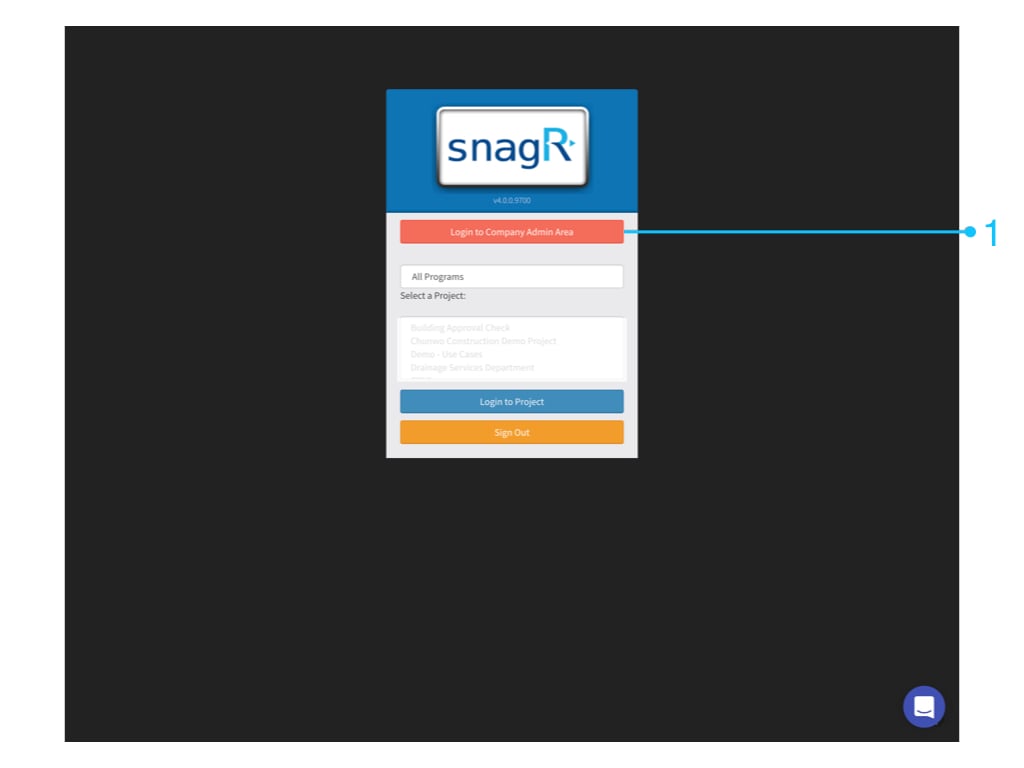
Login to Company Admin Area
Website
Login to Company Admin Area
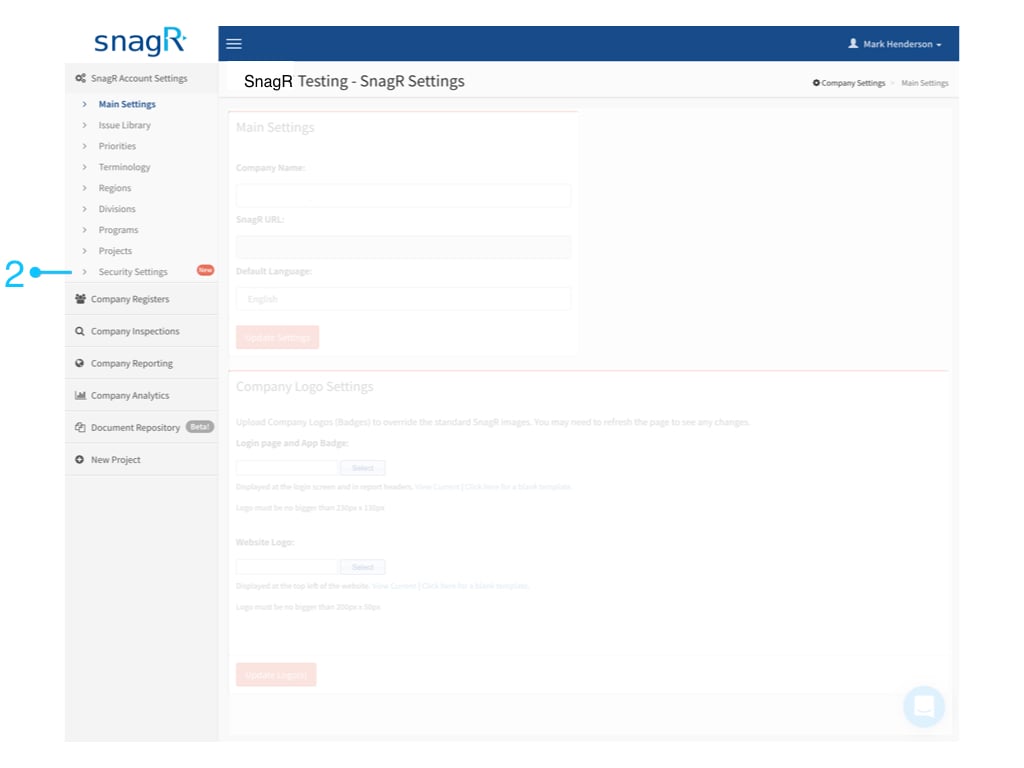
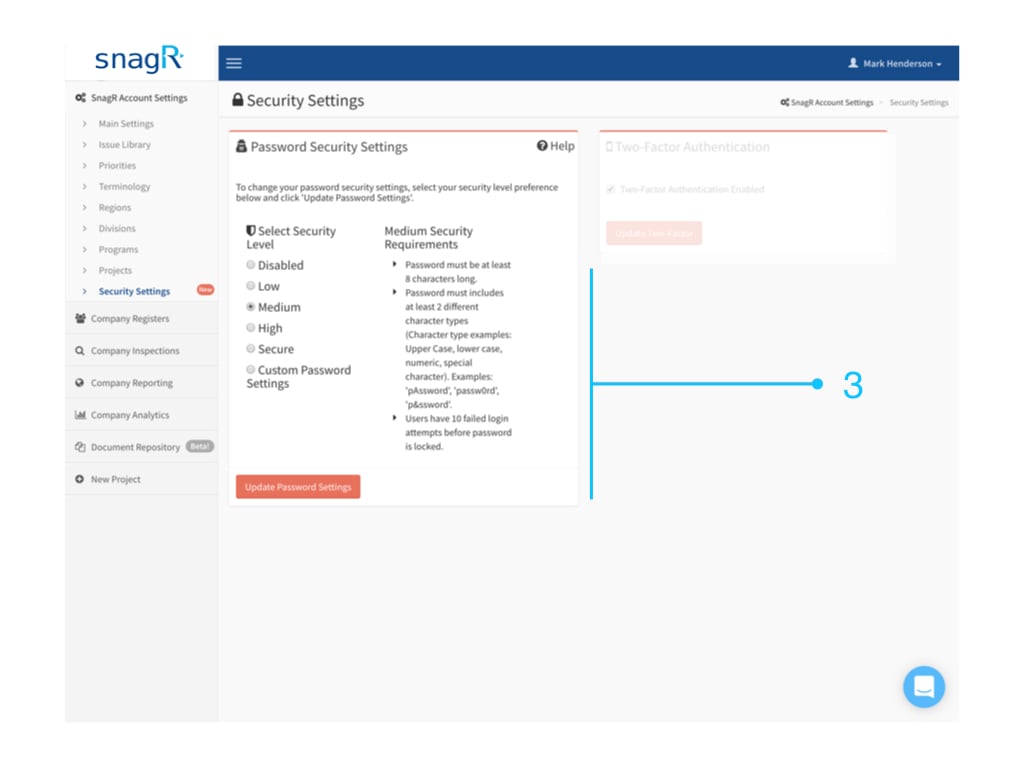
- Disabled
- No limitation on the security requirements
- Low
- Password must contain at least 6 characters
- Users have 10 failed login attempts before password is locked)
- Medium
- Password must be at least 8 characters long.
- Password must includes at least 2 different character types (Character type examples: Upper Case, lower case, numeric, special character). Examples: ‘pAssword’, ‘passw0rd’, ‘p&ssword’.
- Users have 10 failed login attempts before password is locked.
- High
- Password must be at least 10 characters long
- Password must contain at least 1 of each different character type (Upper Case, lower case, numeric, special character)
- Examples: ‘pAssword0!’, ‘myPa$sw0rd’
- Users have 5 failed login attempts before password is locked.
- Secure
- Password must be at least 10 characters long
- Password must contain at least 1 of each different character type (Upper Case, lower case, numeric, special character)
- Examples: ‘pAssword0!’, ‘myPa$sw0rd’
- Password expires after 90 days.
- Users have 5 failed login attempts before password is locked.
- Custom Password Settings
- Password characters
- Uppercase character
- Lowercase character
- Numerical character
- Special characters
- Login attempts allowed
- Password Expiration