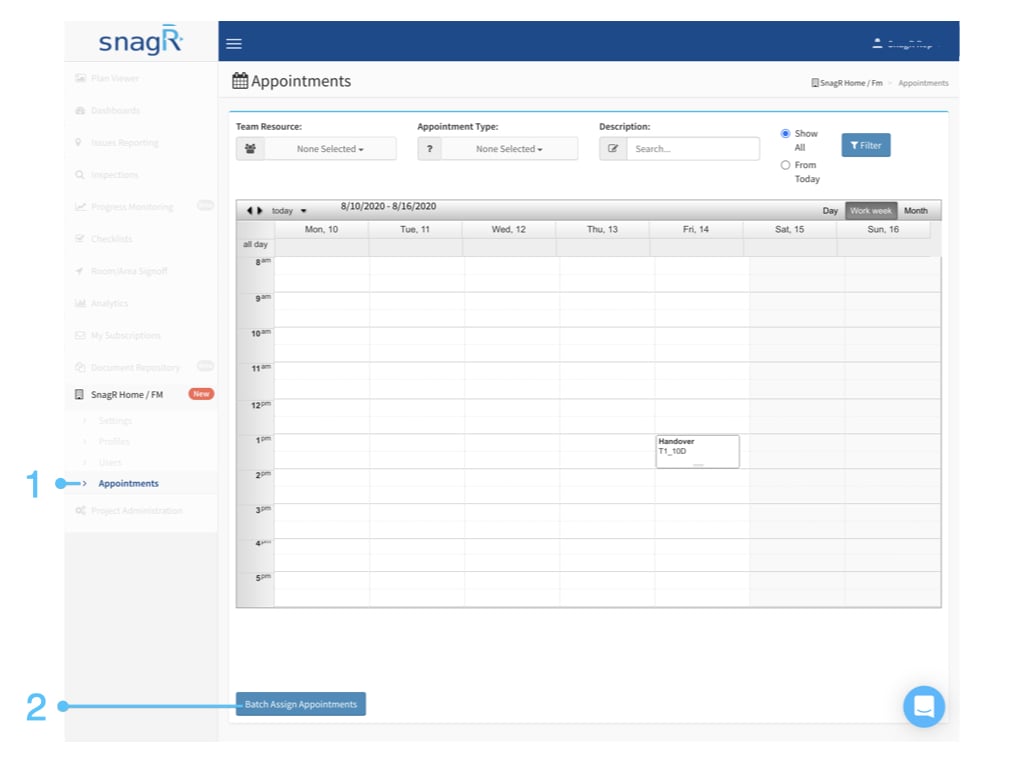
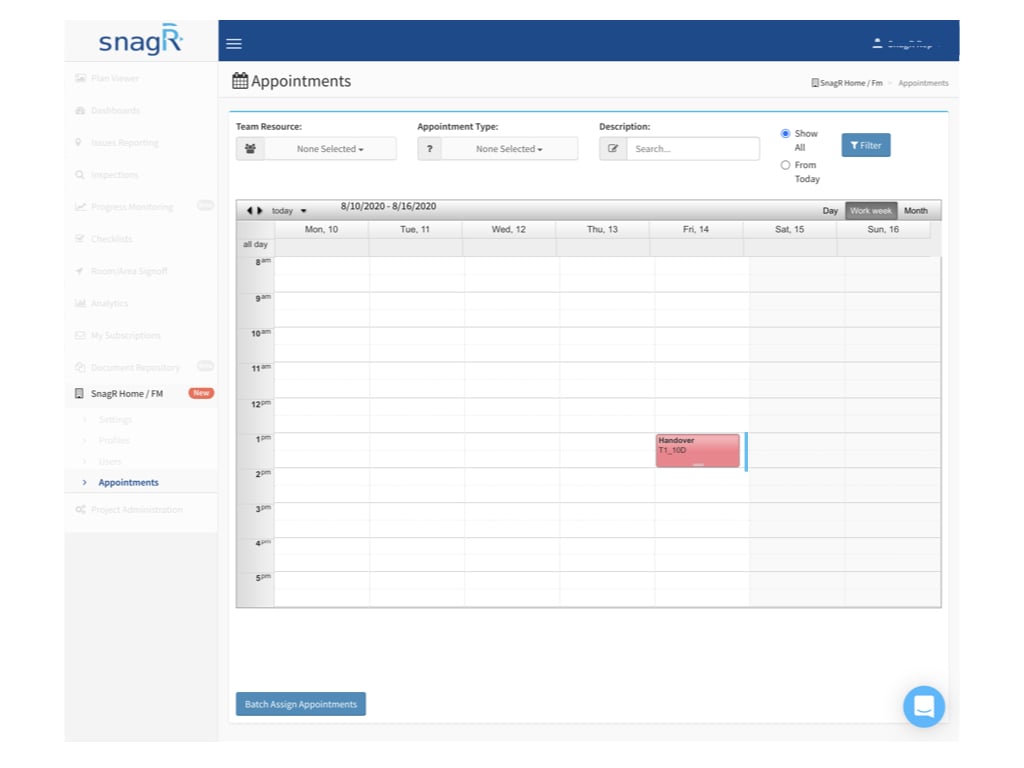
Only the appointmentadministrators can assign appointments in batches. WebsiteLogin to the website, access the Appointment page in SnagR Home/FM.
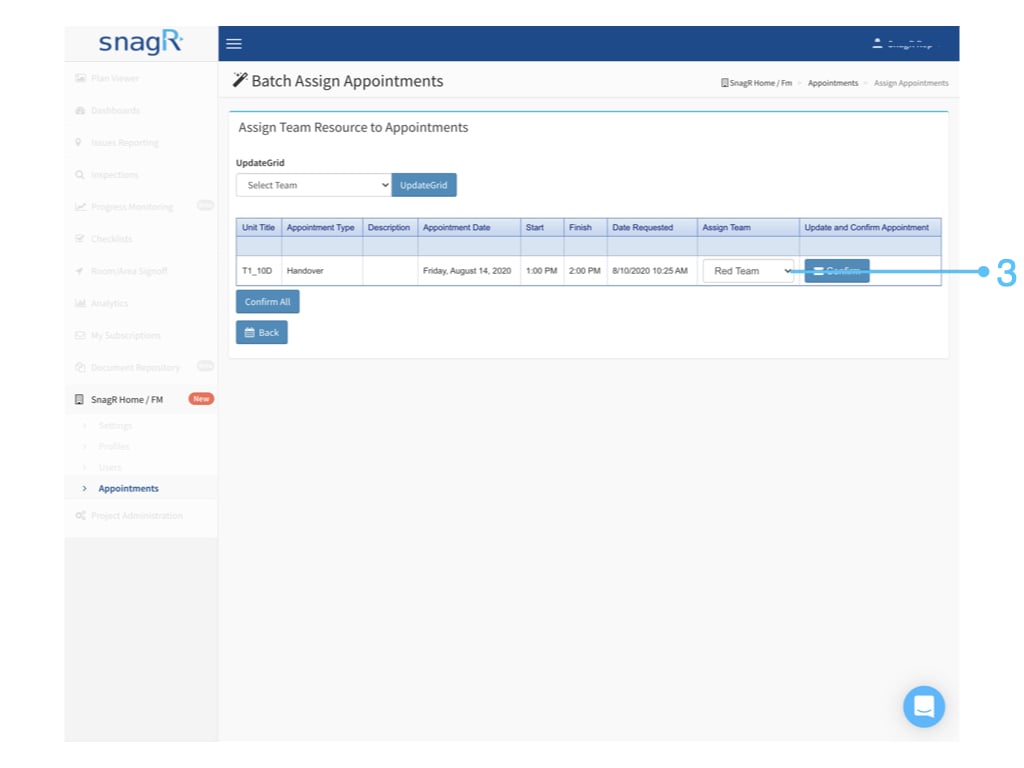
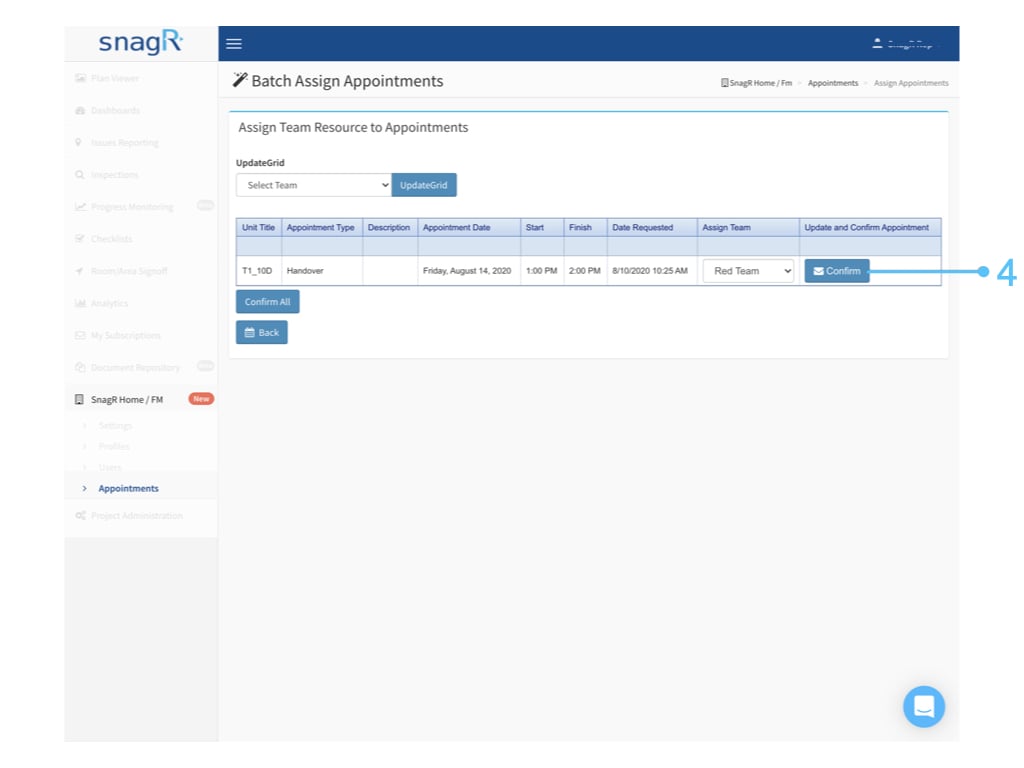
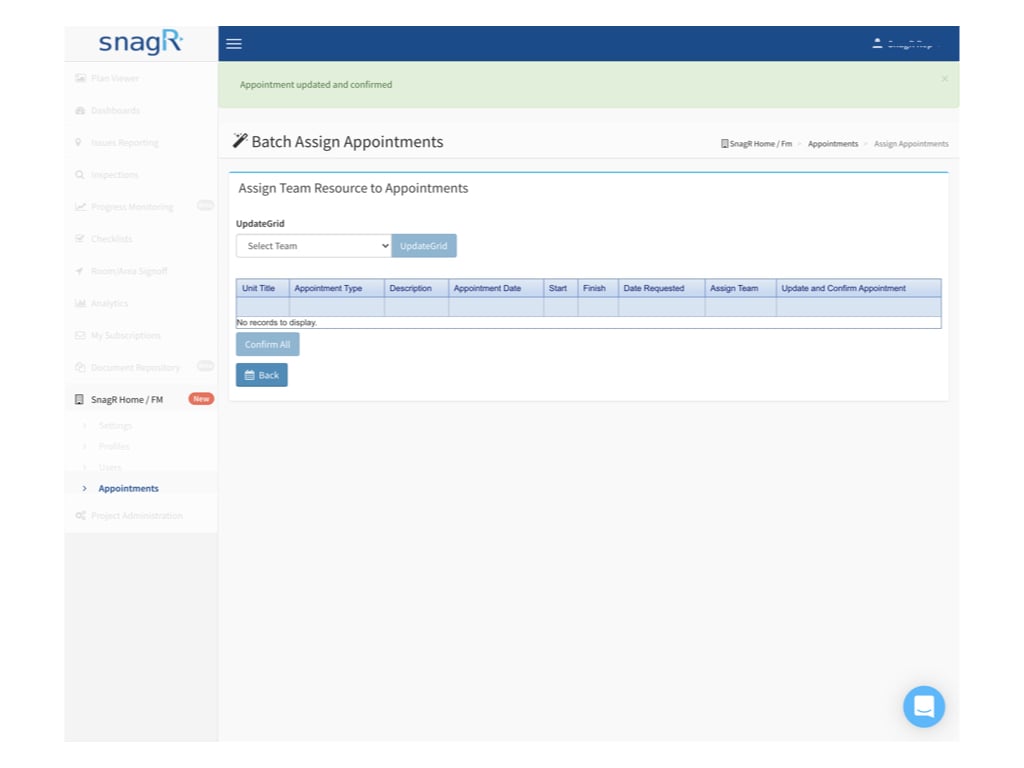
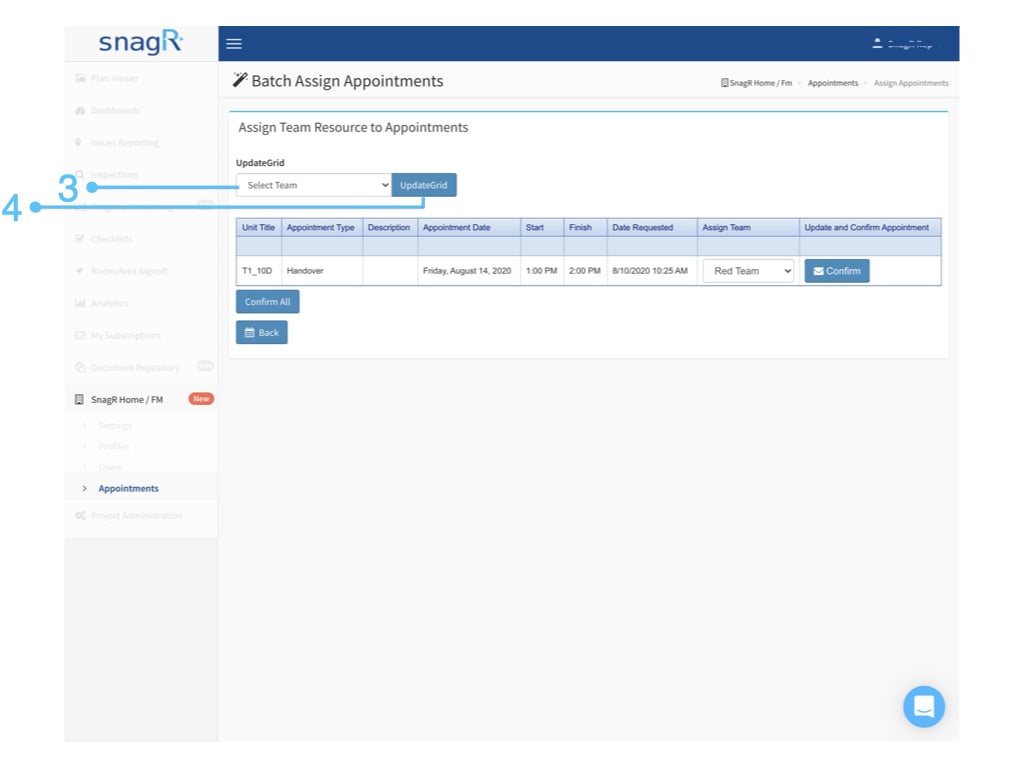
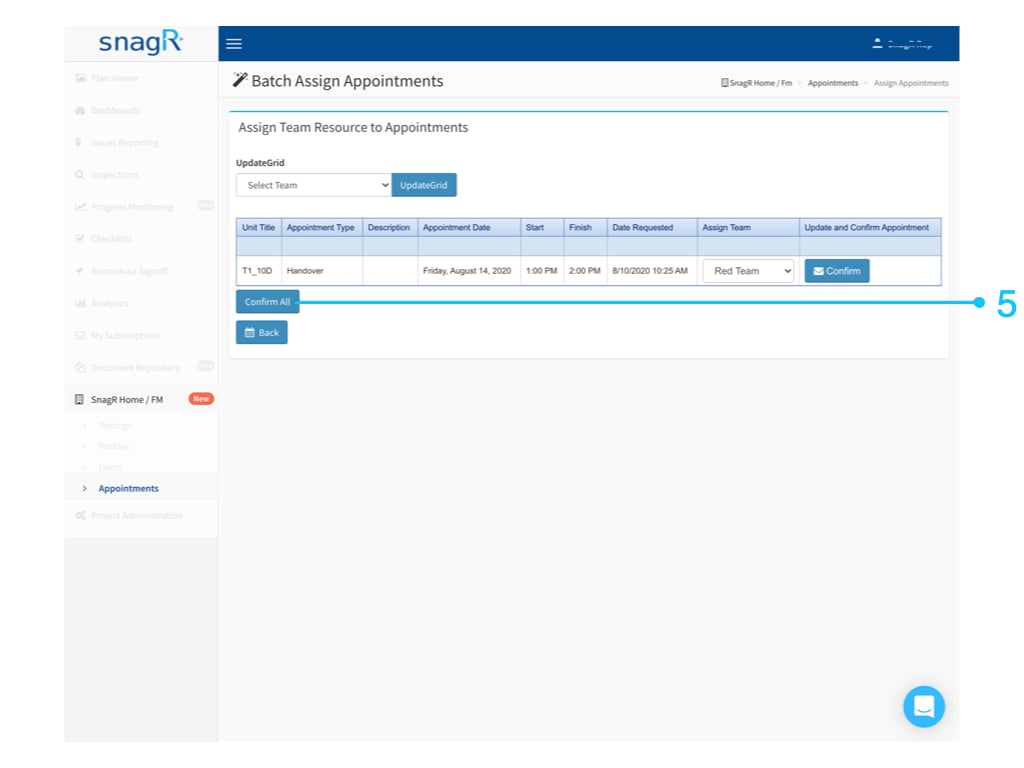
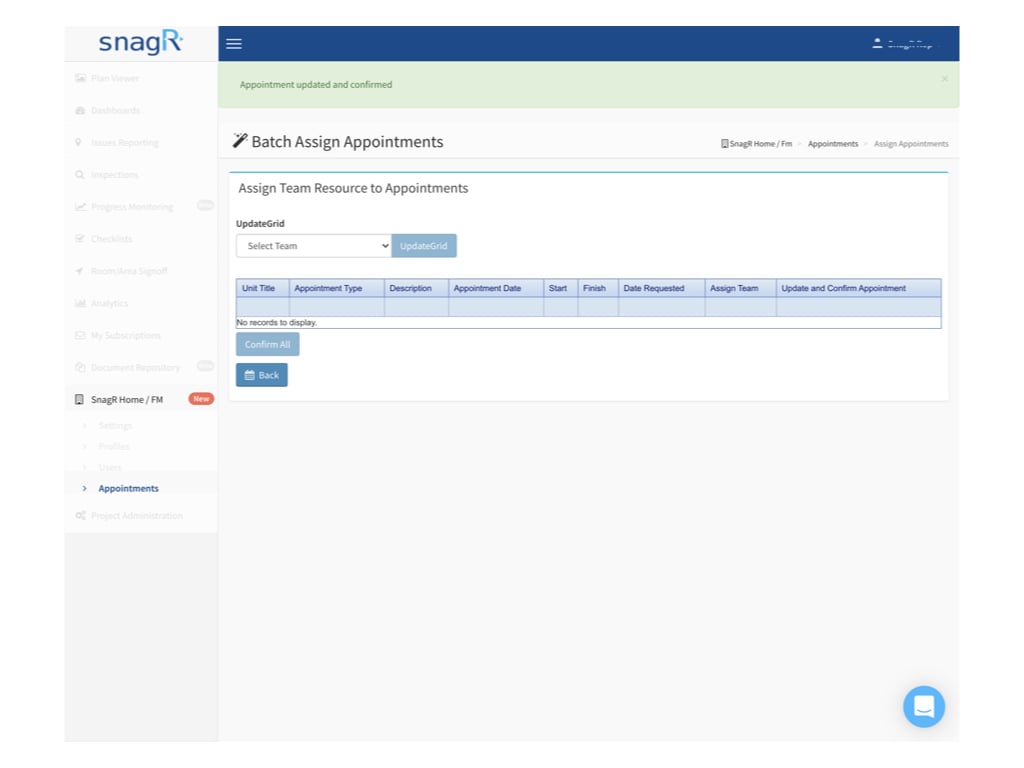
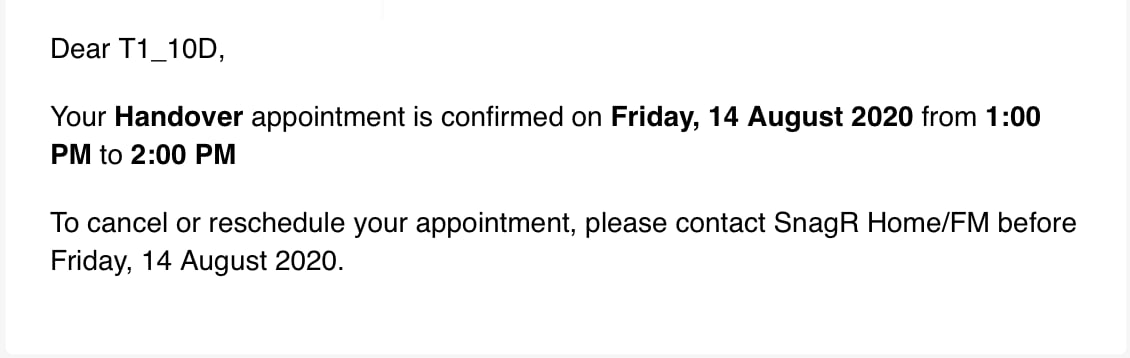
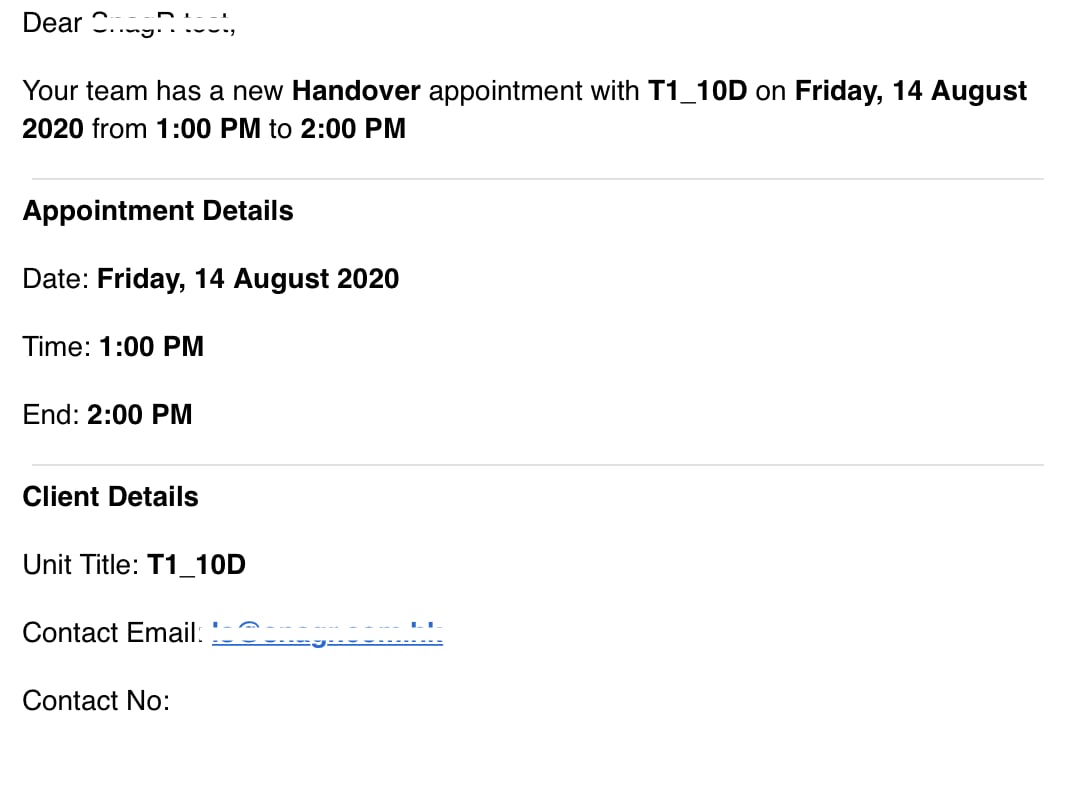
Click the Batch Assign Appointments button at the bottom.To assign one by one to the different team, you can:Select the related team for each appointment, click Confirm to save and send out the confirmation email.To assign in batch to the same team, you can:Select the related team at the UpdateGrid and click the UpdateGrid button to batch updated the assign team for all unassigned appointment, click ConfirmAll to save and send out the confirmation email.Done.The owner will receive an email for the confirmation.The team member(s) will receive an email of New Appointment as a notification.
Assistant
Responses are generated using AI and may contain mistakes.


 Website
Login to the website, access the Appointment page in SnagR Home/FM.
Website
Login to the website, access the Appointment page in SnagR Home/FM.